A buyer paid and is waiting. You sent the parcel and moved the order to Shipped, but the buyer never heard about it: until now the message went out only from the Ship order dialog, and only with a tracking link. Now your store bot messages the buyer on every status change, and you decide which statuses it writes about and what it says.
What's new#
- Shipped messages the buyer right away. It's on for every store, nothing to set up. A tracking link is optional. When there is one, the message gets a Track order button.
- Messages for the other statuses. Processing, Delivered and Cancelled are silent by default. Turn on the ones you want.
- Three modes per status: Right away, Ask or Off.
- Your own text with placeholders: buyer name, order number, items, total, tracking link and shop name.
- A button under the message: Track order, or Open the shop, which opens your storefront right inside Telegram.
- Everywhere a status changes: in the orders list, on the order page, in bulk, through Nano and through the API.
How to set it up#
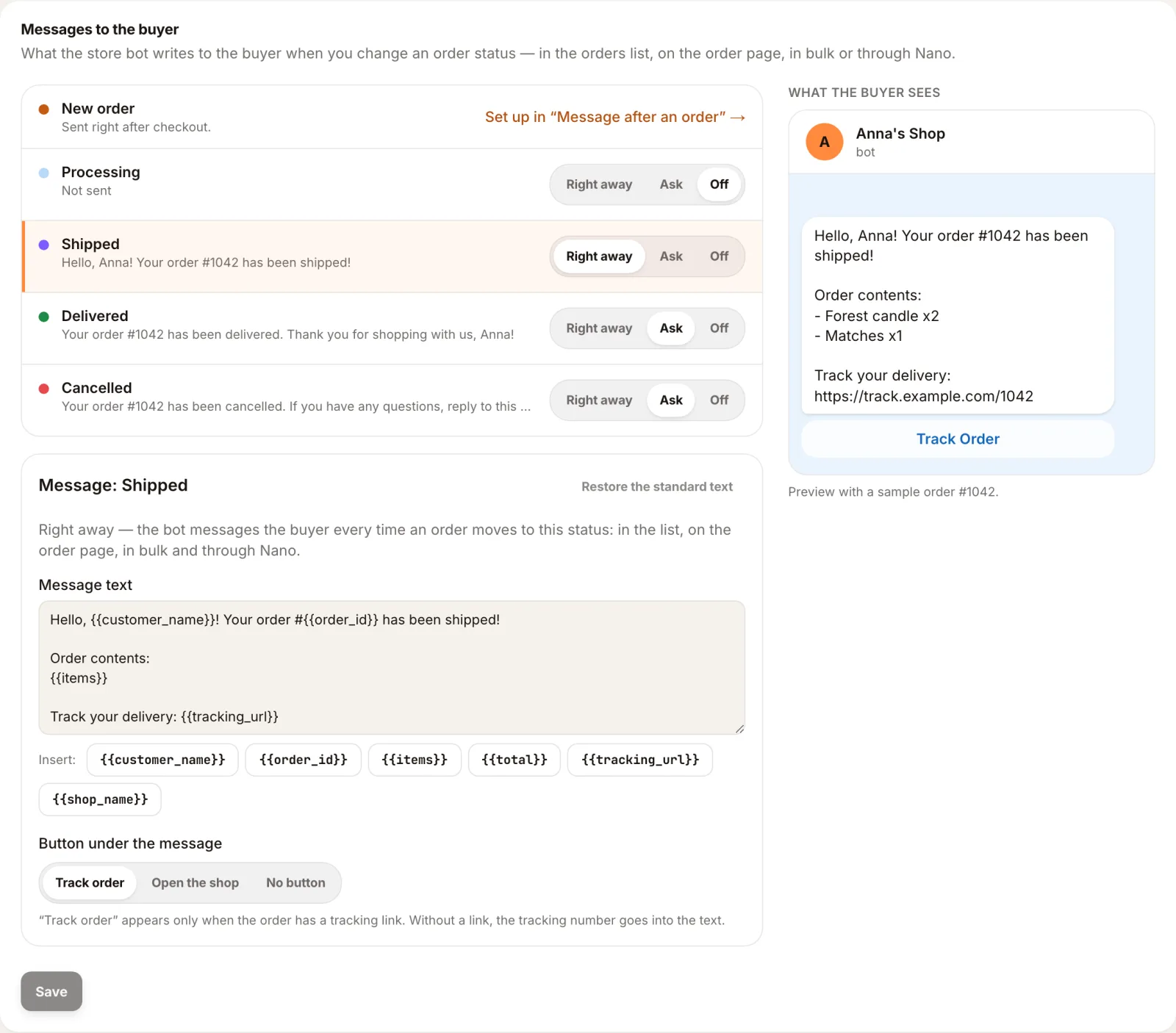
- In the dashboard, open Telegram bot → Notifications → Messages to the buyer, or go to dashboard.tiny-shops.com/telegram-bot?tab=notifications.
- Pick a mode for each status:
- Right away: the bot messages the buyer every time an order moves to this status.
- Ask: when you change the status, the dashboard shows the message and asks whether to send it.
- Off: the status changes silently.
- Click a status to edit its text. Placeholders go in with the buttons under the field, and the preview on the right shows what the buyer will see.
- Choose the button under the message and click Save.
Restore the standard text undoes your edits at any time. The standard texts come in all 35 storefront languages: the bot writes in your store's language.
Right away#
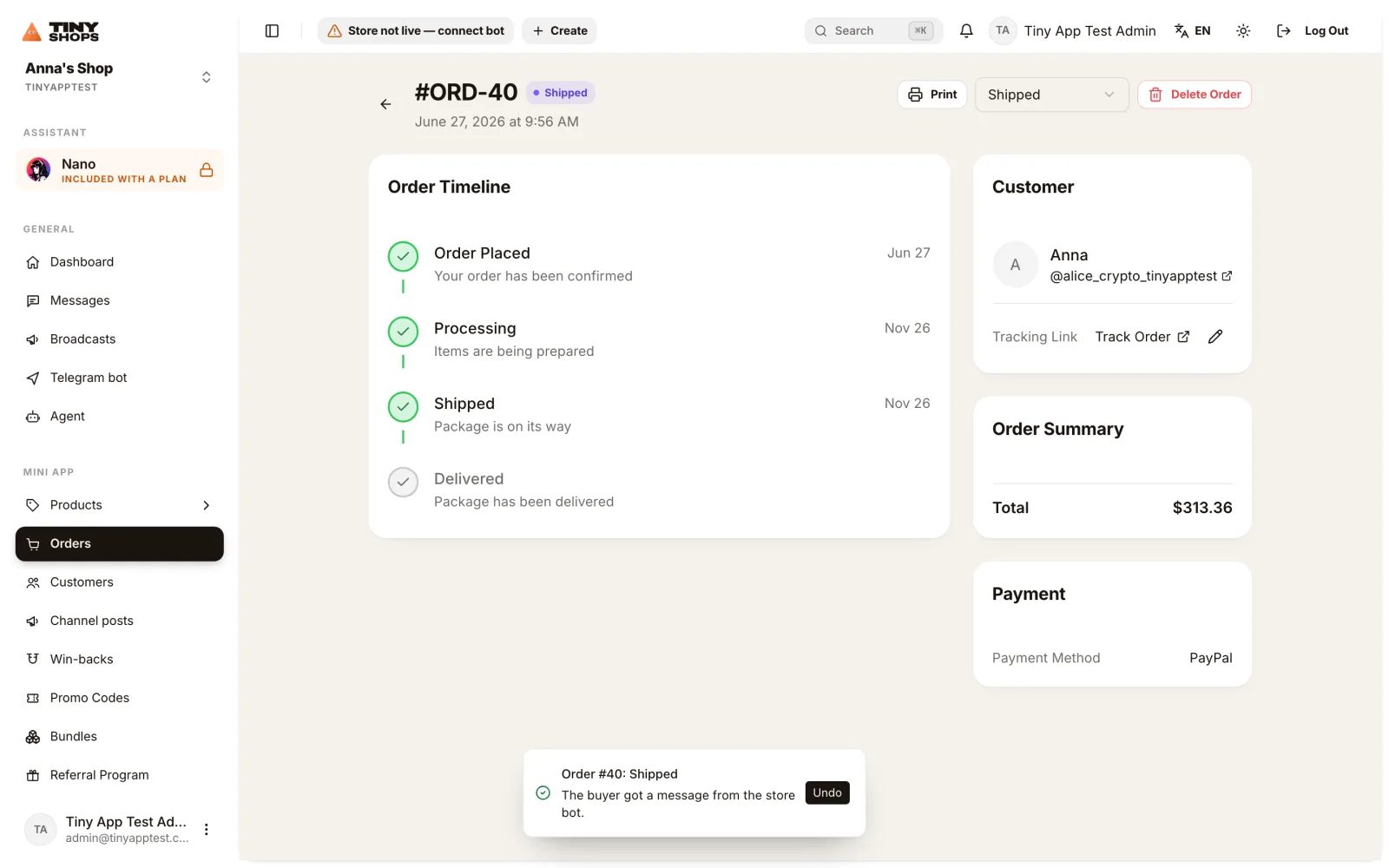
Change the status as usual, and a notice confirms the buyer got the message. Picked the wrong status? Click Undo: the status goes back and the buyer doesn't get a second message.
Ask#
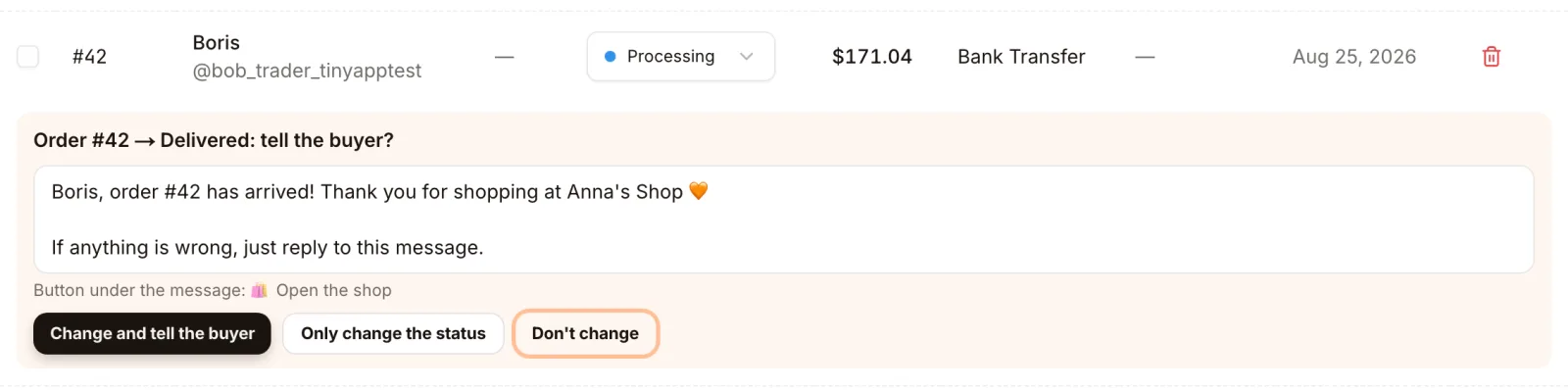
The message appears right under the order, already filled in with the buyer's name and order number. Then choose Change and tell the buyer, Only change the status or Don't change. Handy for statuses you don't always announce, like Delivered for regulars you already talk to.
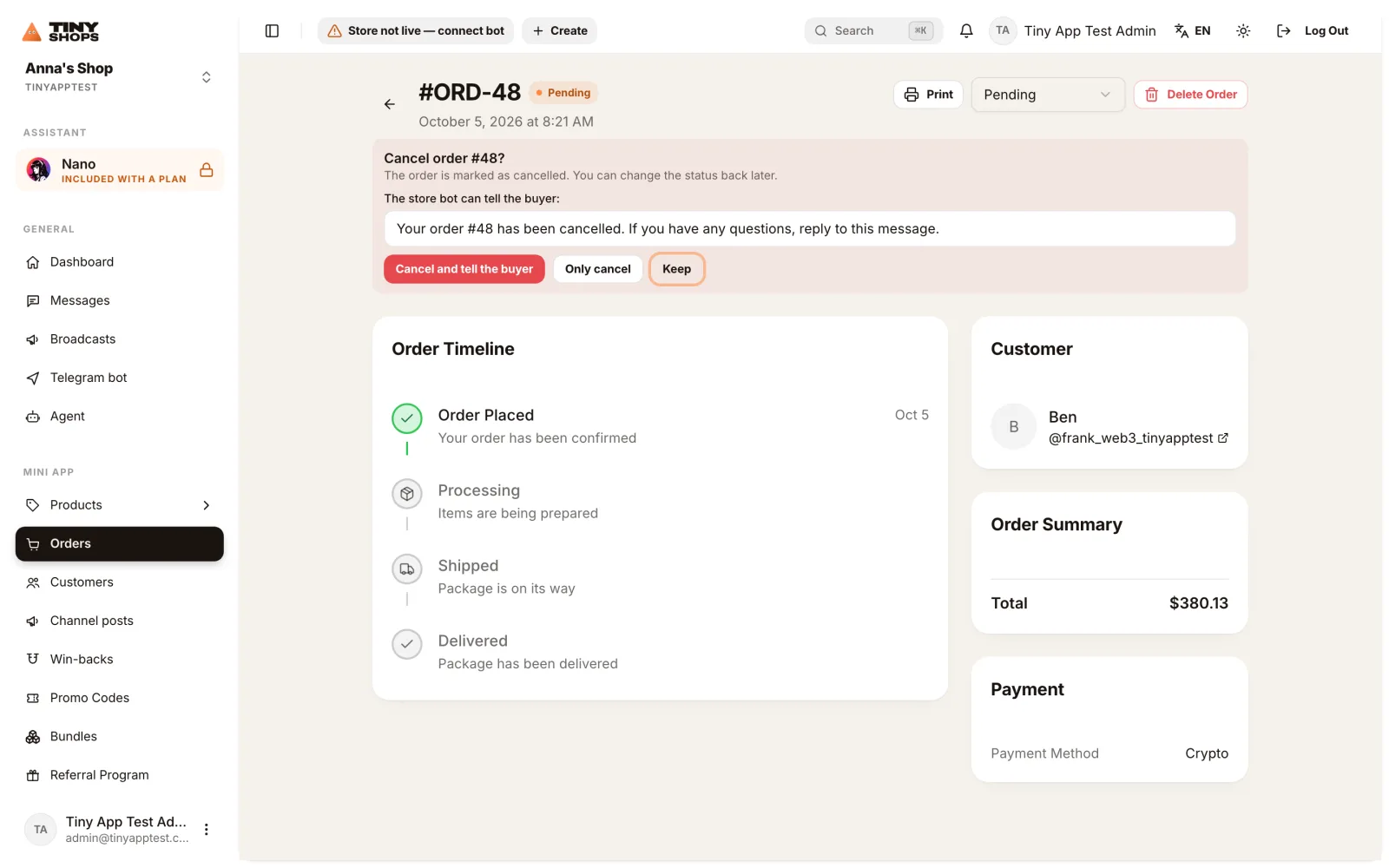
Cancelling works the same way: cancel with a message to the buyer or without one.
When you select several orders and change their status together, the dashboard asks once for all of them. If a message doesn't get through to someone, a warning tells you.
When no message goes out#
- The order is already in that status. Picking the same status again sends nothing.
- The buyer blocked the bot. The dashboard shows the message wasn't delivered.
- Your store sells in chat. There you talk to buyers from your own account, so the bot doesn't write on its own.
- Pending. New orders already get the "Message after an order", set up in the same bot section.
For agents and the API#
The same settings are on MCP and POST /v1/{tool}:
get_order_notificationsandupdate_order_notifications: abuyerMessagesfield with the mode, button and text for each status.set_order_status: a newnotifyparameter; the response hasnotifiedand a reason when the message didn't go out.ship_order: withoutnotify, it follows the store's mode.
Heads-up for integrations. ship_order without notify used to send the buyer nothing. Now, when Shipped is set to Right away, the buyer gets a message. If your integration sends its own notifications, pass notify: false.
Or ask Nano in the dashboard: "Turn on the delivered message and add an Open the shop button."
Create or open your store at tiny-shops.com →
