A private Telegram channel with join requests is where your most interested buyers gather: early drops, members-only prices, news before everyone else. This guide shows how to make a channel private, how to require approval to join, how to approve requests by hand, and how to let your store bot approve every request automatically while turning each new member into a subscriber with a first order.
Private vs public channel#
A public channel has a username: anyone can find it in Telegram search and join. A private channel has no username and can't be found in search. People join only through an invite link, or when the owner adds them.
On top of that, an invite link can require approval. Then a tap on the link doesn't let the person in: it sends a join request, and an admin (or a bot) decides.
How to make a Telegram channel private#
- Open your channel and tap its name to open the channel info.
- Tap Edit (the pencil on mobile, Manage channel on desktop).
- Open Channel type and choose Private.
- Save. Telegram creates a private invite link that you can copy or replace.
Turning a public channel private frees its username, and old links with that username stop working. Share the new invite link wherever you used the old one.
How to require approval to join#
- In the channel settings, open Invite links.
- Create a new link, or edit the main one.
- Turn on Request admin approval and save.
- Share this link: in your store bot's welcome, in your bio, in broadcasts.
From now on, each tap on the link creates a join request instead of an instant join.
How to approve join requests by hand#
Requests collect in the channel info under Join requests. For each one you can add the person or dismiss the request. That works for a dozen requests a week. With hundreds it becomes a chore, and there is a bigger problem: the person who joins has never written to your store bot, so the bot can't message them. Your drops never reach them.
How a bot approves join requests#
Telegram lets a bot that is an admin of the channel handle join requests. Since Bot API 10.1 the bot can do more than press "approve": it can answer the request with its own screen, a Mini App, before the person gets in. If the bot doesn't handle a request, it stays in the queue for your admins as usual.
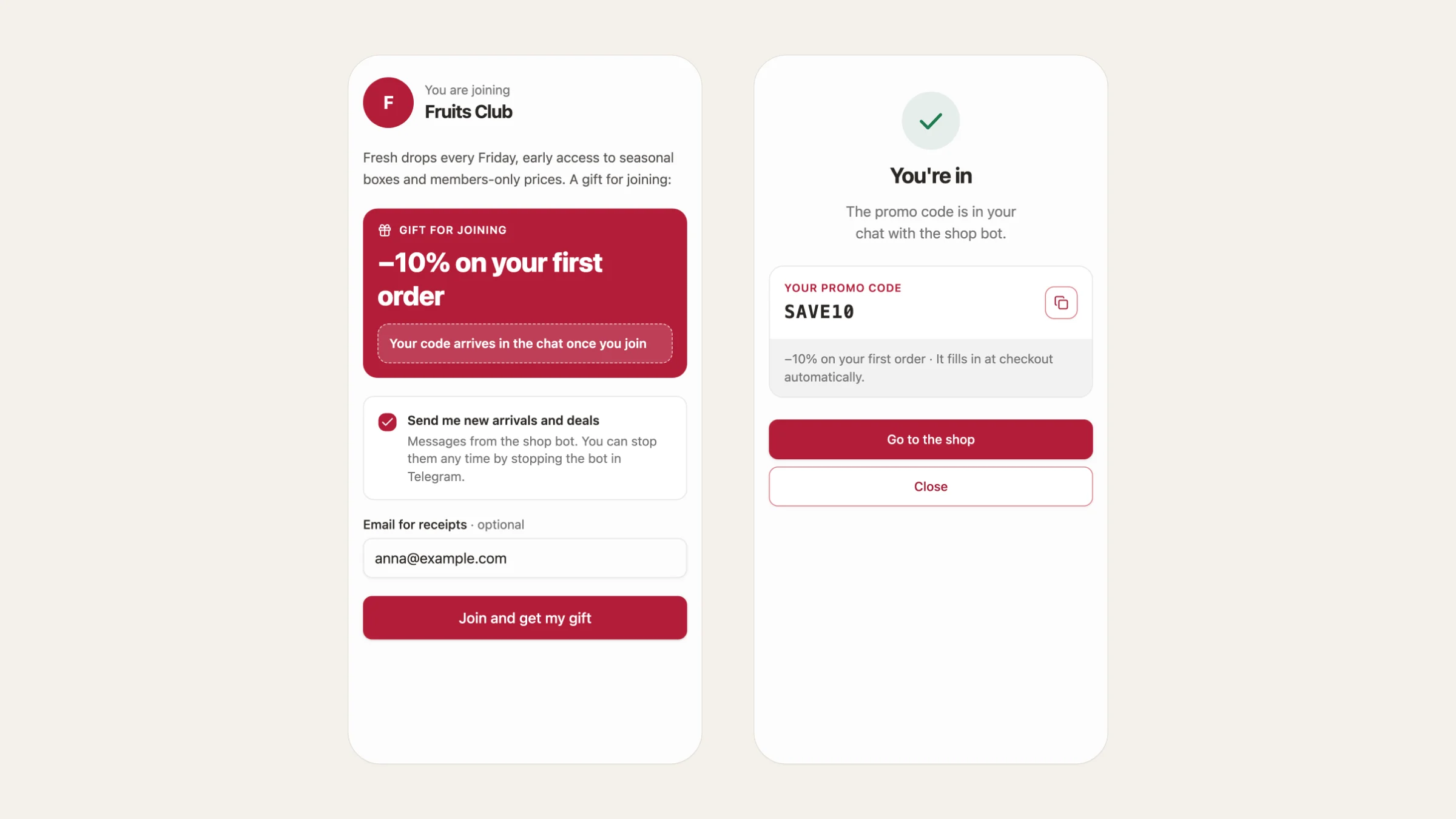
Tiny Shops uses this for the join screen. The person taps Request to join in your channel, and Telegram opens your store's screen: your text, the gift for joining, a tick to receive your messages and, if you want, an email field. They tap Join, and they are in the channel. The bot sends the promo code to their chat.
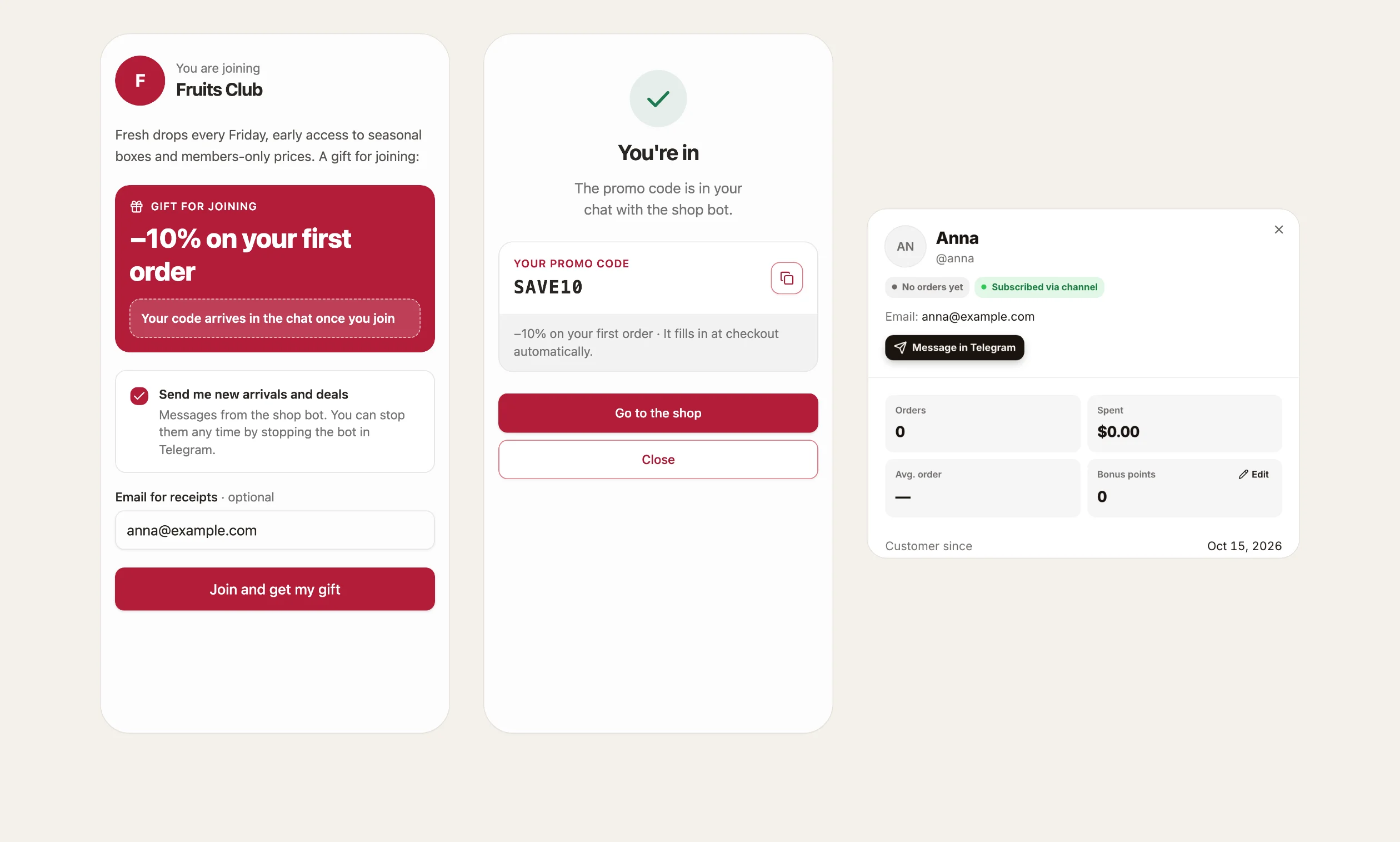
The code is never shown before the join, so nobody can take the gift without joining. At checkout it fills in by itself: the shopper doesn't have to copy or type anything.
How to set up the join screen in Tiny Shops#
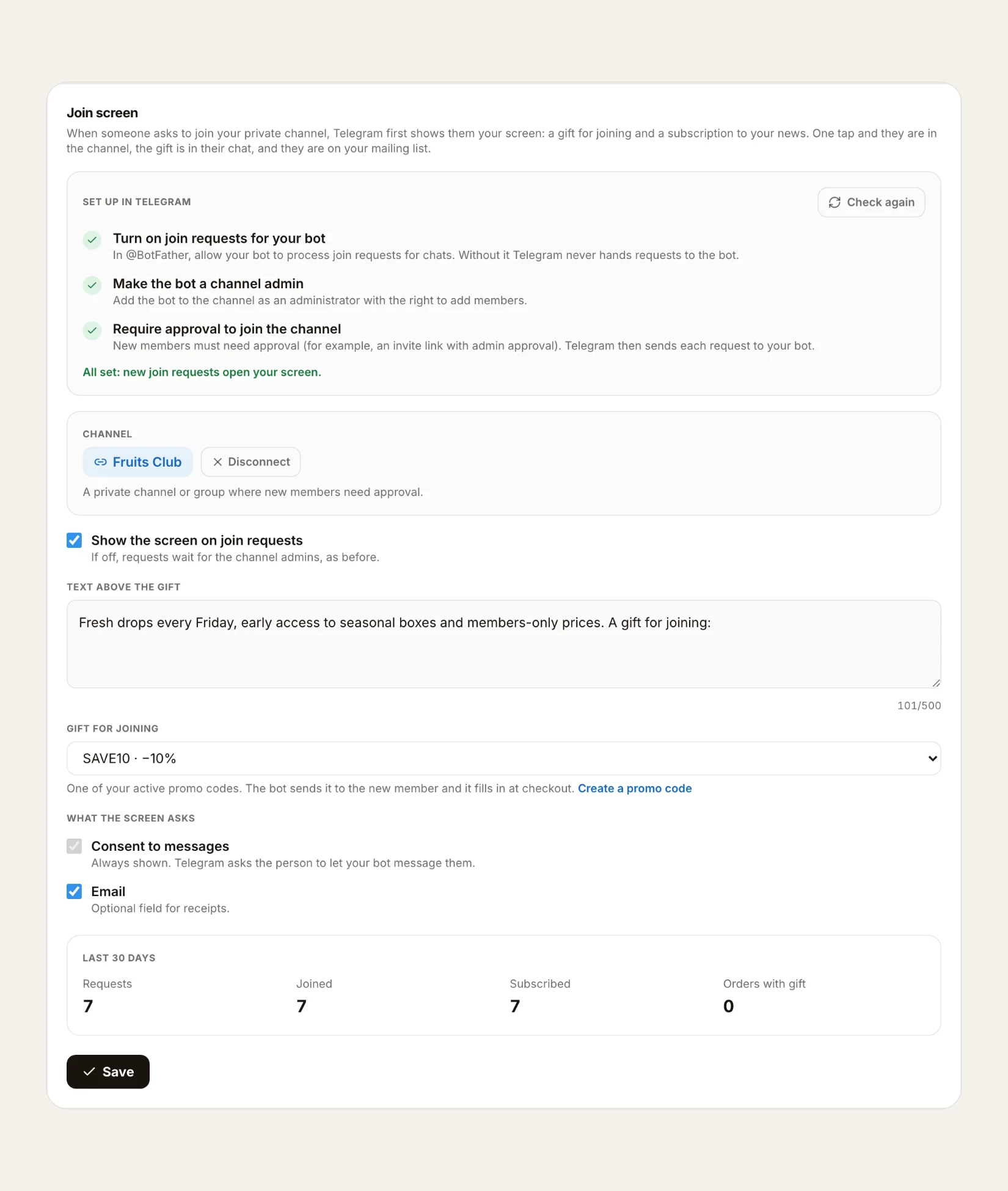
- Open Telegram bot → Channel → Join screen in the dashboard.
- Connect your private channel in the Channel field.
- Turn on Show the screen on join requests.
- Write the Text above the gift. One line about what members get: "New arrivals, early drops and private sales."
- Pick a Gift for joining: any of your active promo codes, or none.
- Decide what the screen asks. Consent to messages is always there. Email is optional, for receipts.
- Finish the three steps in Telegram. The Set up in Telegram card checks each one; press Check again after each step:
- In @BotFather, allow your bot to process join requests.
- Add the bot to the channel as an administrator with the Add members right.
- Make joining the channel require approval (see the steps above), so Telegram sends each request to your bot.
When all three are green, the card says All set and new requests open your screen.
Consent that actually works#
The tick for your messages is never pre-ticked. When the person ticks it, Telegram asks them directly to let your bot message them. That is what makes the subscription real: from that moment your broadcasts and drops reach them, even though they never wrote to your bot.
In Customers they get a Subscribed via channel badge, with the email if they left one. The same fields are available to your agents through the MCP tools list_customers and get_customer.
What to measure#
The card shows the last 30 days: Requests, Joined, Subscribed and Orders with gift. If many people request but few join, shorten the text. If many join but few subscribe, say in the text what your messages bring them: early access, restocks, private prices.
If you turn the screen off, requests wait for your channel admins exactly as before.
For stores that sell in the chat#
If you sell digital content in the chat for Stars, the screen works the same way, without the promo code: codes only apply at a storefront checkout. The main thing stays: every person who joins your channel and agrees becomes reachable for your drops, and the button after joining opens your chat.
Through your agents#
Agents and Nano can set it up too: get_join_screen returns the settings, the Telegram checklist and the numbers, and update_join_screen changes them.
FAQ#
Can people find a private Telegram channel in search? No. A private channel has no username, so it doesn't show up in search. People join through an invite link.
Can a bot message someone who asked to join? Yes. An admin bot can contact a person who sent a join request, even if they never wrote to the bot. Tiny Shops goes further: with the person's consent, the bot keeps messaging them after they join.
What happens to requests the screen doesn't handle? If the screen is off, or the store doesn't handle a request, it waits in the channel's join request queue for your admins, as before.
Do I need a public channel too? No. Many stores keep one private channel with approval and share its invite link in the bot's welcome and in broadcasts.
Open your store and turn on the join screen for your private Telegram channel at tiny-shops.com →
