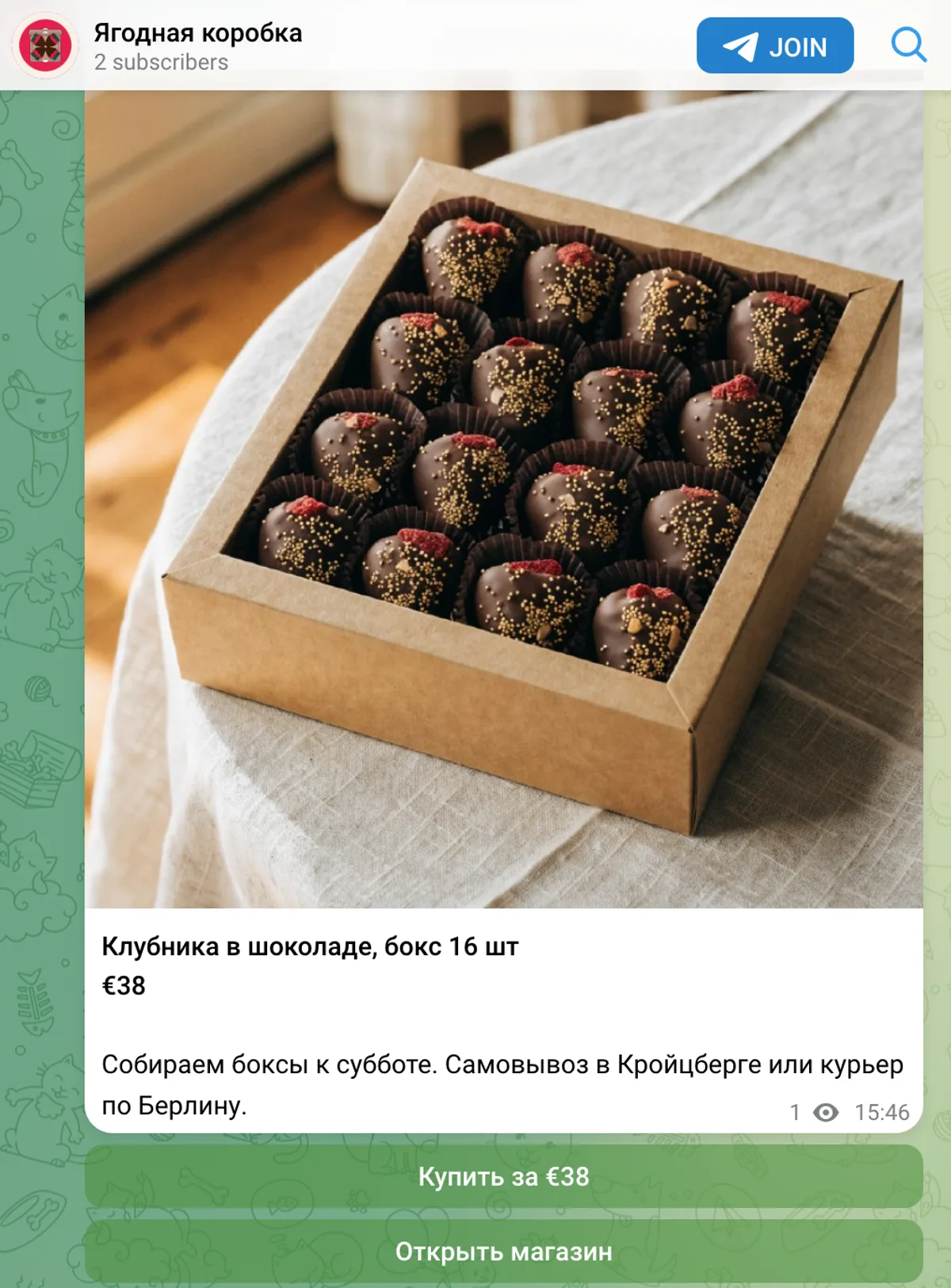
For many Telegram shops the channel is the main shop window. But a channel post still ended with "DM me to order": the buyer went to a private chat, and you went to "send me your card number" and "has it arrived?". Now a post can lead straight into your store.
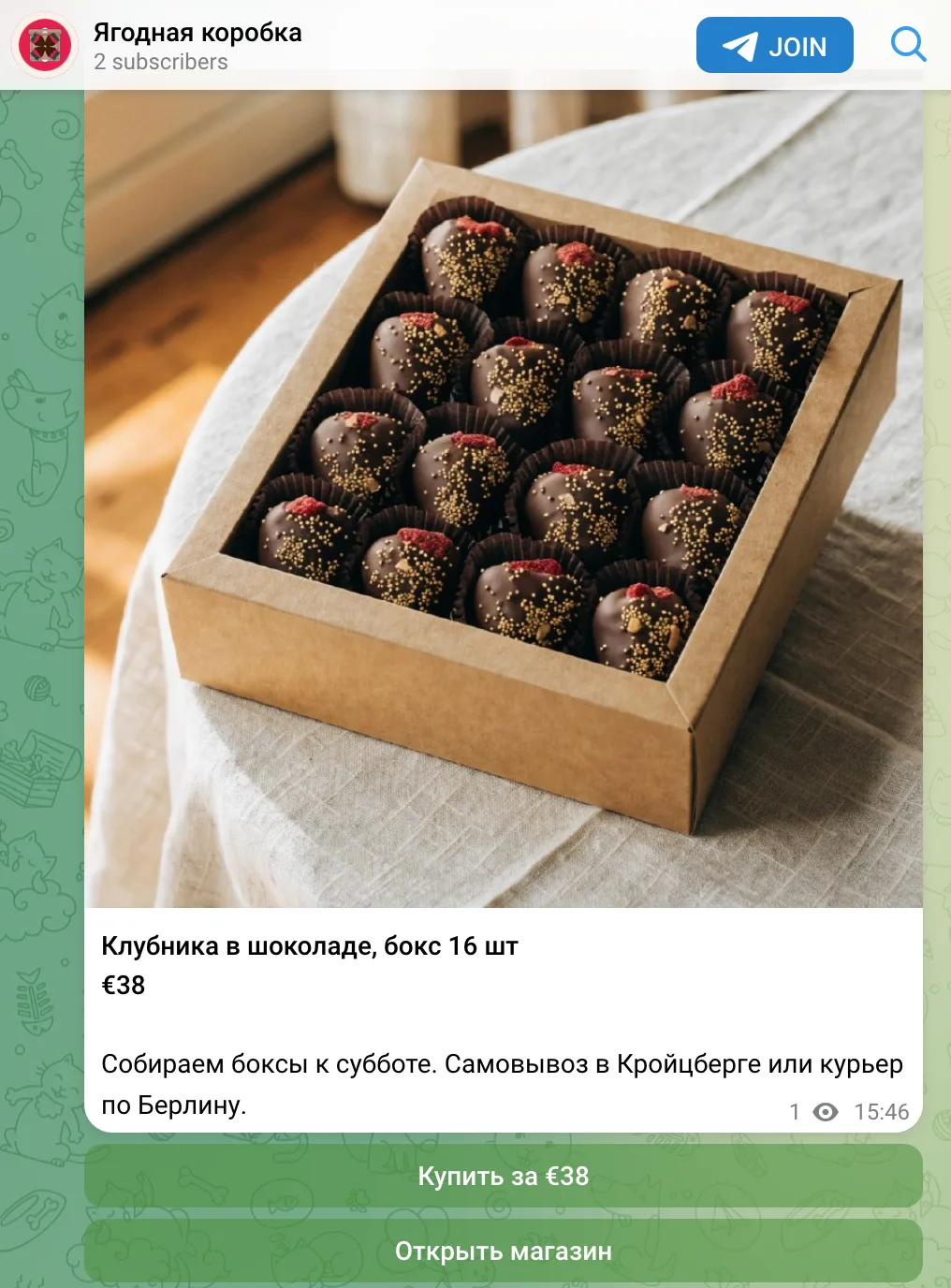
What's new#
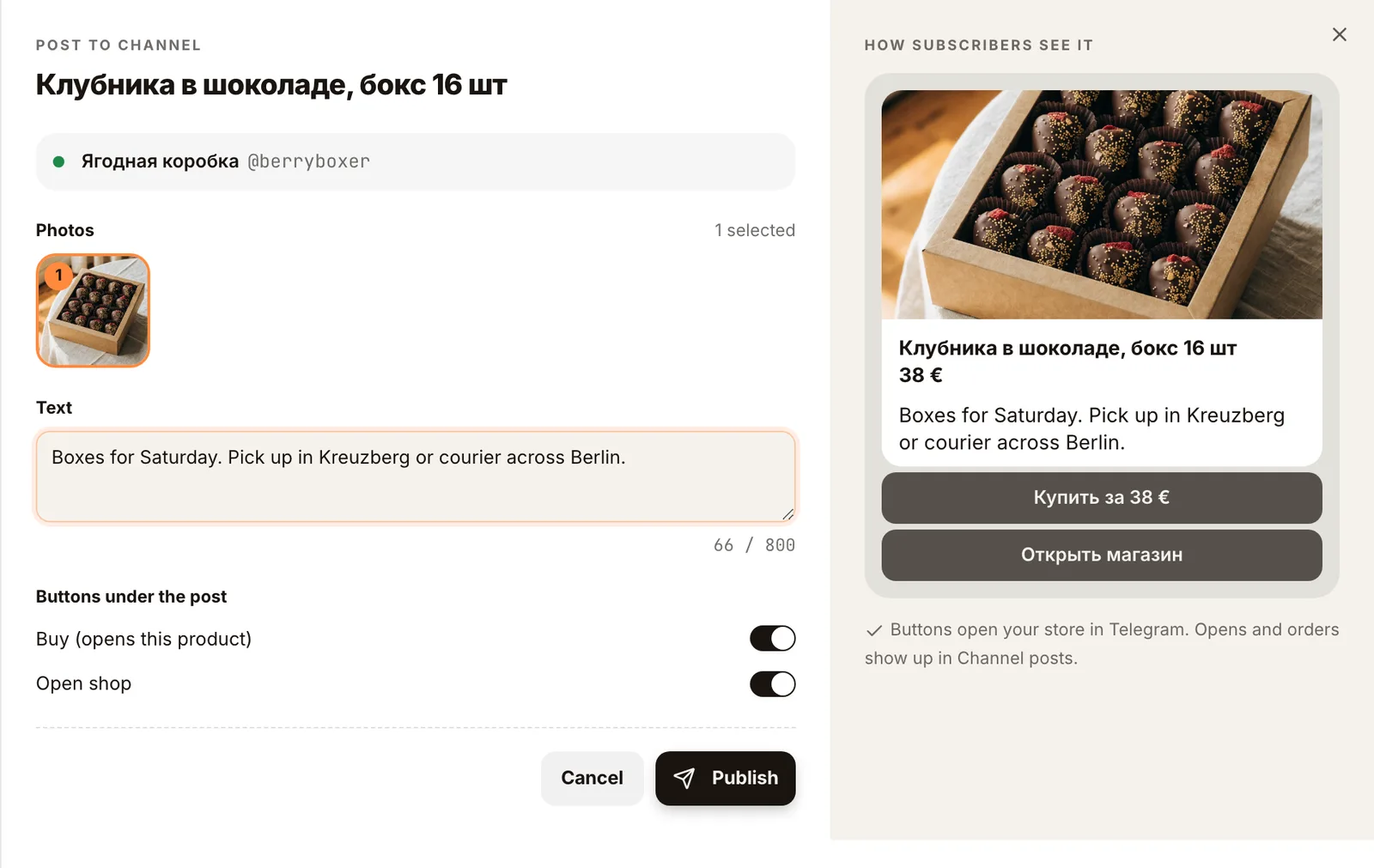
- A "Post to channel" button on every product. Photo, title and price are filled in; add a few words.
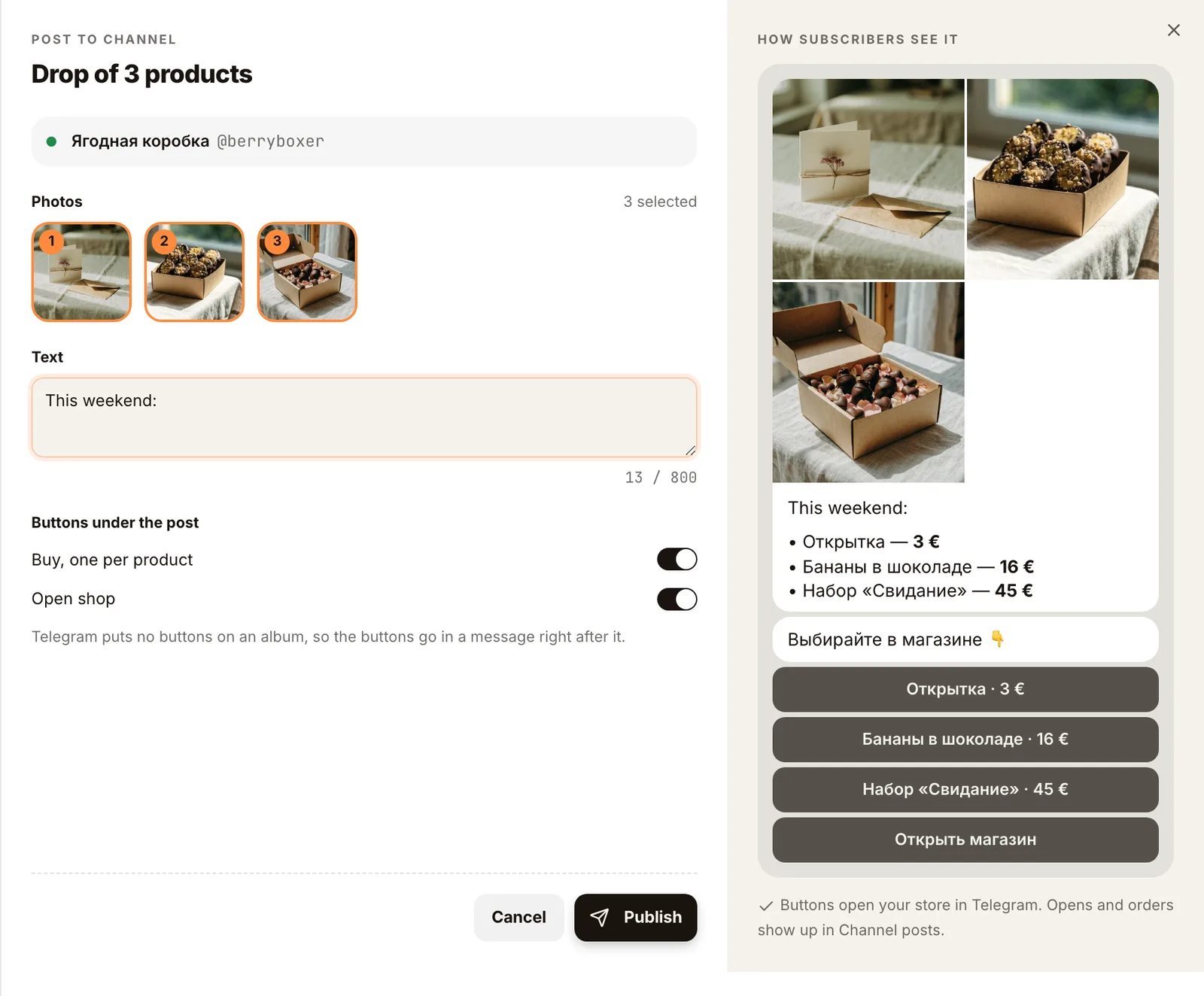
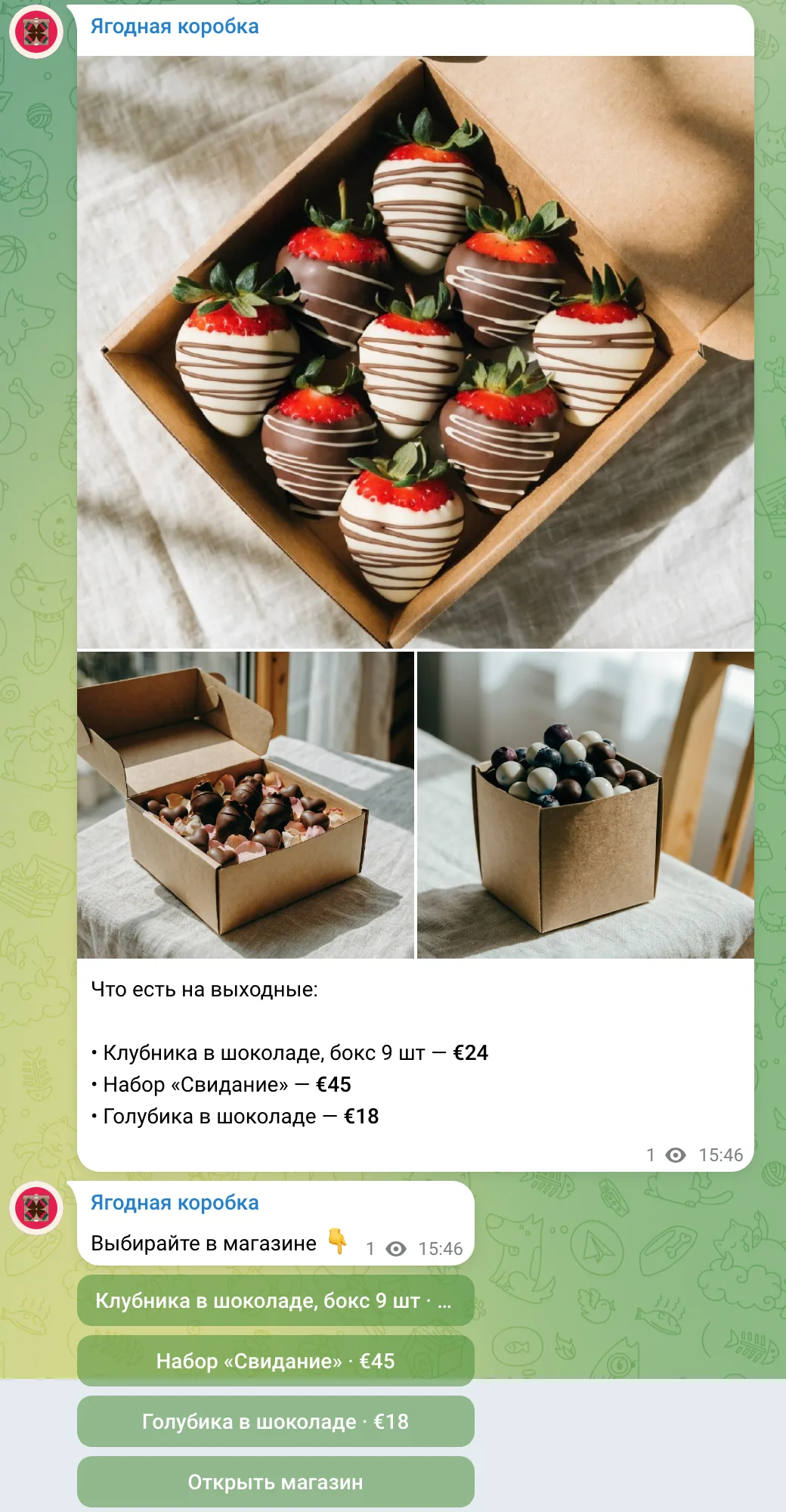
- Drops of several products. Select up to 10 products in the list and press "Post to channel": subscribers get an album with a price list.
- Buttons under the post. "Buy for €38" opens that product in your store's Mini App, "Open shop" opens the home page. The buyer pays without leaving Telegram.
- Live preview. While you write, the right side shows how the post will look in the channel.
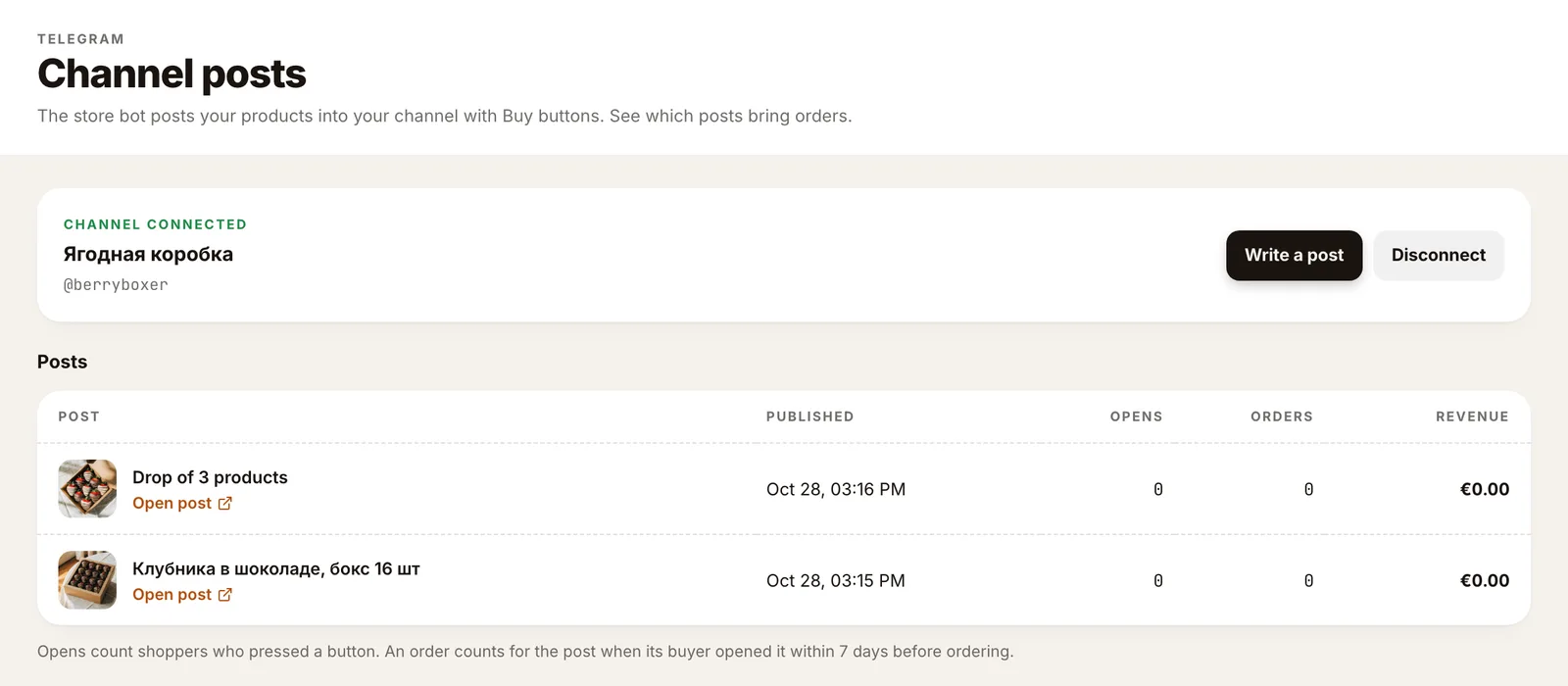
- Stats for every post. Channel posts shows how many people pressed a button, and how many orders and how much revenue followed.
- The same for agents and Nano. The MCP tools
update_store_channel,publish_channel_postandlist_channel_postsdo what the dashboard does.
Connect your channel#
- Open Channel posts in the dashboard menu.
- Add your store bot to the channel as an administrator. It needs one right: "Post messages".
- Paste the channel's @username or link and press Check and connect. Tiny Shops asks Telegram whether the bot can post.
Private channels work too: use a t.me/c/… link or the channel id.
Publish a post#
Open a product and press Post to channel. Pick the photos, add text, keep or switch off the buttons and press Publish. The post goes out as the channel.
For a drop, select several products in the list. Telegram puts no buttons on an album, so right after the album the bot sends a short message with a button for each product.
How orders are counted#
The buttons open the Mini App with a tag for the post. When a buyer opens the store from a button, that's an open. An order counts for the post when the buyer pays within 7 days of their last open from the channel. Broadcasts work the same way: if someone pressed buttons in two posts, the later one gets the order.
What's next#
Scheduled posts are next: write a post tonight and have it go out on Saturday at 10:00.
