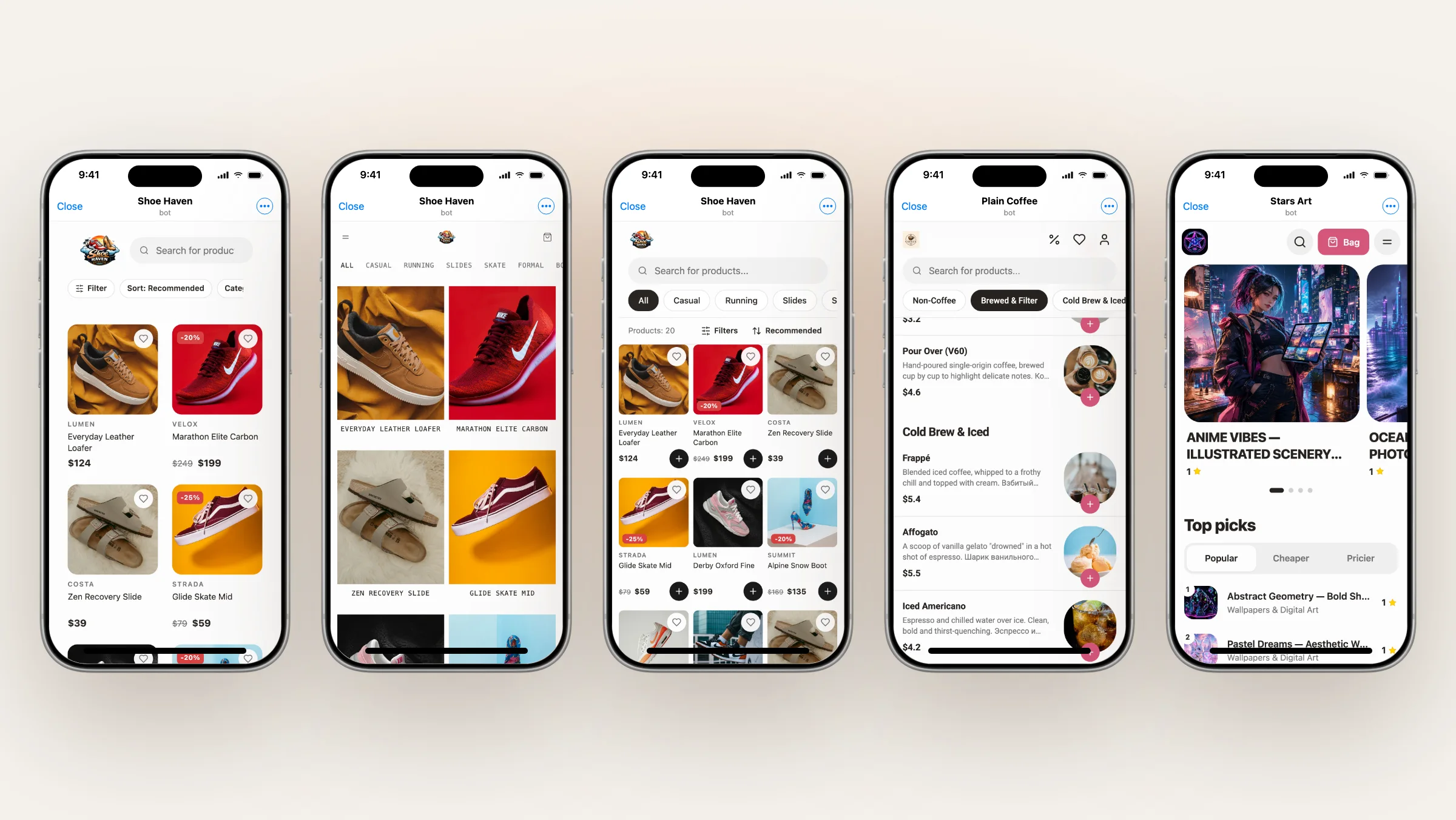
A coffee shop needs a list like a delivery app, a sneaker store needs big photos, and an art shop wants to look like a marketplace. Your Mini App now has five templates, and you switch between them with one button. Products, prices, orders and payments stay the same. What changes is how the screens of your shop are built.
What's new#
- Five templates: Classic, Zero, Catalog, Menu and Market.
- A preview of each template in the dashboard before you switch.
- One Apply button: buyers see the new template right away.
- Your colors and fonts work with every template.
- The same for agents and Nano: the MCP tool
update_themeswitches the template.
Classic#
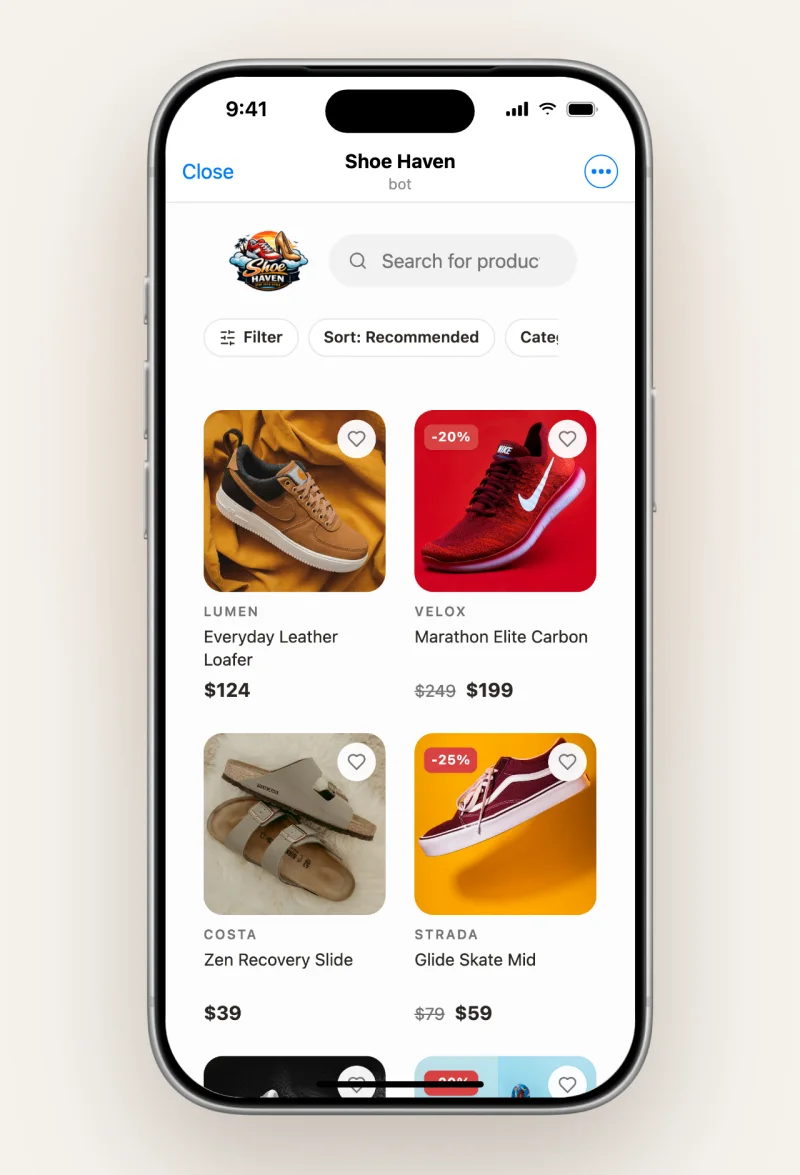
Cards with a photo and a price, search, filters and a bottom menu. It fits almost any catalog, so it's the default. Home strips work on the Classic home page.
Zero#
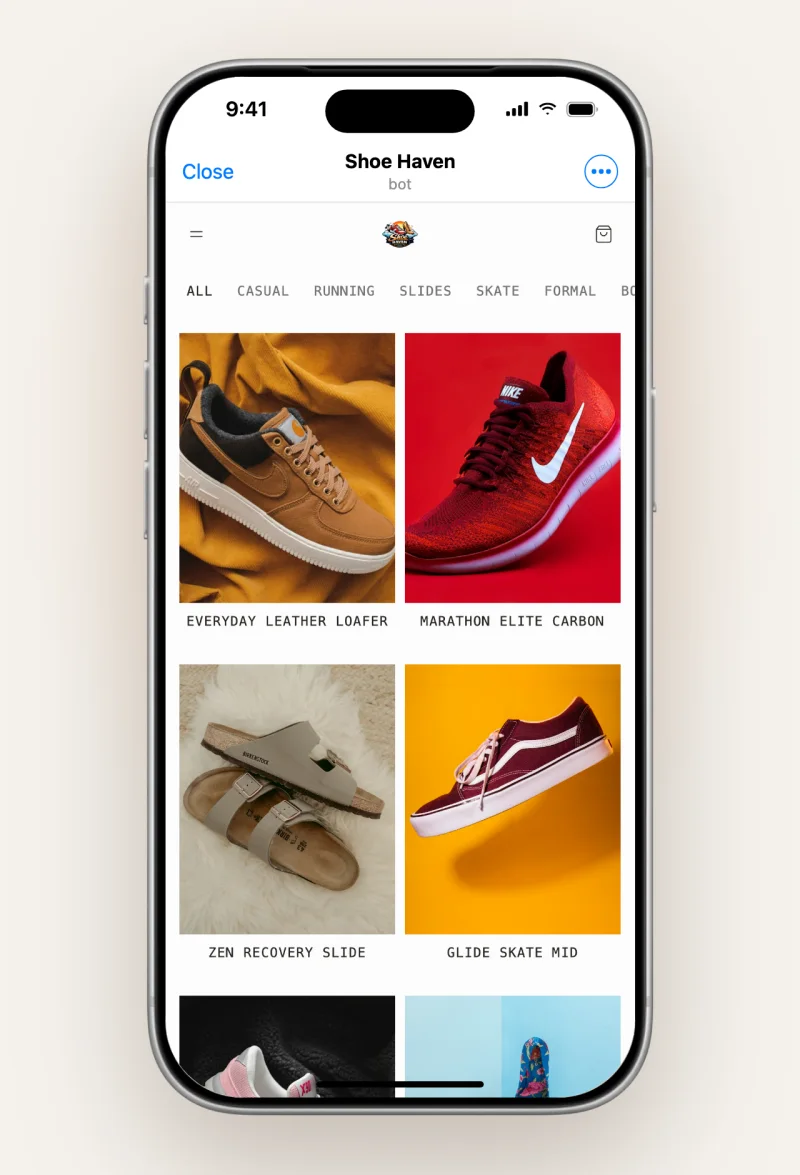
Only the product on a clean field: large photos, one small caption in a monospace font, no frames or buttons on top. The menu and the bag sit in the header, with no bottom menu. Zero has its own product page and bag in the same style.
Zero looks best with product photos on a white or plain background. It suits clothing, shoes, jewelry and anything that sells by its photo.
Catalog#
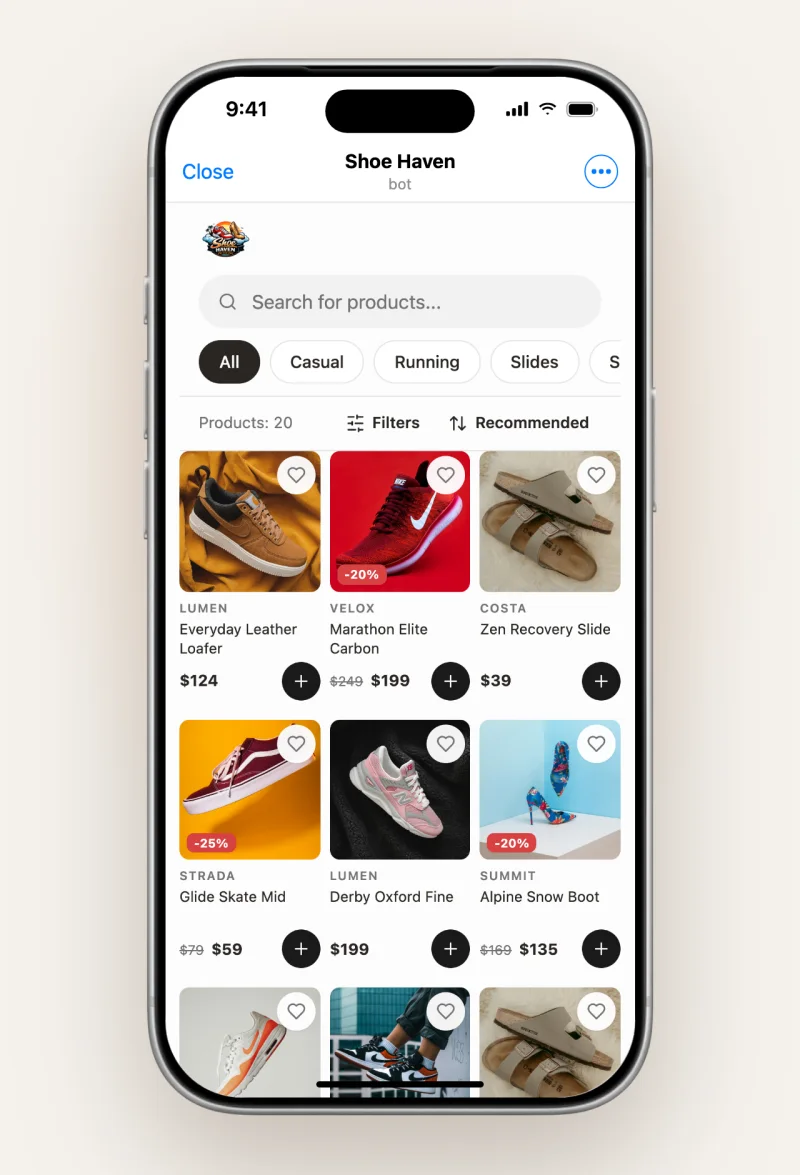
A dense grid: three products per row, category chips on top, a product count, filters and sorting. Cards carry sale and "few left" badges, and "+" adds a product to the cart straight from the grid. It suits large catalogs where buyers want to see a lot at once. Home strips work here too.
Menu#
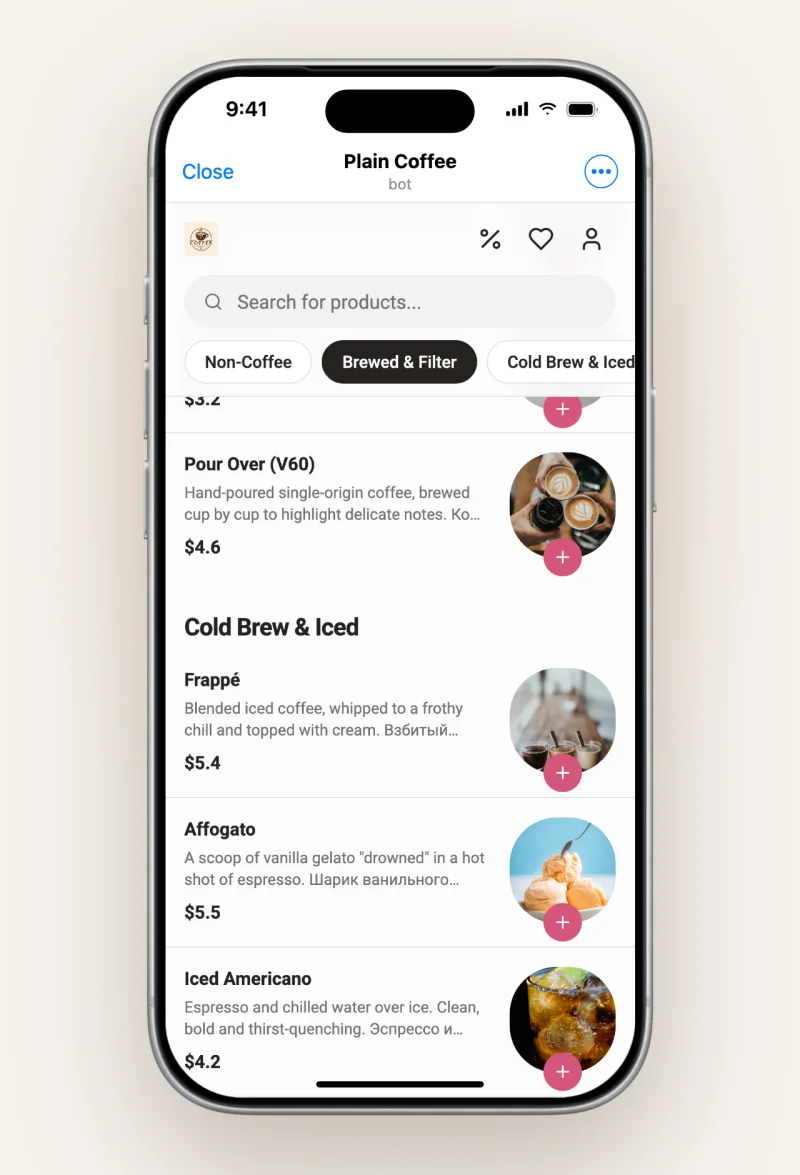
A list like a delivery app. Categories are tabs that stick to the top of the screen; each row has a name, a description, a price and a photo. A product without options goes into the bag with "+" right in the row, a counter appears next to it, and a bar at the bottom shows the bag total.
It suits food, coffee, flowers and anything people order several items of.
Market#
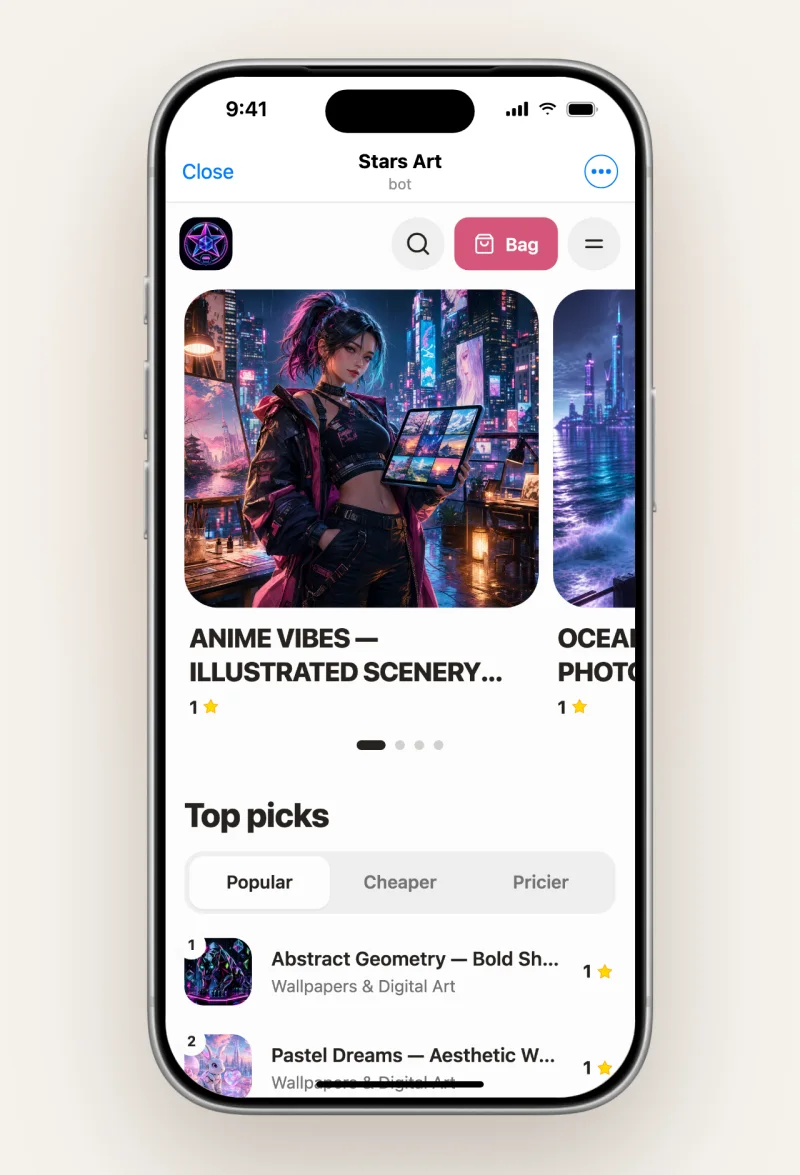
A storefront like a marketplace: big rounded cards, a carousel on top, a deals row with sale items and a "Top picks" ranking with Popular, Cheaper and Pricier tabs. The header holds search, the bag and the menu. Market has its own product page.
It suits digital goods, art, collections and shops where buyers like to browse and compare.
What stays the same#
- Products, prices, stock and orders. A template only changes how the shop looks.
- Checkout and payments. The cart, checkout and payment methods work the same in every template. In Menu and Catalog the product page and the cart are the same as in Classic.
- Colors and fonts. Your colors and fonts from Appearance apply to every template. Some size sliders work differently per template: for example, Zero has square corners and its own spacing. The dashboard tells you which sliders a template ignores.
How to choose a template#
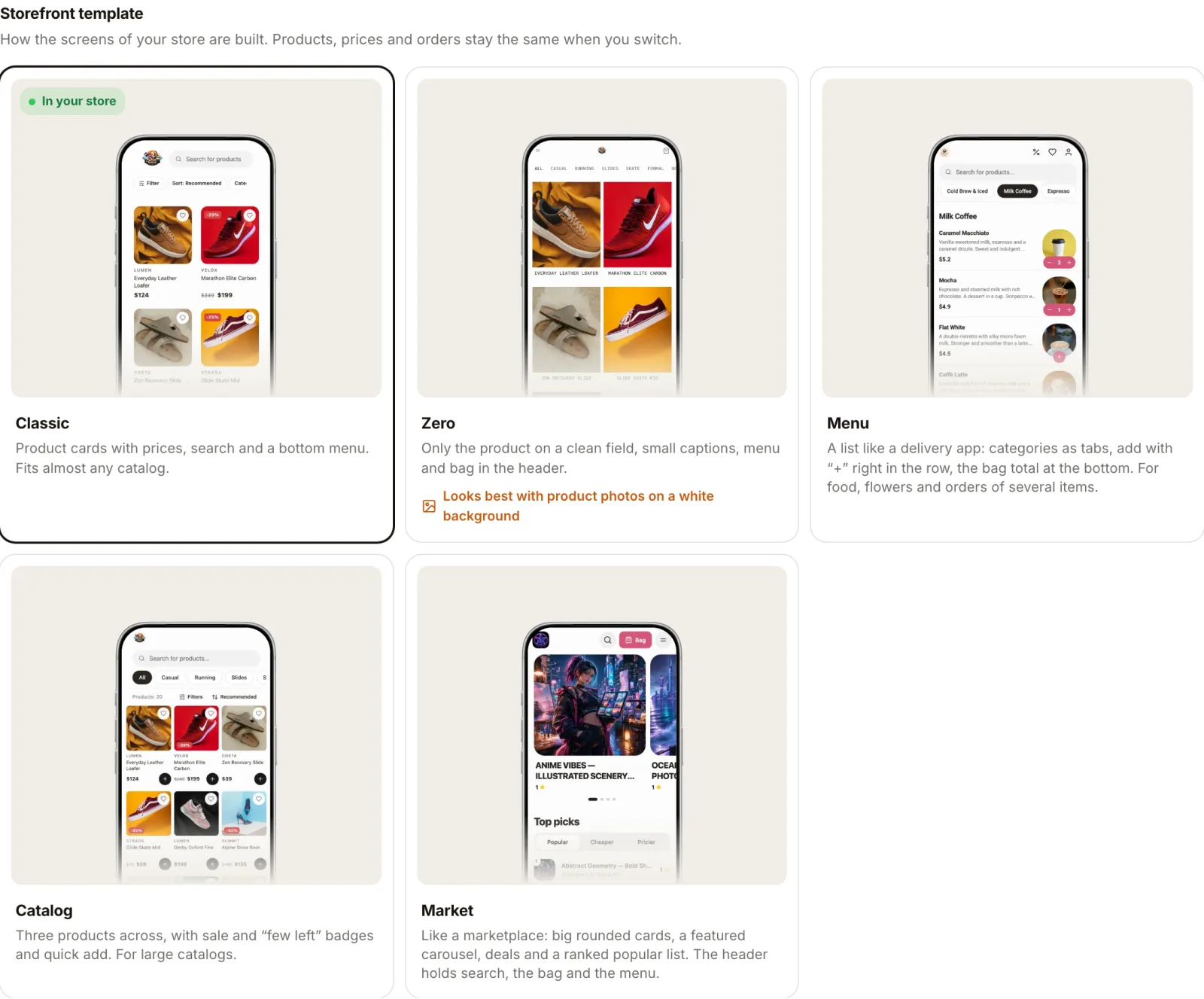
- Open Storefront Settings → Appearance in the dashboard, or go to dashboard.tiny-shops.com/storefront-settings.
- In Storefront template, look at the previews and pick a card.
- Press Apply. Buyers see the new template right away.
Switching back works the same way: pick your previous template and apply it. The Save button at the top of the page doesn't change the template; only Apply does.
Or ask Nano in the dashboard: "Switch my store to the Menu template."
Create or open your store at tiny-shops.com →
- 🇷🇺 Tiny Shops RU
- 🇬🇧 Tiny Shops EN
