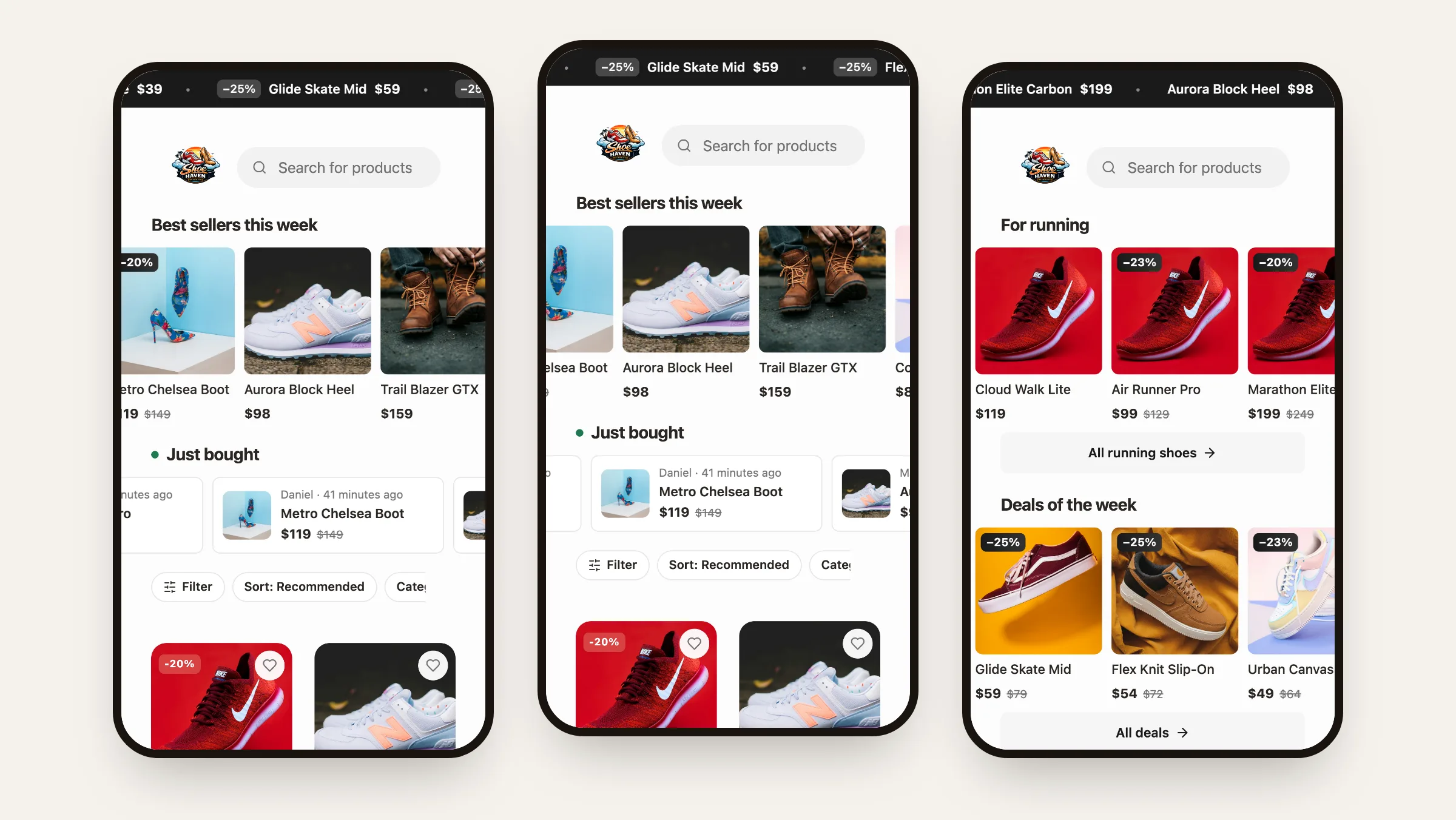
Your Mini App's home page can now open with rows of products that scroll by themselves. Pick what goes in each row: products you choose, one category, everything on sale, new arrivals, or a live feed of what people just bought. Shoppers see more of your catalog before they scroll, and a "Just bought" row shows that the shop is busy.
What shipped#
- Up to three strips on the home page, each with its own title, contents and look.
- Five things a strip can show: products you pick, a category, sale items, new arrivals, or "Just bought".
- Three looks: photo tiles, a thin ticker line (it fits nicely above the search bar), or purchase cards.
- A button under the strip that opens the sale page or the whole category.
- Dates: run a strip only for a weekend sale, then it hides by itself.
- A live preview in the dashboard that shows what shoppers will see before you save.
- The same settings for agents and Nano through the MCP tools
get_home_stripsandupdate_home_strips.
What shoppers see#
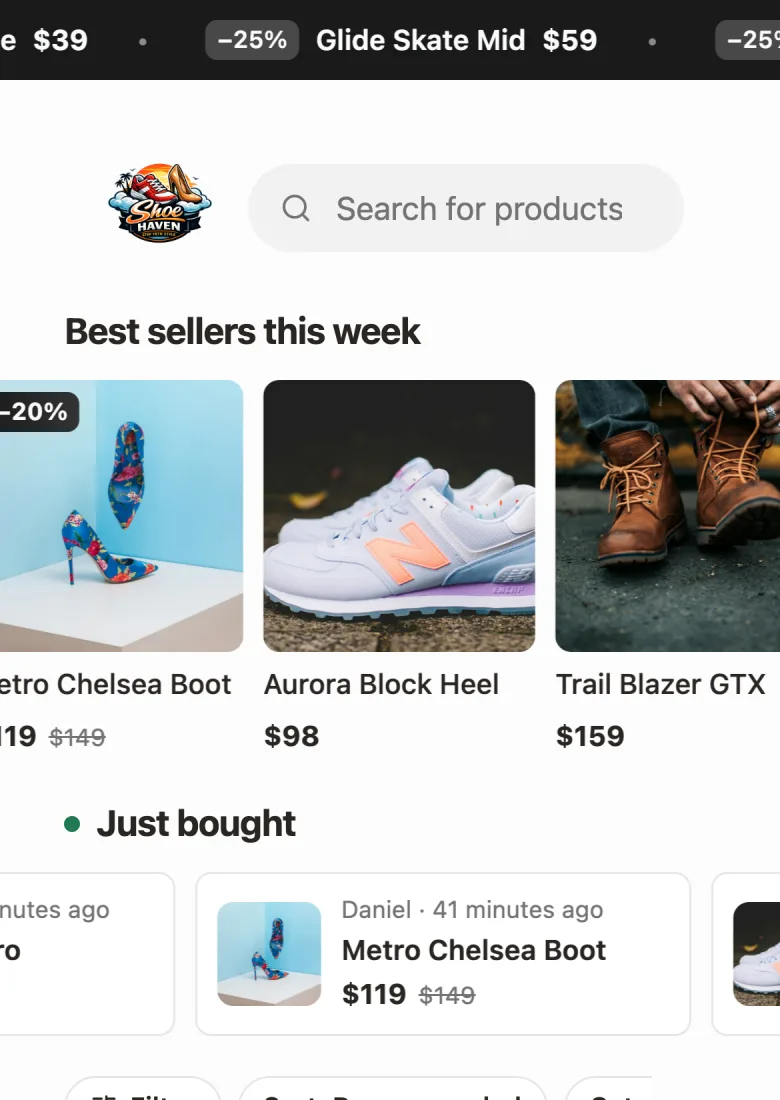
Strips move slowly to the left, one card after another, and loop without a gap. Tapping a card opens the product.
- Hold a strip to stop it. It moves again when the finger lifts. This is on by default; you can turn it off per strip.
- Search and filters come first. While a shopper searches or filters the catalog, the strips step aside so the results stay at the top.
- Hidden and sold-out products are skipped, so a strip never shows something a shopper can't buy.
- Shoppers who turned on reduced motion in their phone settings get an ordinary row they swipe with a finger.
"Just bought"#
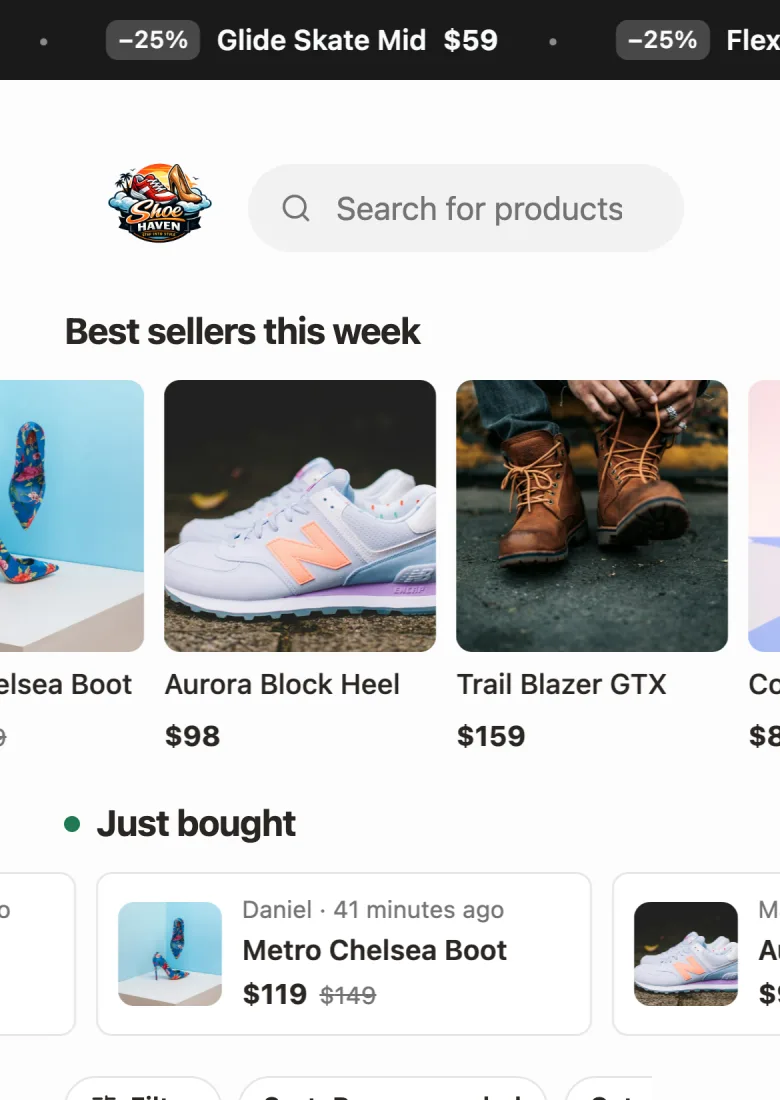
The "Just bought" strip shows your latest orders: who bought, how long ago and what. It works like a row of reviews. A shopper sees that people buy here today.
- Buyers appear as "Anna C.": first name and the first letter of the last name. You can hide names, then each card says "A shopper".
- The strip shows orders from the last 30 days. Cancelled orders don't count.
- It stays hidden until you have 5 orders in those 30 days, so a new shop never shows a near-empty row.
A category or a sale, with a button#
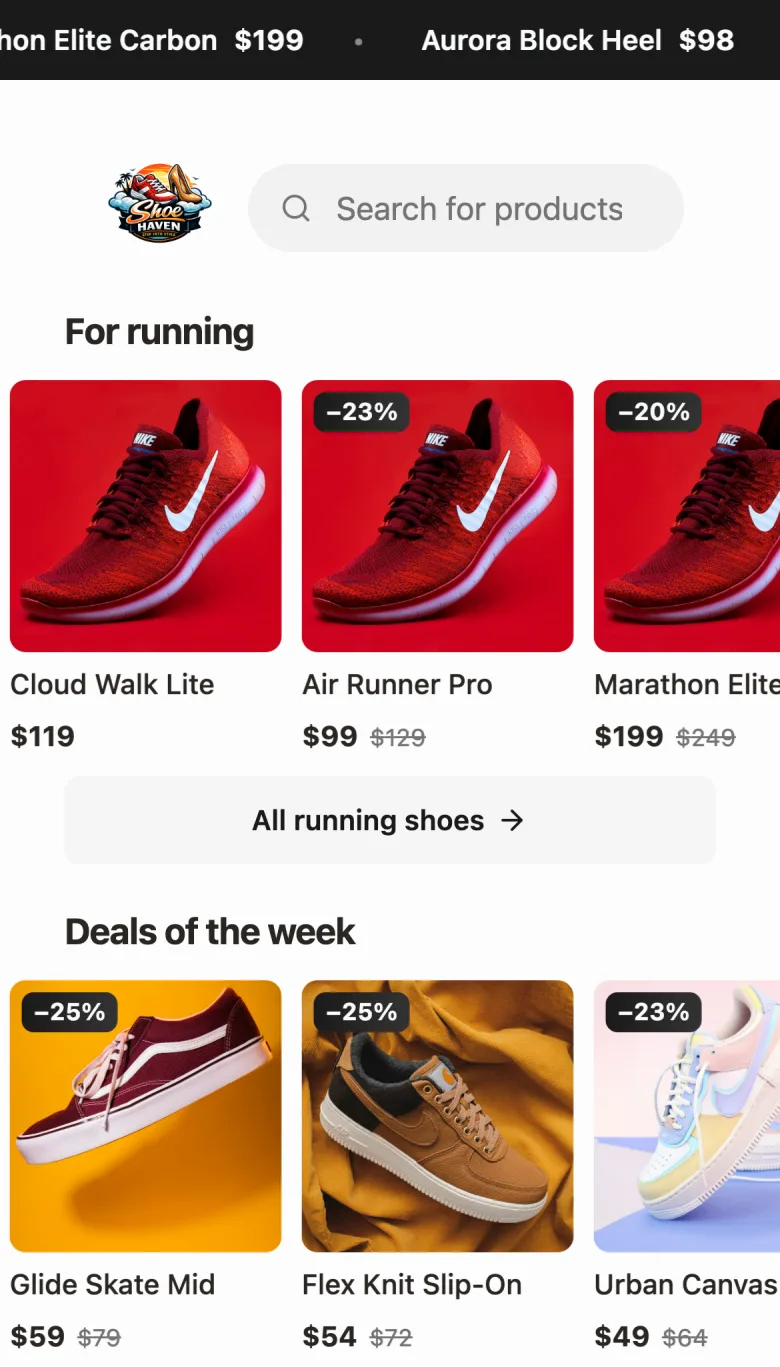
- Category strips show one category, newest products first. New products join the strip on their own.
- On sale strips show every product with an old price, the biggest discount first.
- New arrivals show products added in the last 7, 14 or 30 days.
- Add a button under a category or sale strip. It opens your sale page, or the catalog filtered to that category. The category button needs the Category filter turned on in Filters & Sorting; the dashboard reminds you if it's off.
Setting it up in the dashboard#
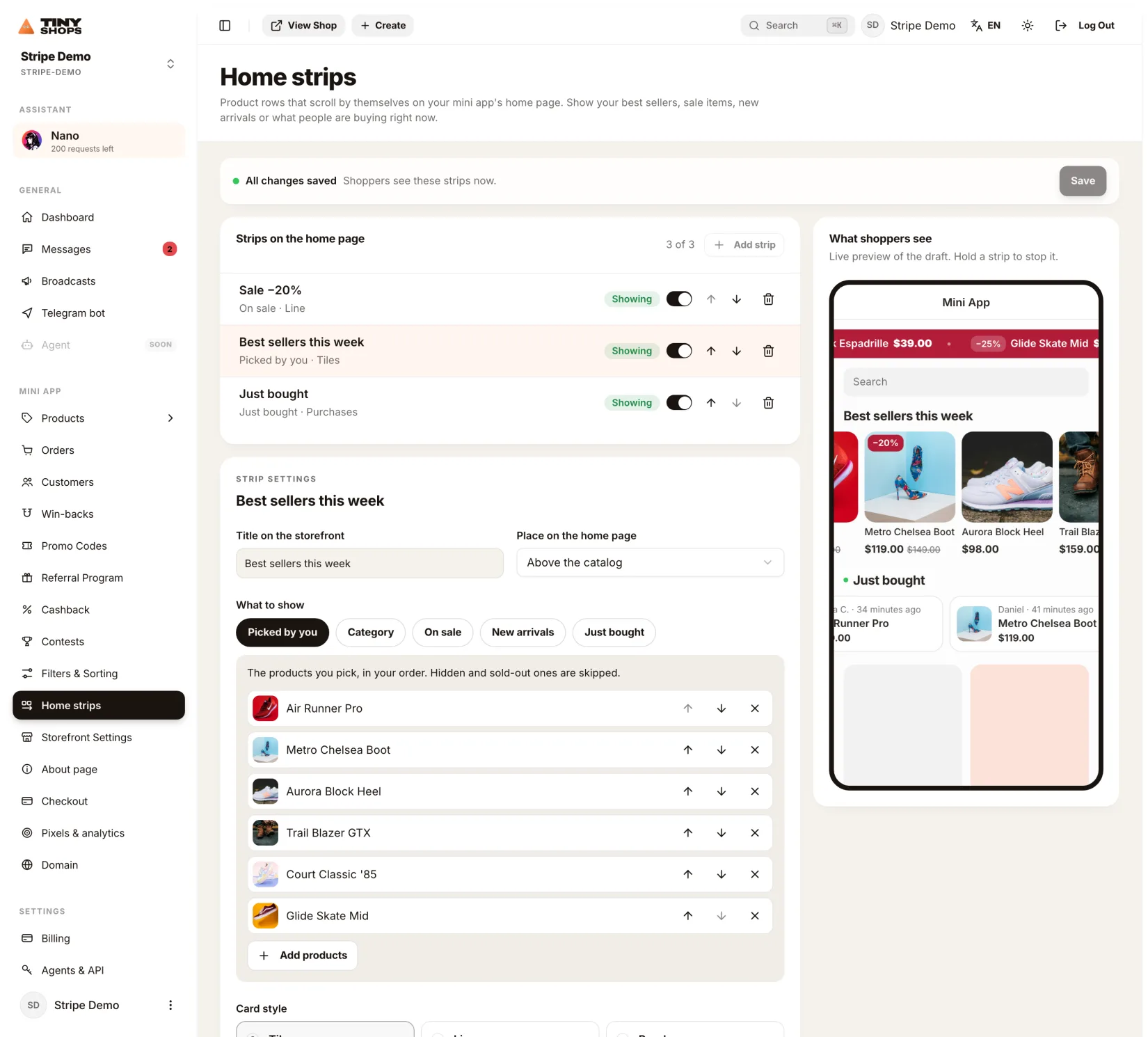
Dashboard → Mini App → Home strips.
- Strips on the home page: turn each one on or off, change the order with the arrows, delete.
- What to show: for a hand-picked strip, search your catalog and add products, then put them in order.
- Card style: tiles, line or purchases.
- Speed, Stop while the shopper holds it, Scroll left to right, Show prices.
- Place on the home page: above the search bar or above the catalog.
- When to show: a start and an end date. Leave both empty to show the strip all the time.
The preview on the right plays your draft with your real products. If a strip isn't showing, the preview says why: it's turned off, its dates haven't started, it has nothing to show, or it waits for 5 orders.
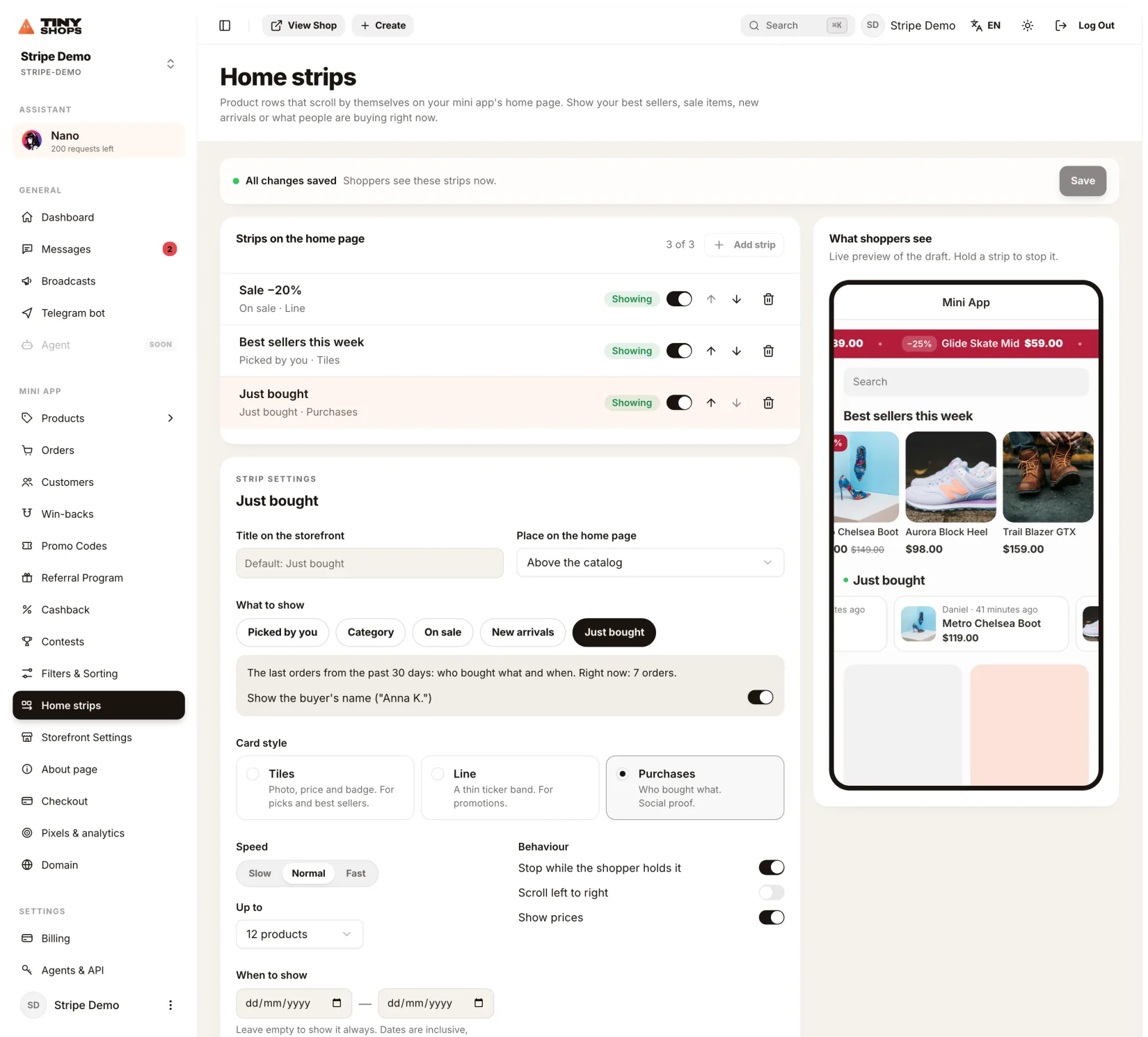
Where to click#
- Open Home strips in the dashboard, or go to dashboard.tiny-shops.com/home-strips.
- Press Add strip. A sale strip is a good first one.
- Pick what to show and the card style, and check the preview on the right.
- Press Save. Shoppers see the strip within a minute.
Or ask Nano in the dashboard: "Add a strip with this week's sale above the search bar until Sunday."
Home strips show in the Classic and Catalog storefront templates; Zero, Menu and Market have home pages of their own, and the dashboard tells you if your shop uses one of them. In shops that keep their catalog in Google Sheets, category, sale and "Just bought" strips work; hand-picked and new-arrival strips need products managed in the dashboard.
Create or open your store at tiny-shops.com →
- 🇷🇺 Tiny Shops RU
- 🇬🇧 Tiny Shops EN
