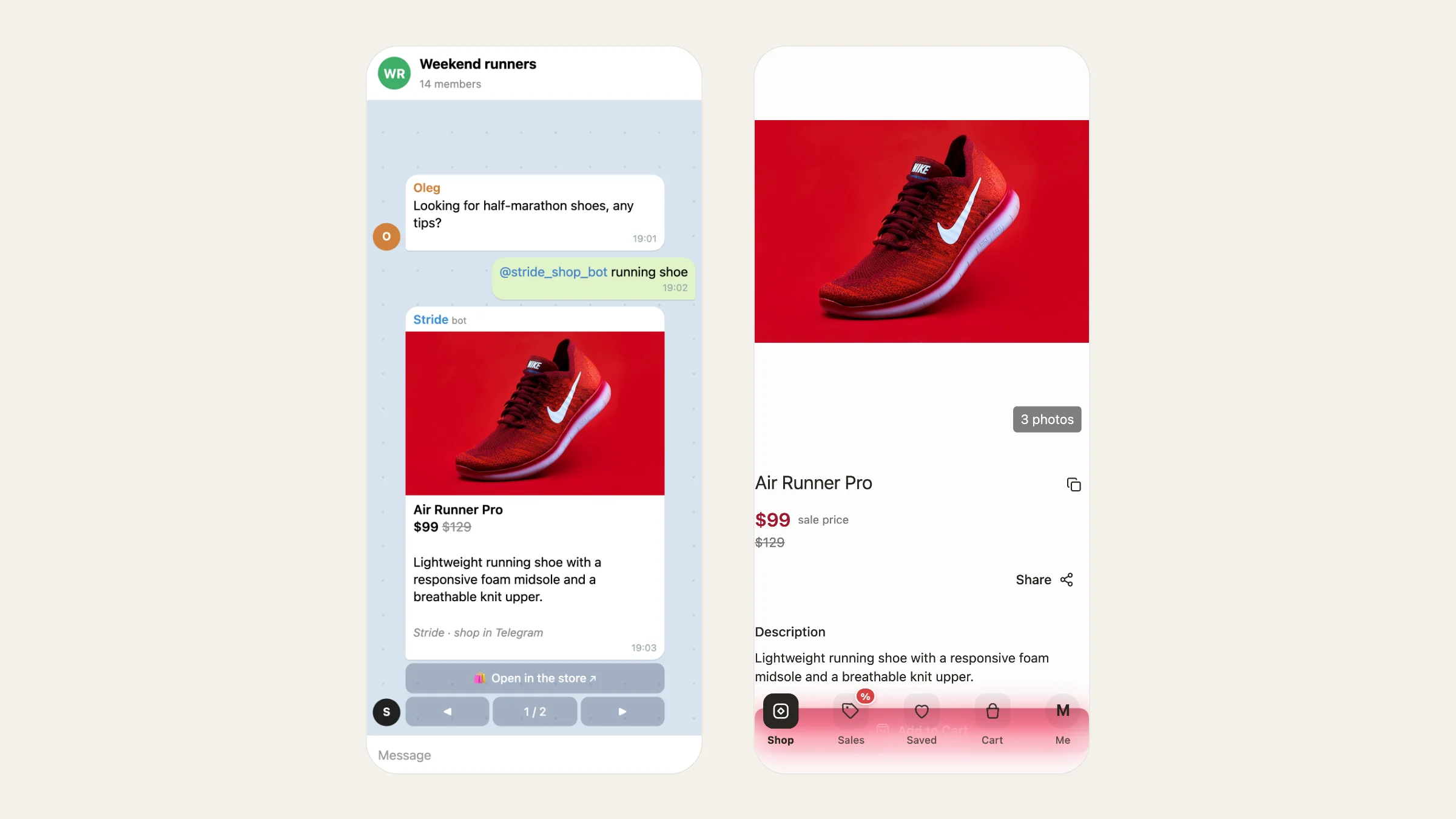
People tell each other where to buy things all the time: in the family chat, in the running club group, in a DM with a friend. Until now that meant finding your store's link and forwarding it. With Telegram's guest mode, it's enough to type your store bot's name and a word: the bot answers right in that chat with a product card everyone can see. This guide explains what guest mode is, how it differs from inline mode, and how to turn it on for your store.
What is guest mode in Telegram#
Guest mode arrived in Bot API 10.0 in May 2026. It lets people call a bot into any private or group chat, even one the bot isn't a member of. They include the bot's @username in a message, and the bot replies directly in that chat.
The bot sees only the message it was tagged in and replies to that message. It can't read the rest of the conversation, so people can call it into a private chat without worry.
Guest mode vs inline mode#
| Inline mode | Guest mode | |
|---|---|---|
| How it starts | Type @bot and a query | Send a message that mentions @bot |
| What the person does next | Picks a result from a pop-up and sends it | Nothing: the bot answers in the chat |
| Who the answer comes from | The person, "via @bot" | The bot itself |
| Needs the bot in the chat | No | No |
| What the bot sees | Only the query | Only the message it was tagged in |
Inline mode is a tool for the sender. Guest mode feels like asking a friend: someone asks "@stride_shop_bot running shoe?" and the shop answers.
How to turn on guest mode in BotFather#
Only the bot's owner can do this: Telegram has no way to turn it on for you.
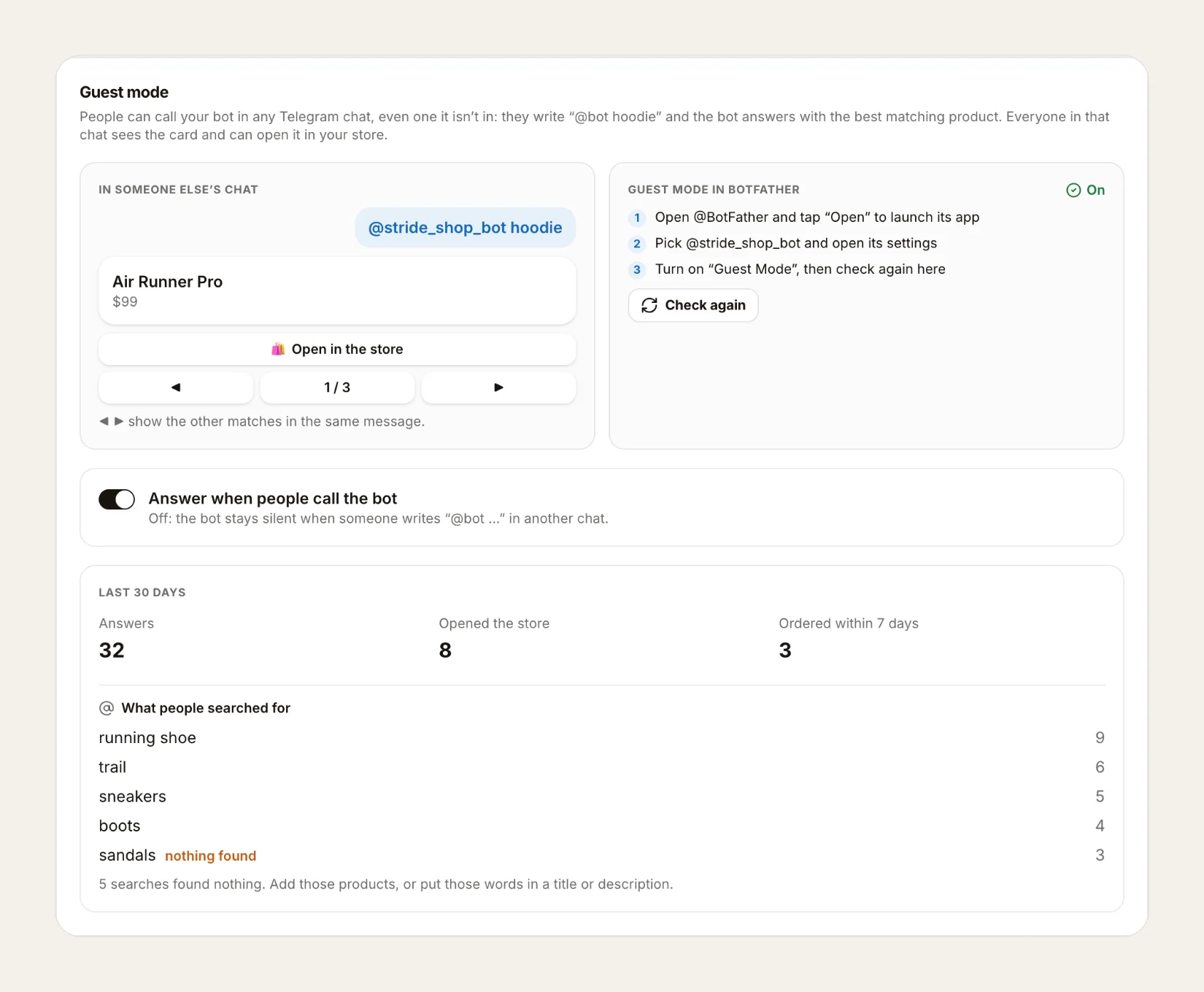
- Open @BotFather and tap Open to launch its app.
- Pick your store bot and open its settings.
- Turn on Guest Mode.
- In the Tiny Shops dashboard, open Telegram bot → Guest mode and press Check again. The status changes to On.
- Answer when people call the bot is on by default. Turn it off if you don't want the bot to answer in other chats.
What it looks like#
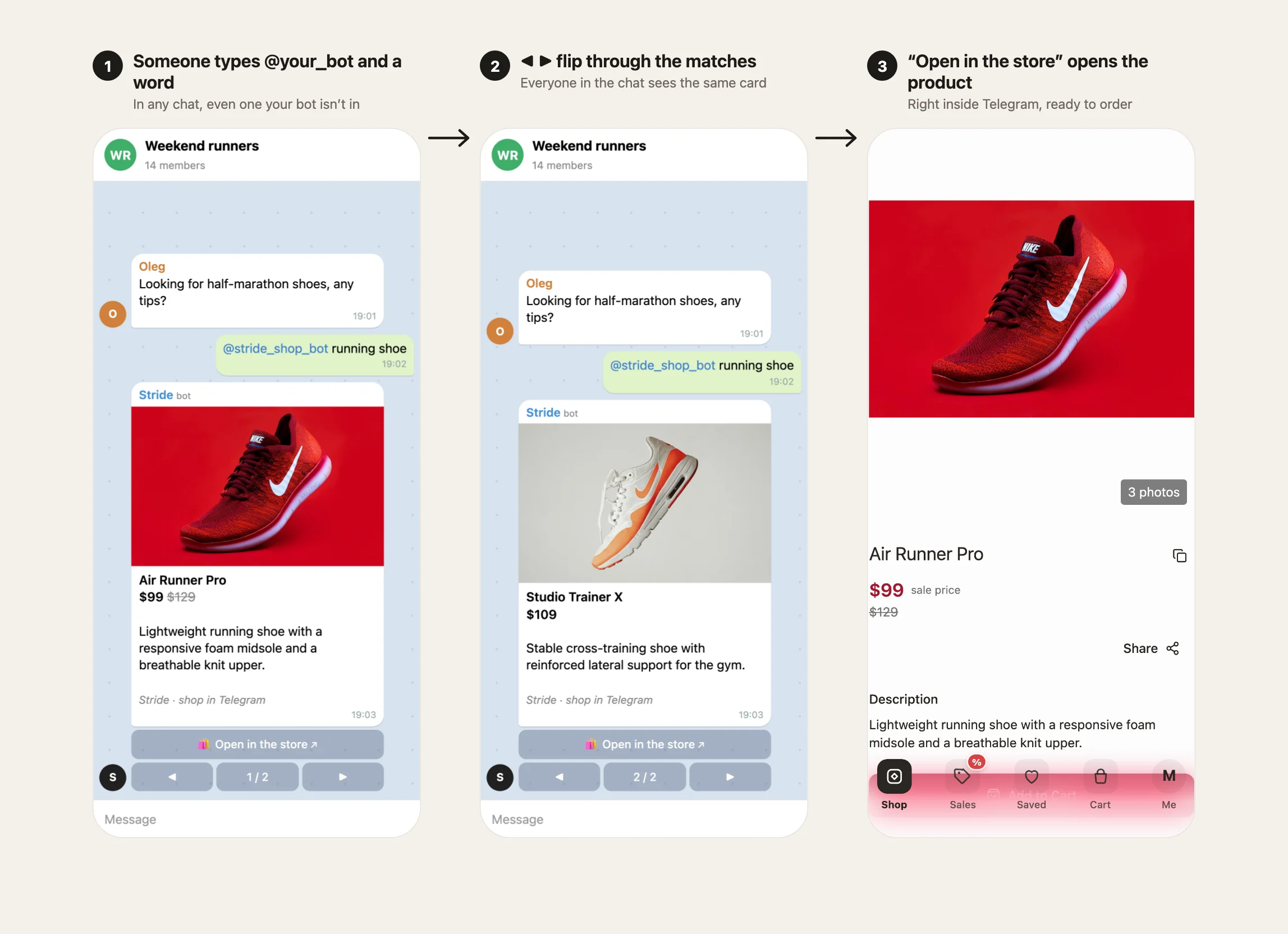
- Someone types @your_bot and a word in any chat, for example “@stride_shop_bot running shoe”. The bot searches your product titles and descriptions.
- The bot replies with a card for the best match: photo, price, description and an Open in the store button. When there are several matches, the ◀ ▶ buttons flip through up to 10 of them in the same message.
- Open in the store opens that product in your Mini App. If the person then places an order, it's marked as coming from guest mode.
When nothing matches, the bot says so and adds an Open the store button, so the person can still browse your catalog.
How to make your products easy to find#
The bot matches words against your product titles and descriptions, so the words buyers use have to be there.
- Use the buyer's words in titles. "Running shoe Stride 2, black" is found by "running shoe", "Stride" and "black". "Model 2B" isn't found by anything.
- Add synonyms to the description. Sneakers, trainers, running shoes: if buyers say it, put it in.
- Check what people searched for. The Guest mode tab lists the searches people called your bot with and highlights the ones that found nothing.
- Fix the empty searches. Add the product people looked for, or add their word to an existing title or description. Next time the bot finds it.
What to measure#
The tab shows the last 30 days: Answers, Opened the store and Ordered within 7 days, plus What people searched for. If many people open the store but few order, look at price and stock of the products they searched for.
If you sell in chat#
Chat stores have no catalog, so the bot answers “@your_bot” with an invitation to subscribe: the Subscribe button opens your bot, and from then on your drops reach that person. The numbers then show Subscribed instead of orders.
Through agents#
Agents and Nano work with guest mode too: get_guest_mode shows the BotFather status, the switch and the numbers, including top searches, and update_guest_mode turns answers on or off.
FAQ#
Does the bot need to be added to the chat? No. Guest mode works in chats the bot isn't a member of.
Can the bot read the whole conversation? No. It sees only the message that mentions it and replies to that message.
Can Tiny Shops turn guest mode on for me? No. Telegram lets only the bot's owner turn on Guest Mode in @BotFather. The dashboard checks whether it's on.
How many products can one answer show? Up to 10 matches, flipped with ◀ ▶ in the same message.
Open your store and turn on Telegram bot guest mode at tiny-shops.com →
