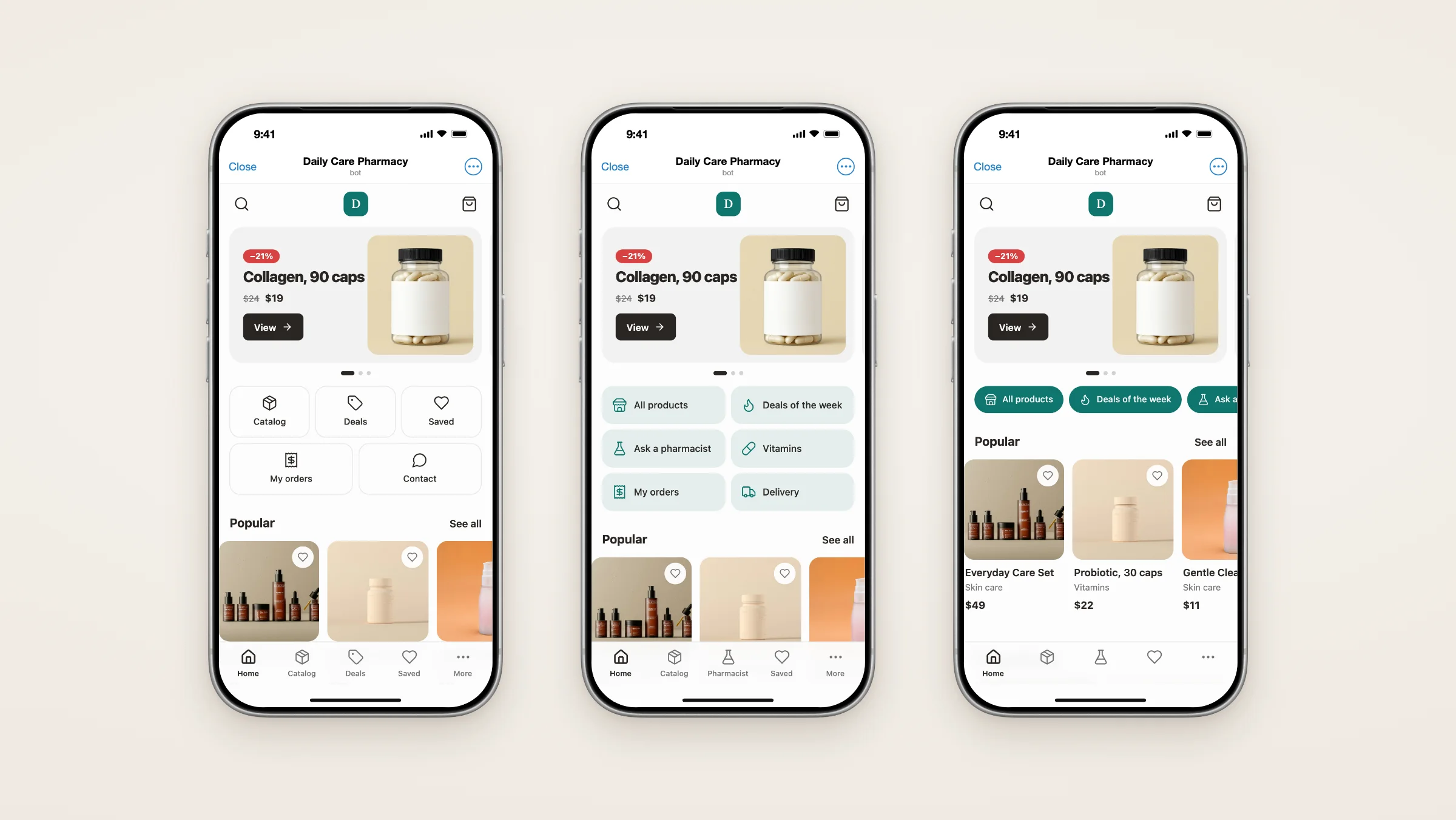
A pharmacy wants "Ask a pharmacist" instead of "Contact". A sneaker shop wants a "New drops" tab that opens one category. Until now the buttons of your Mini App had fixed names. Now you set them yourself: the name, the icon, the order and where each button leads.
What's new#
- Your own names for the bottom menu and the home page buttons.
- 26 icons to choose from for every button.
- Any destination: catalog, sale, saved, cart, orders, About page, a chat with your shop, a category, a collection, a product or a link.
- Home buttons in four layouts and three styles, in any template.
- Order, hide, add and remove buttons. The bar shows the first 5.
- A live preview in the dashboard, and one button to go back to the template.
- The same for agents and Nano: the MCP tools
get_storefront_navigationandupdate_storefront_navigation.
Home buttons#
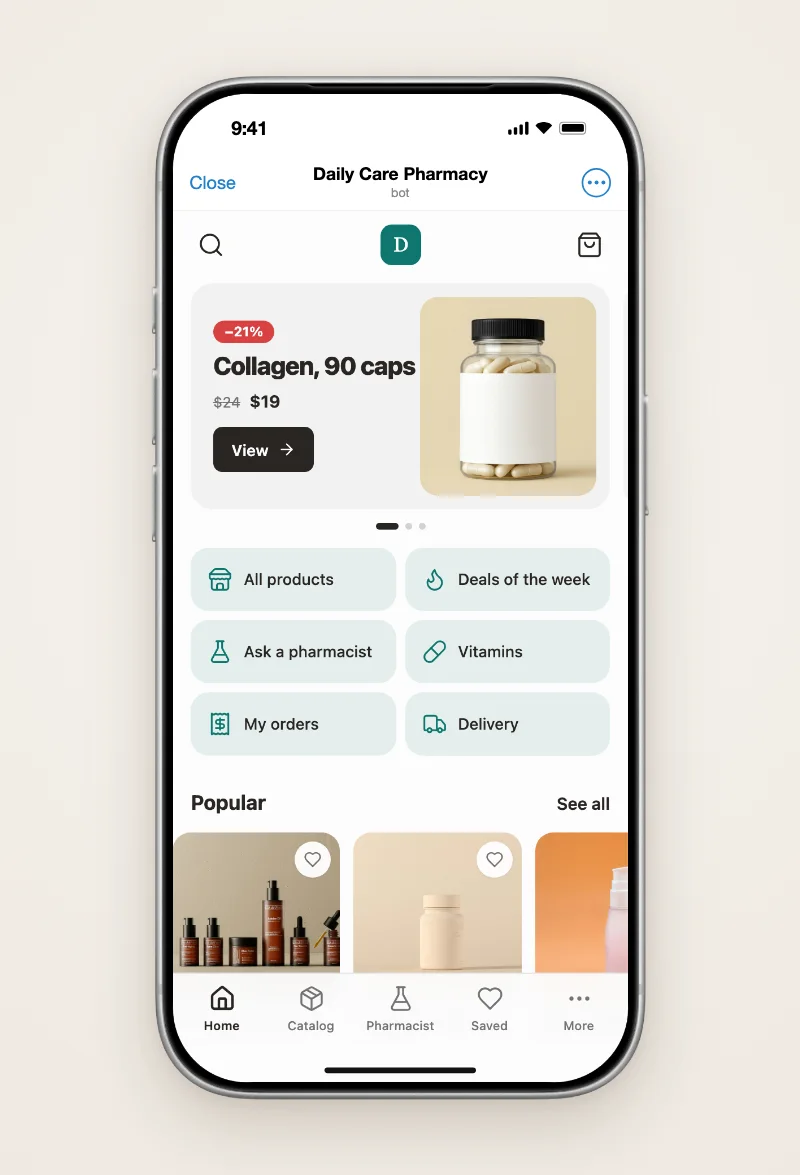
Quick buttons under the banner take buyers straight to what matters in your shop. Rename them, give each one an icon and point it anywhere: "Vitamins" can open one category, "Delivery" can open a link to your channel post with the delivery terms, and "Ask a pharmacist" opens a chat with your bot.
Pick how the buttons look:
- Layout: a grid of 3, a grid of 2, a scrolling row or a list.
- Style: outline, soft fill or your brand color.
- Icons: on or off, if you prefer text only.
The Clinic template shows home buttons from the start. In Classic, Catalog, Menu, Market and Zero you switch them on with one toggle.
The menu#
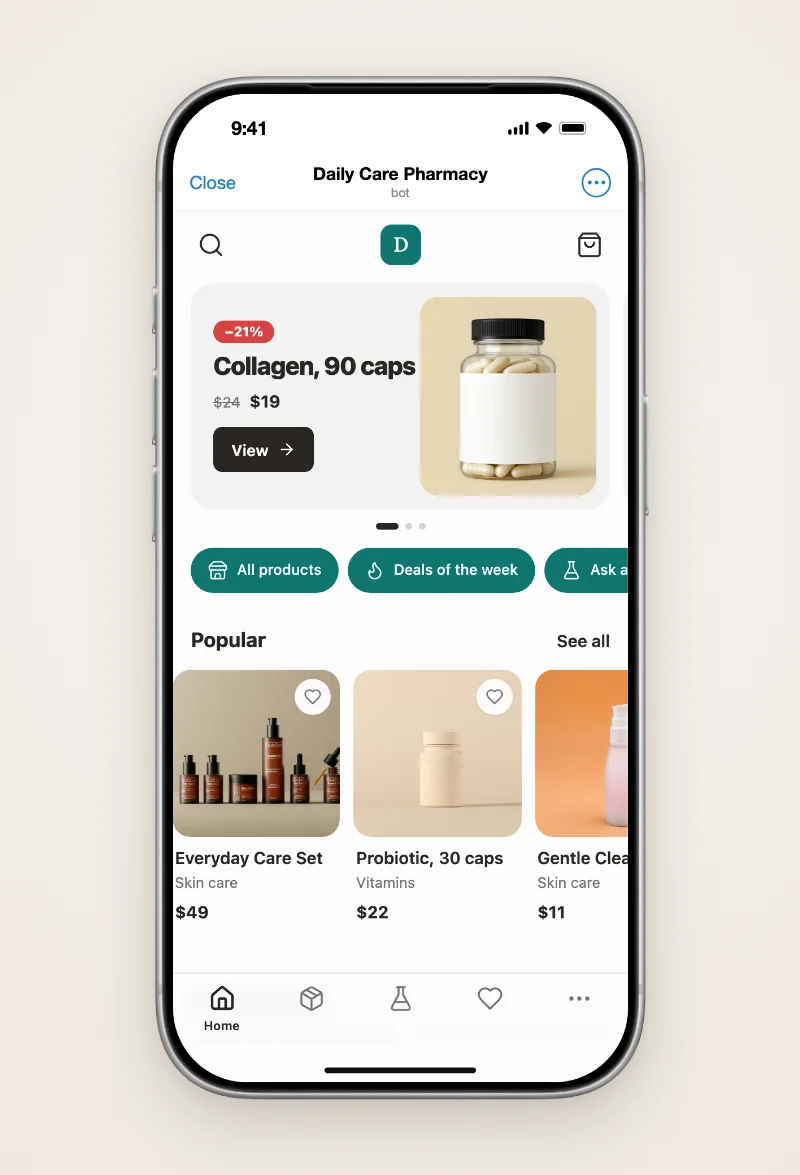
In Classic, Catalog, Menu and Clinic the menu is the bar at the bottom of every page. Rename its tabs, change icons and order, or replace a tab: for example, put a chat with your shop where Sale used to be. Labels under the icons can show always, only under the active tab, or never.
In Zero and Market the menu lives in the header, so the same items appear there as a list of links.
Buttons buyers can't see yet#
A button only shows when your shop has somewhere for it to go. "About" waits until you publish the About page, the chat button waits until a bot is connected, and the Sale button on the home page hides while nothing is on sale. The dashboard says next to each such button why buyers don't see it.
If you change nothing#
Your shop looks exactly as before. Every template keeps its own buttons until you edit them, and Back to template returns them at any time.
How to set it up#
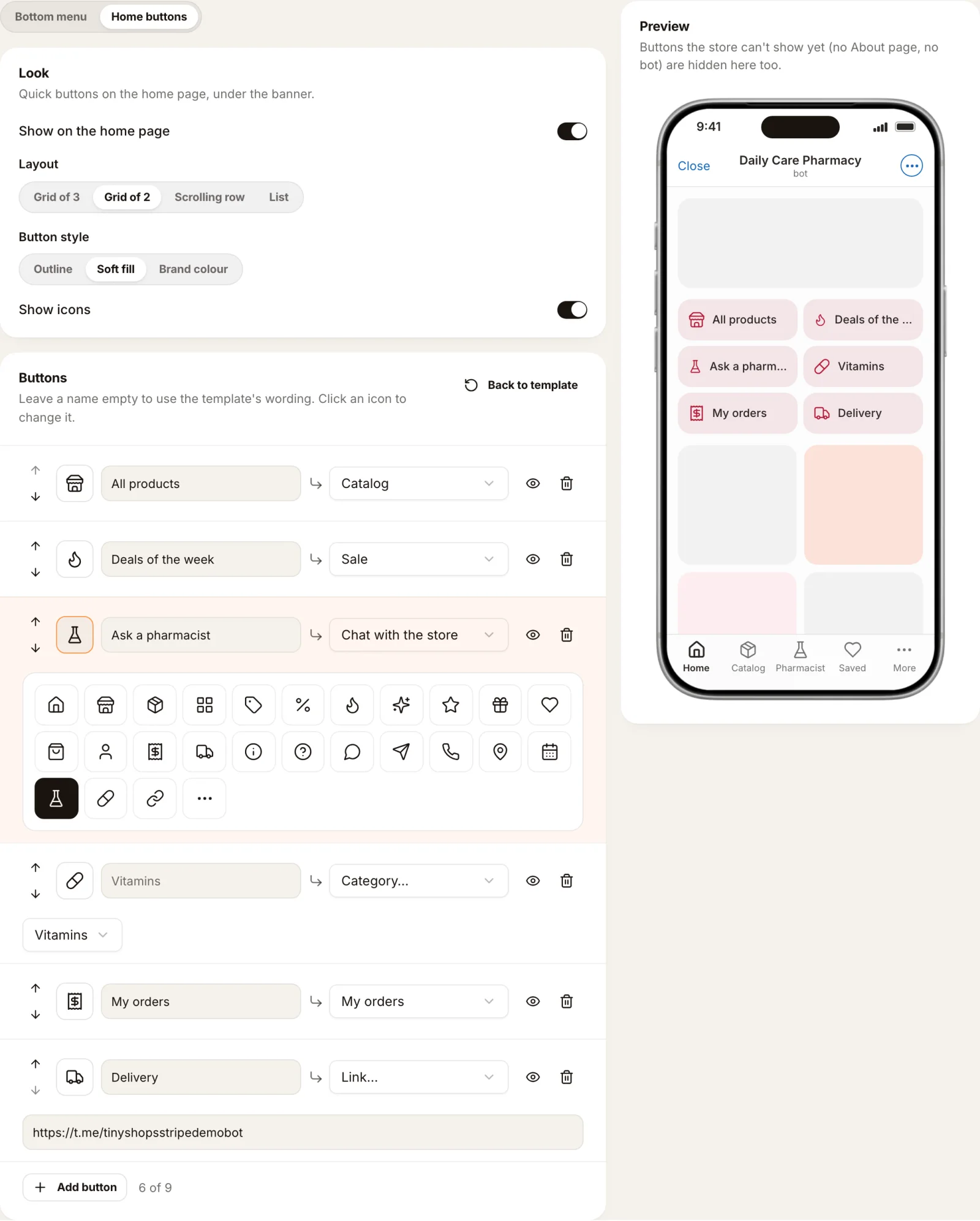
- Open Mini app → Buttons & menu in the dashboard, or go to dashboard.tiny-shops.com/navigation.
- Choose Bottom menu (or Header menu) or Home buttons.
- Type a name, click the icon to pick another one, and choose where the button leads.
- Check the preview and press Save. Buyers see the new buttons right away.
Or ask Nano in the dashboard: "Rename Contact to Ask a pharmacist and give it the flask icon."
Want a different look for the whole shop? See the storefront templates.
Create or open your store at tiny-shops.com →
