Tiny Shops is a no-code Telegram Mini App shop builder. Many sellers don't use a payment gateway at all: buyers pay by bank transfer, a card-to-card transfer, a phone-number transfer, PayPal or USDT straight to the seller's wallet. Payment screens make that flow part of your checkout. The buyer sees your payment details with copy buttons, taps I have paid, answers a couple of questions, and you confirm the money with one button in Telegram.
This guide shows how to set it up, what the buyer sees, and how you check payments.
How it works#
- You add a payment method of the Manual order type and fill in its Payment screens: your IBAN, card number or wallet, plus what the buyer should confirm.
- At checkout the buyer picks the method, sees the amount and your details, pays in their banking app and taps I have paid.
- The order is created as awaiting a payment check. You get the usual Telegram order alert with ✅ Payment received and ✖️ Not received buttons.
- You check your bank or wallet and tap a button. The buyer gets a message in Telegram either way.
The money goes straight from the buyer to you. Tiny Shops doesn't hold it, doesn't charge it, and doesn't verify the transfer. You check it yourself, the same way you would without a shop.
Step 1. Add a manual payment method#
- In the dashboard open Checkout and the Payment methods tab.
- Click Add method and pick Manual order (under No online payment).
- Give it a Label buyers will recognise, for example "Bank transfer", and a Subtitle like "SEPA, IBAN".
You can add several manual methods side by side: a bank transfer, a card transfer and USDT, each with its own screens. They work next to Telegram Stars and the other Telegram payment methods you already have.
Step 2. Build the payment screens#
Select the method in the list. Under its settings you'll find the Payment screens editor, with a live preview in an iPhone frame on the right (What the buyer sees). The preview updates as you type.
Start from a template. There are five: Card transfer, Crypto, Transfer by phone, PayPal / Wise and From scratch. A template fills in typical fields and questions; you replace the placeholder values with your own.
Screen 1: Payment details. The order total is shown at the top automatically. Below it, add blocks in any order:
- Field to copy: a value with a copy button, such as the IBAN, card number, recipient name or wallet address.
- Text: an instruction or a warning, for example "Put your name in the payment reference".
- Picture / QR: a QR code or any image.
- Link button: a button that opens a link, such as your PayPal.me page.
Screen 2: Confirmation from the buyer. Optional: switch it off with Show this screen and the buyer just taps I have paid. If it's on, add the questions you need to find the payment:
- Text answer: for example the payer's name or the transaction hash (TXID).
- Checkbox: a statement the buyer confirms, like "I sent the exact amount".
- Choice from a list: for example which bank they paid from.
Each question has a Required switch. The answers are saved in the order and shown in your alert.
After the order (the Payment check block):
- How long the check takes (shown to the buyer), for example "usually within an hour".
- Link to check the answer (optional): a link with
{value}where the buyer's first text answer goes. For USDT on TRON that'shttps://tronscan.org/#/transaction/{value}. Only you see it, in the alert. - Buttons in the Telegram alert: the Payment received / Not received buttons. On by default.
Press Save changes to publish.
What the buyer sees#
At checkout every method with payment screens carries a Seller checks by hand chip, so the buyer knows what to expect. Choosing it replaces the order button with Proceed to payment.
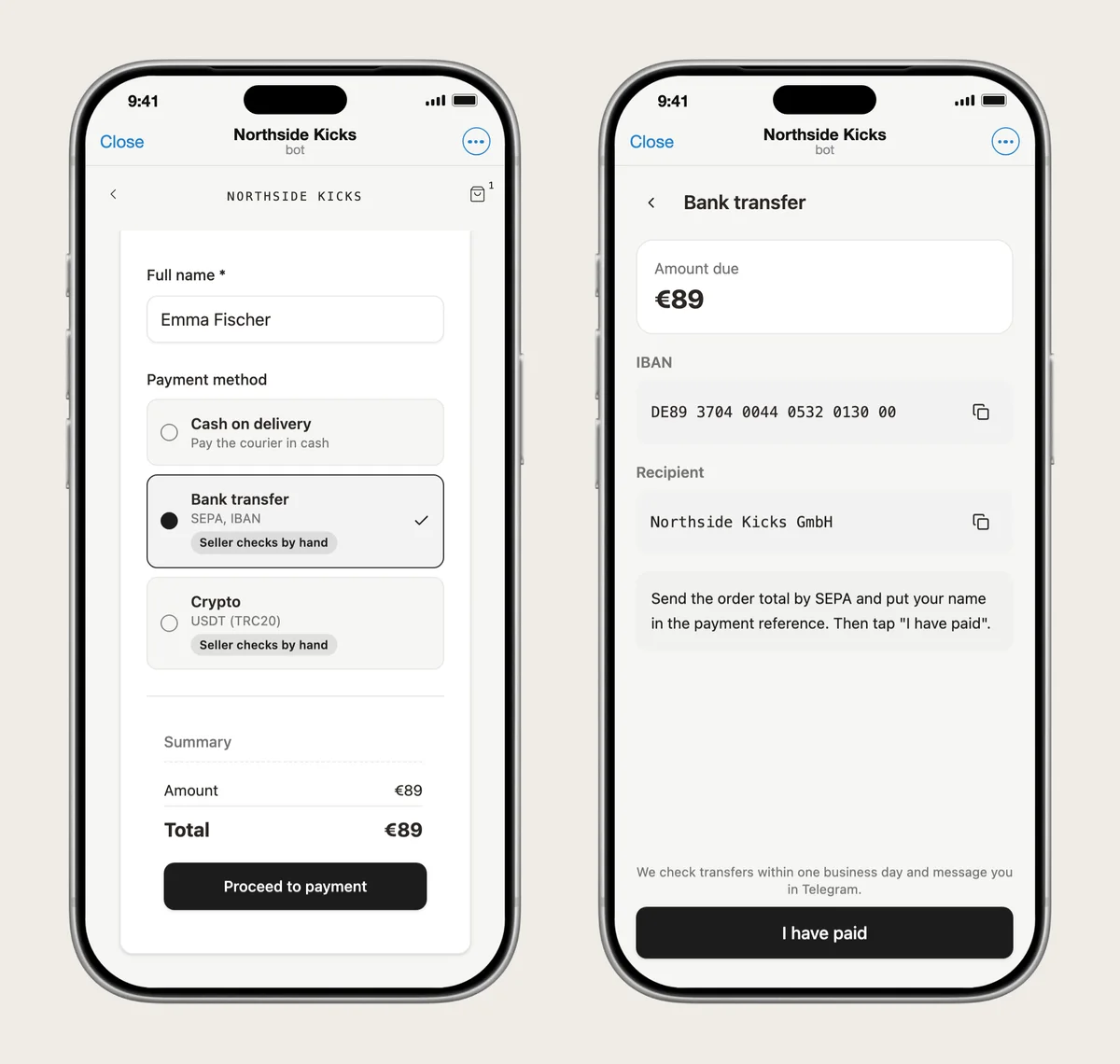
The details screen shows the amount due, your fields with copy buttons, your instructions and the check time. After paying in their banking app, the buyer taps I have paid.
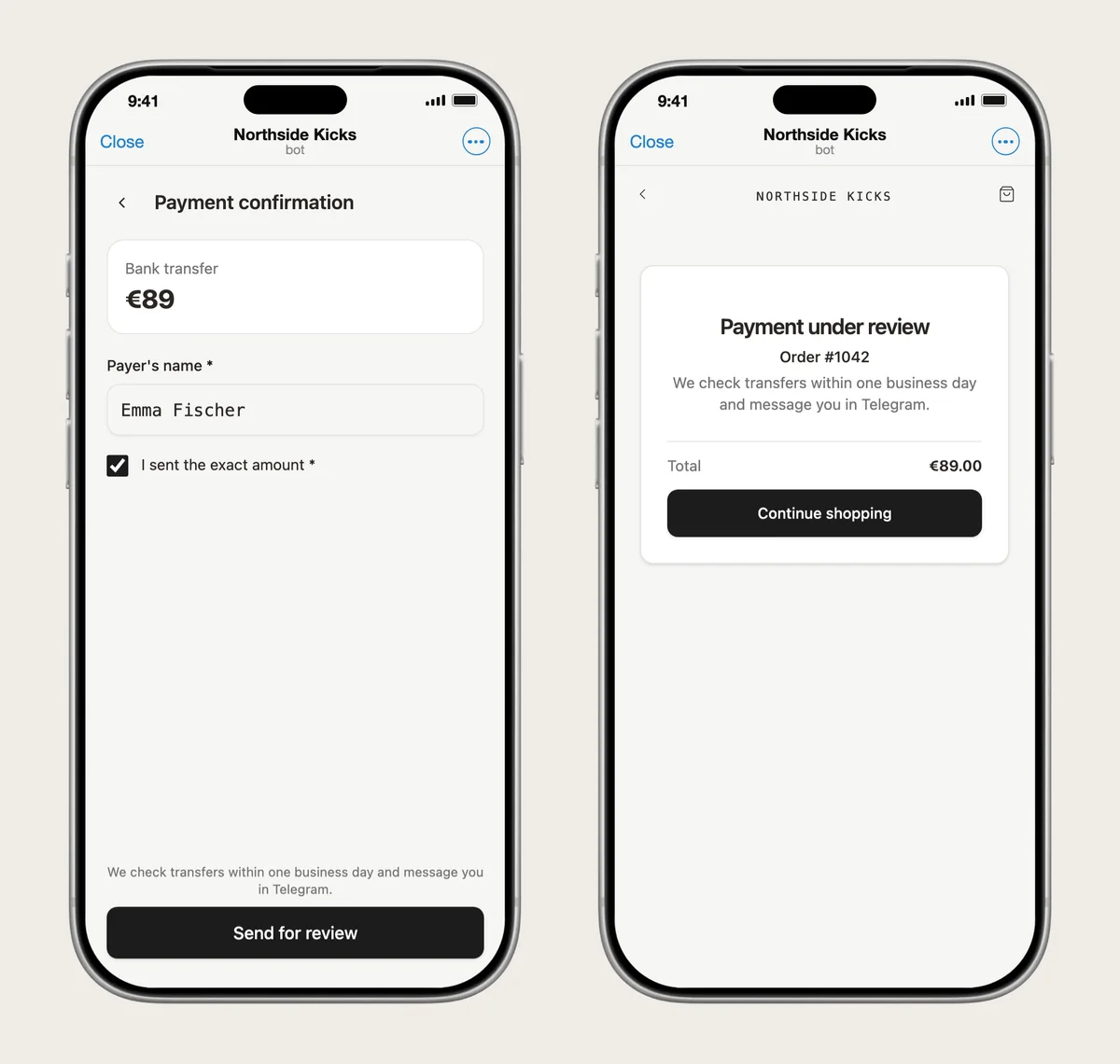
On the confirmation screen Send for review stays disabled until every required answer is filled. Then the order is placed and the buyer sees Payment under review with the order number and your check time.
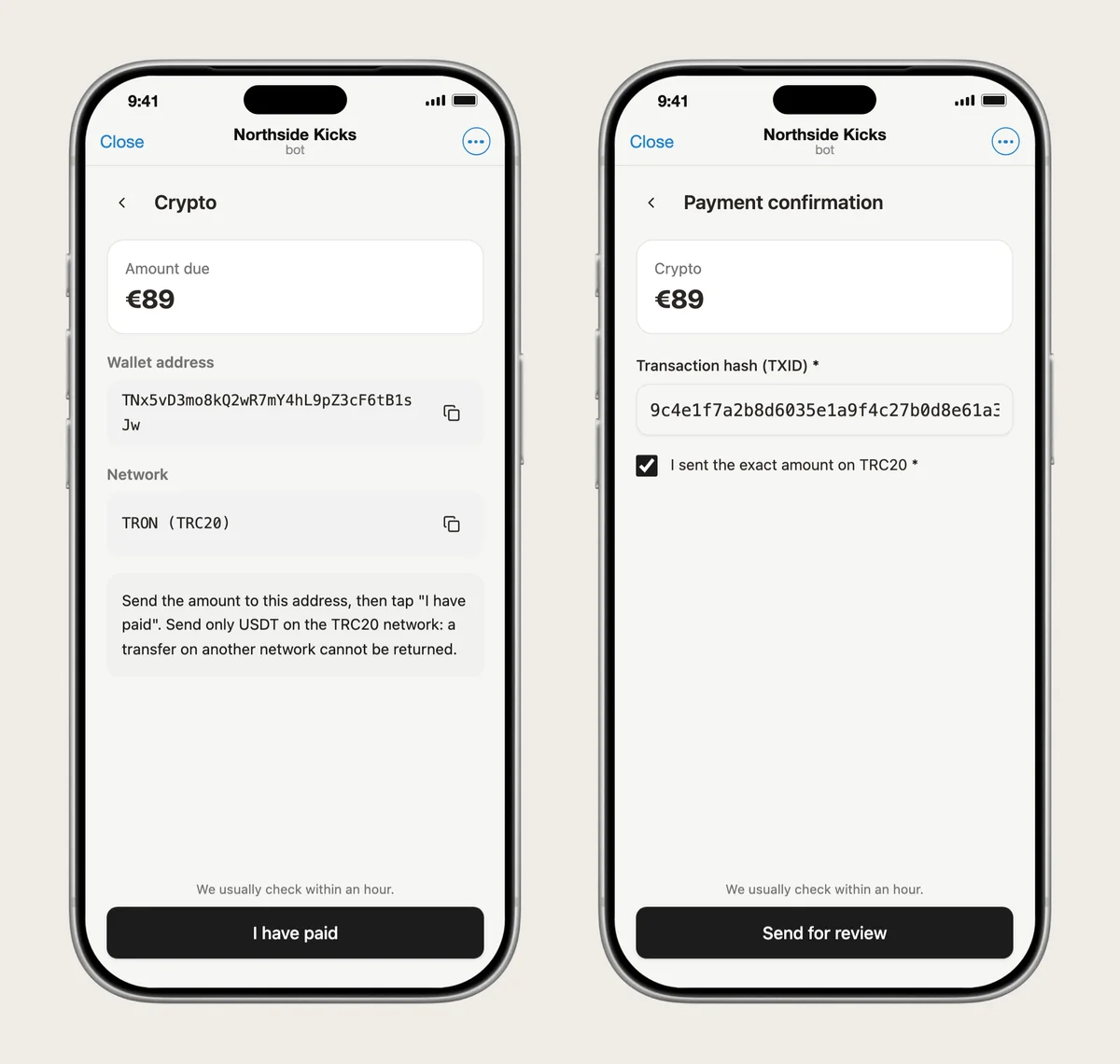
The same flow works for crypto sent to your own wallet: the wallet address and network to copy, then the transaction hash.
What you see in Telegram#
The order alert arrives where your alerts always go (a group or your personal chat) with an extra block: ⏳ Payment awaits your check, the buyer's answers and, if you set one, a link to check the payment. Under the message are two buttons.
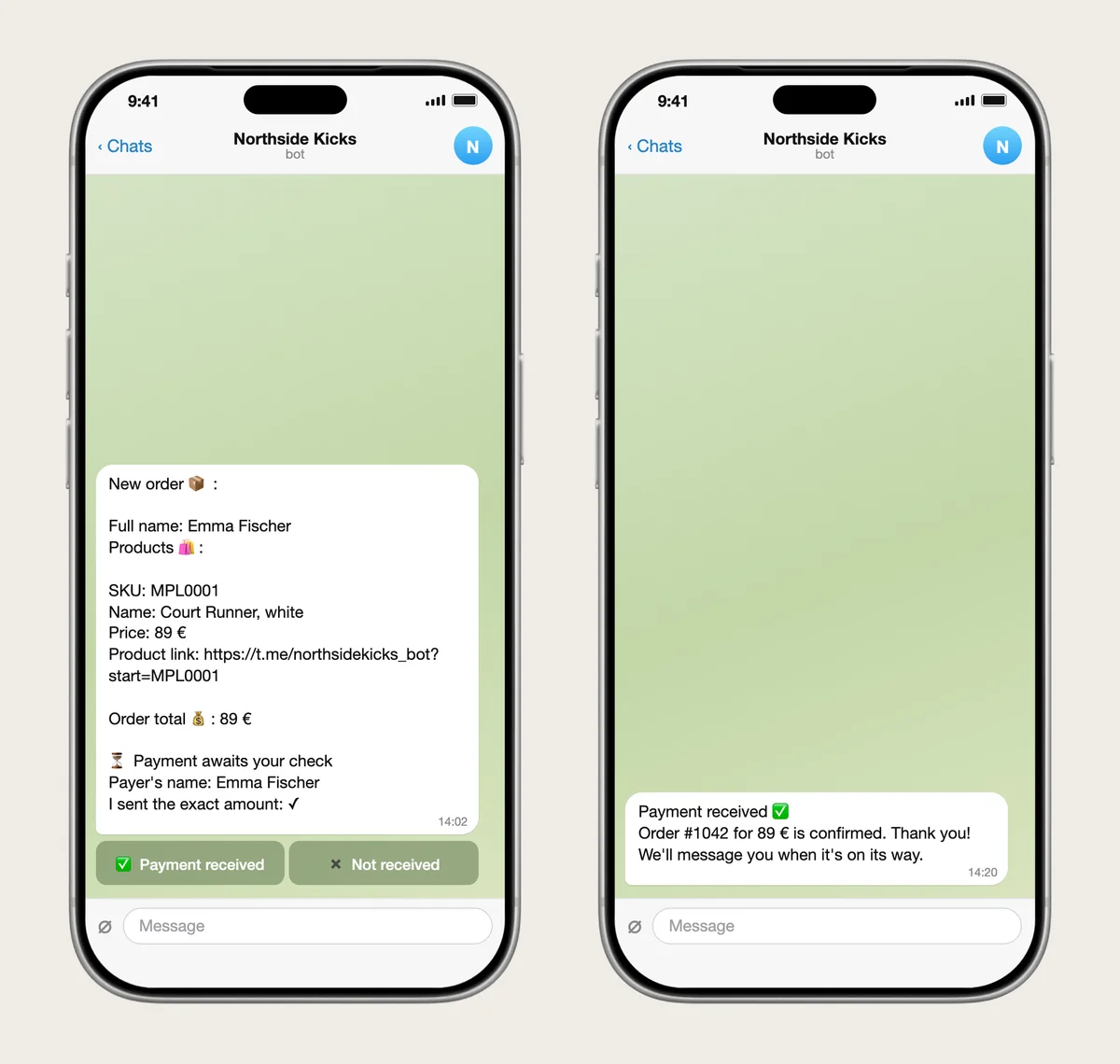
- ✅ Payment received: the order moves to Processing, and the buyer gets "Payment received ✅ Order #… for … is confirmed. Thank you! We'll message you when it's on its way."
- ✖️ Not received: the order stays open, and the buyer is asked to check the transfer (amount and details) and reply in the chat. When the money turns up, you can still confirm it.
After a decision the buttons disappear and the alert gets a line with the result. Only your store team can press them.
You can make the same decision in the dashboard: open the order and use the Payment check card, which shows the buyer's answers and the check link. Agents and scripts can do it over the Tiny Shops MCP server and API with the review_manual_payment tool.
A confirmed payment is final. If you confirmed by mistake, change the order status in Orders.
Tips that save you questions#
- Ask for something you can search by. For a bank transfer, the payer's name or the last four digits of the card. For crypto, the TXID plus a verify link.
- Say how long the check takes. Buyers wait calmly when they know it's "within one business day".
- Ask for the exact amount with a checkbox, so partial transfers don't surprise you.
- Add a QR code if your bank supports QR payments: buyers pay without retyping the IBAN.
FAQ#
Is there a fee for bank transfer payments? Tiny Shops takes no extra fee for payment screens. Orders paid this way count like any other order: the plan's percent of the order total, with your first $100 in sales commission-free (once, not every month). The money itself goes straight to you; your bank may charge its own fees.
Does Tiny Shops check that the transfer arrived? No. Payment screens don't connect to your bank or wallet. You check the payment yourself and press Payment received or Not received.
What if the buyer didn't pay? Tap ✖️ Not received. The buyer is asked to check the transfer and reply in the chat, and the order stays open. If the payment never arrives, cancel the order in Orders.
Can I offer bank transfer alongside cards and Telegram Stars? Yes. Manual methods sit in the same list as Stars, Telegram Invoice, TON and the others. The buyer picks one at checkout. The one exception is a store paid through Stripe Connect, where cards become the only method.
Which plan do I need? Payment screens are part of the checkout settings and are not tied to a paid plan.
Can buyers upload a screenshot of the receipt? Not yet. Ask for the payer's name, the TXID or the card's last digits instead. "Pay later" isn't available yet either: the buyer confirms the payment when placing the order.
Related guides#
- Telegram payment methods: Stars, Stripe, TON, Xendit and everything else you can connect.
- How to accept crypto payments on Telegram: automatic crypto checkout through NOWPayments, if you'd rather not check transfers by hand.
- How to accept payments in Telegram: an overview of every option.
Create or open your store at tiny-shops.com →
- 🇷🇺 Tiny Shops RU
- 🇬🇧 Tiny Shops EN
