Tiny Shops is a no-code Telegram Mini App shop builder. A store can take payment in several ways at once, and the buyer picks one at checkout. This guide lists every Telegram payment method you can connect today, explains which buyers each one is for, and walks through the setup for each.
Money from a buyer always goes to your account: your Stripe, your Xendit, your TON wallet, your Telegram bot balance. Tiny Shops never holds it. Our fee (0.7–5% of each order depending on the plan, with your first 50 orders free (once, not every month)) is billed with your plan. The one exception is Stripe Connect card payments, which take the same percent at charge time.
Which Telegram payment method fits your store#
| Method | Buyers pay with | Where it works | Setup |
|---|---|---|---|
| Telegram Stars | Stars balance | Everywhere | Nothing to connect |
| Telegram Invoice | Cards through a BotFather provider (Stripe, Freedom Pay, YooKassa and others) | Depends on the provider | Token from @BotFather |
| Stripe | Cards, Apple Pay, Google Pay inside the Mini App | Stripe countries | Stripe onboarding from the dashboard |
| Xendit | QRIS, e-wallets, bank transfer, convenience stores, cards | Indonesia, the Philippines, Malaysia | Secret key and webhook |
| TON | TON from any TON wallet | Everywhere | Wallet address |
| Manual order | Whatever you agree with the buyer | Everywhere | Nothing to connect |
| Razorpay, Midtrans, NOWPayments | UPI and cards (India), Indonesian methods, crypto | India, Indonesia, everywhere | Through Nano or the API |
Every method you add appears on the Payment methods tab of the checkout configurator. Open Checkout in the dashboard, then Add method:
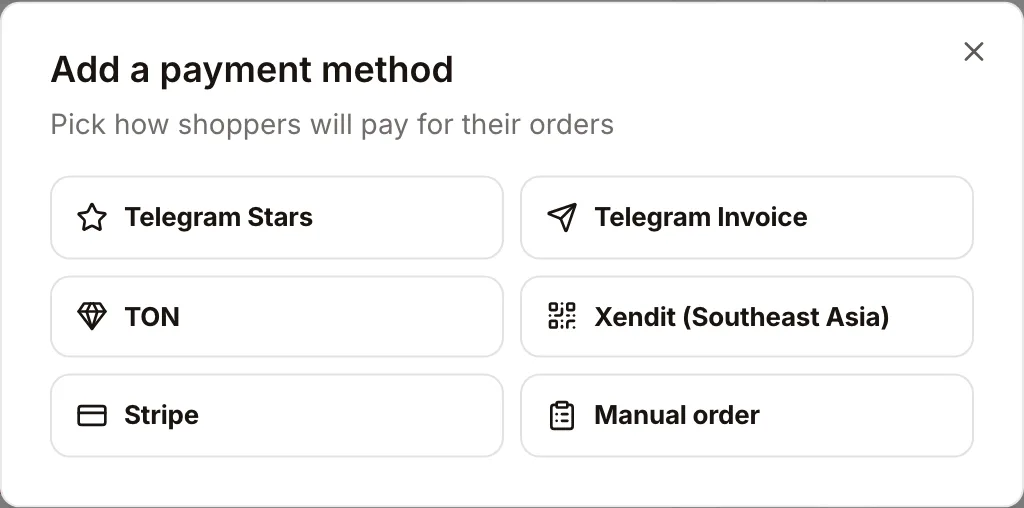
You can keep several methods on at once, reorder them, mark one as the default and give each its own label. Methods that need an account show Not connected until you finish the steps below; buyers never see a method that can't take the payment.
Telegram Stars#
Stars are Telegram's own currency. The buyer pays from their Stars balance without leaving the chat, and the Stars land in your bot's balance.
- Set the store currency to Telegram Stars (XTR) in Storefront Settings → Orders & Payments.
- In Checkout → Payment methods, add Telegram Stars.
That's all. Stars suit digital goods, access and small purchases. Prices are whole Stars only. Telegram lets you withdraw Stars to TON after its holding period.
Telegram Invoice (BotFather providers)#
Telegram has its own payment sheet, backed by about 20 providers: Stripe, Freedom Pay, YooKassa and others, each available in its own countries. You connect one by pasting the provider token that @BotFather issues for your bot.
- In Telegram, open @BotFather →
/mybots→ your store bot → Bot Settings → Payments. - Pick a provider and finish its sign-up. Start with the test token.
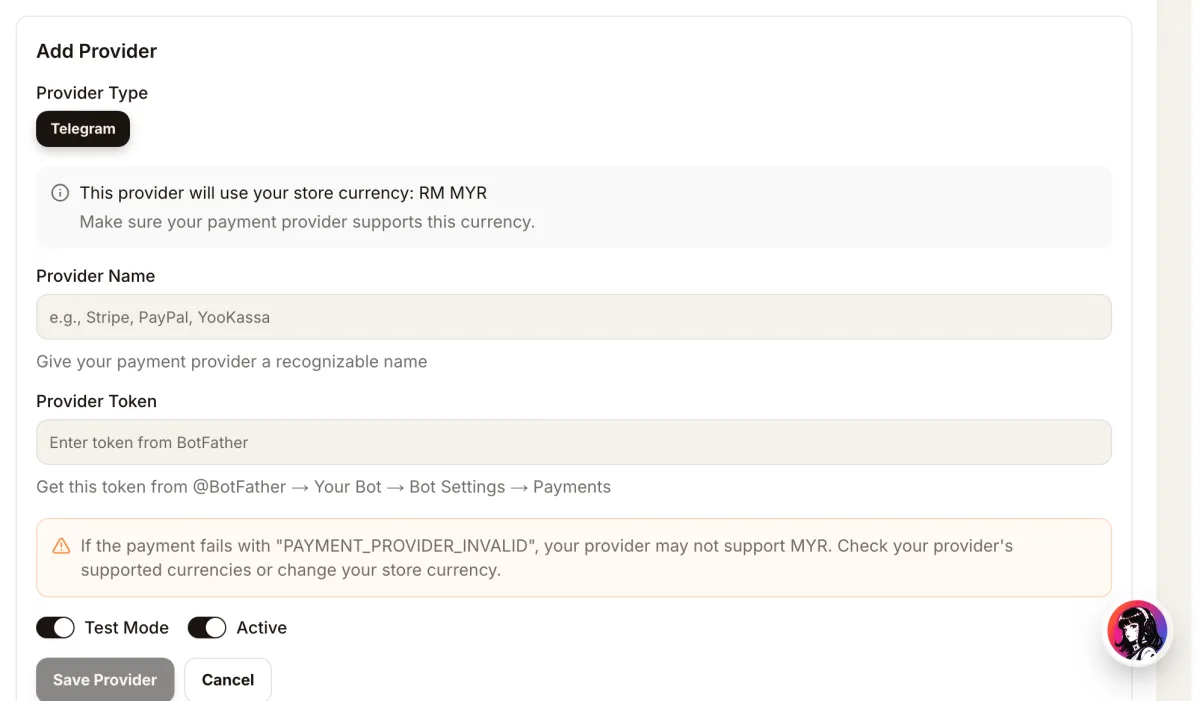
- In the dashboard open Storefront Settings → Orders & Payments, choose Telegram Payments and click Add Provider.
- Enter a name you will recognise (for example "Stripe") and paste the token. Leave Test Mode on for the first order.
- In Checkout → Payment methods, add Telegram Invoice.
The provider must support your store currency, otherwise Telegram answers PAYMENT_PROVIDER_INVALID. After a test order goes through, take the live token from BotFather and replace the test one. Step-by-step guides for two providers: Stripe and Freedom Pay.
Stripe (cards inside the Mini App)#
This is Stripe connected to Tiny Shops directly, without BotFather. The buyer pays by card, Apple Pay or Google Pay on a form inside your Mini App, and payouts go to your own Stripe account.
- Open Checkout → Payment methods and find the Stripe Connect card.
- Choose the country where your business is registered. Stripe fixes it for the account, so pick your business country, not where you are now.
- Click Connect Stripe and complete Stripe's onboarding.
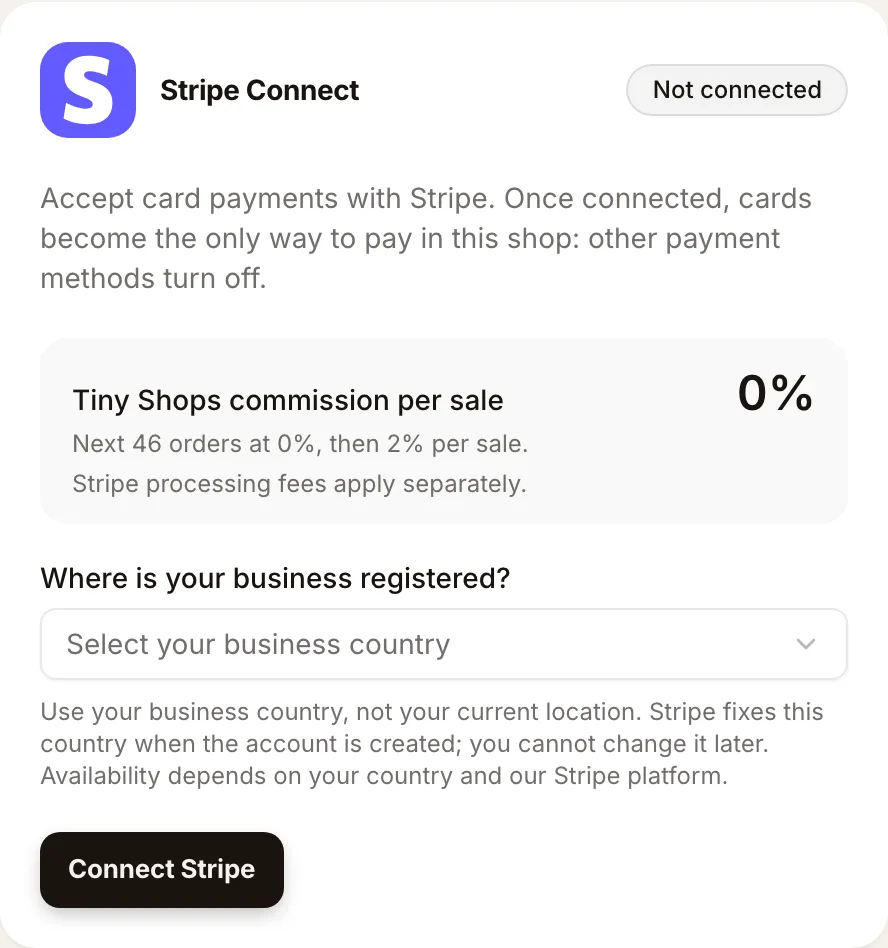
Once Stripe is connected, cards become the only way to pay in that store, and the other methods turn off. If you want cards next to Stars or local methods, use a BotFather provider through Telegram Invoice instead.
Xendit: local payments in Southeast Asia#
Most buyers in Southeast Asia don't pay online by card. Through your own Xendit account, your store takes the methods they actually use:
- Indonesia (IDR): QRIS; GoPay, DANA, OVO, ShopeePay; bank transfer to BCA, Mandiri, BNI, BRI, Permata, BSI and CIMB Niaga; cash at Alfamart and Indomaret.
- Philippines (PHP): QR Ph; GCash, Maya, GrabPay; BPI online banking; cash at 7-Eleven.
- Malaysia (MYR): FPX online banking with 20 banks; Touch 'n Go, ShopeePay, GrabPay; DuitNow.
- Everywhere: cards, PayLater and any other method on your Xendit account, through Xendit's secure payment page.
Connect your Xendit account#
You can start with test keys right away. Live payments start once Xendit has verified your business, which takes up to 14 working days.
- Open Checkout → Payment methods, find the Xendit card and click Connect Xendit. Choose the country your Xendit account is in. No account yet? The card links to Xendit's sign-up.
- In Xendit open Settings → Developers → API Keys and generate a secret key with Money-in: Write permission. Paste it into the card. We check the key with Xendit before saving it, and it is stored encrypted.
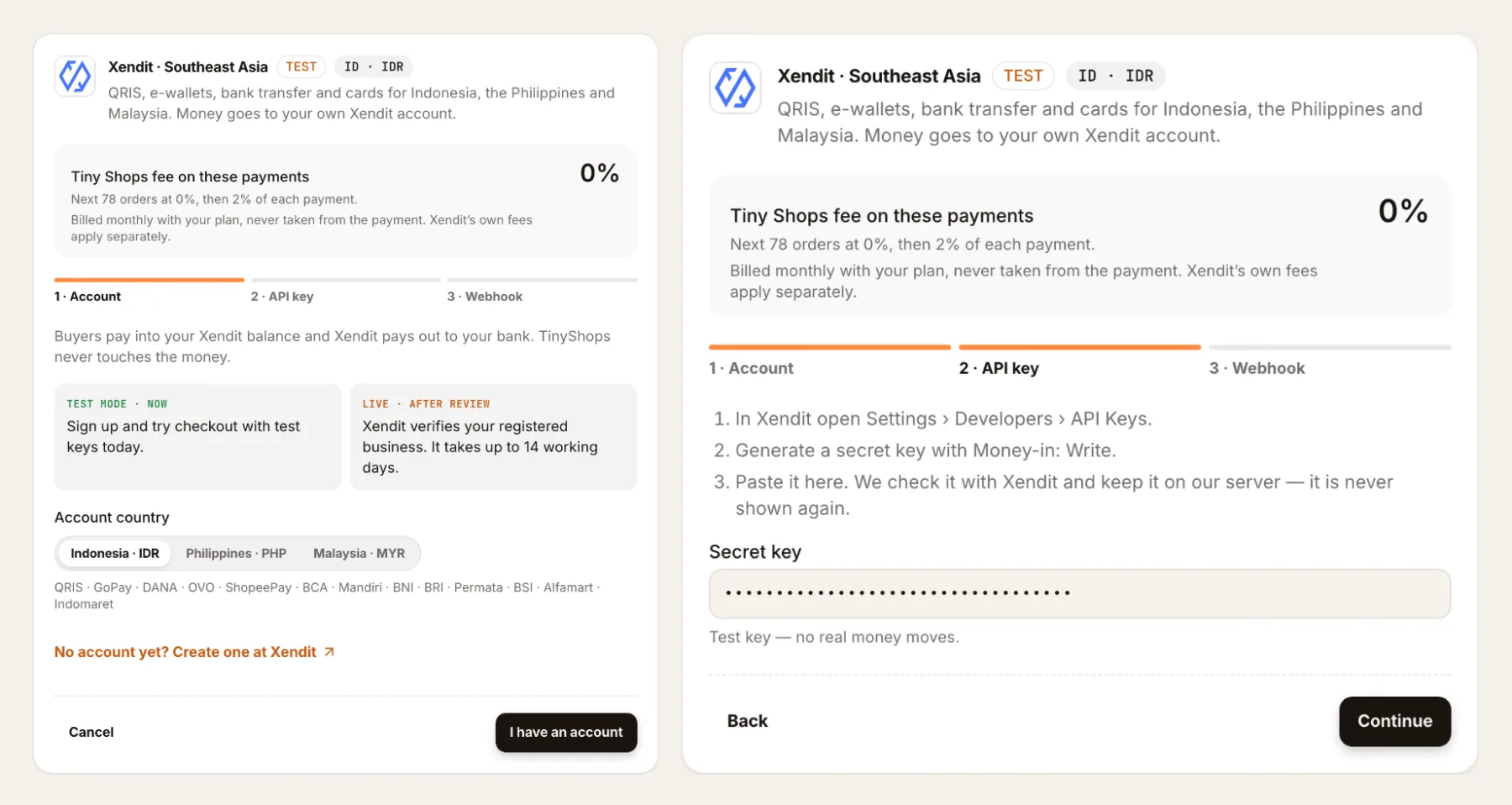
- Copy Your webhook URL from the card. In Xendit open Settings → Developers → Webhooks and paste it into four fields, pressing Test and save on each: Payment Status and Payment Request Status (under Payment Requests V3), and Payment Session Completed and Payment Session Expired (under Payment Session).
- Copy the webhook verification token from the same Xendit page into the card and click Connect.
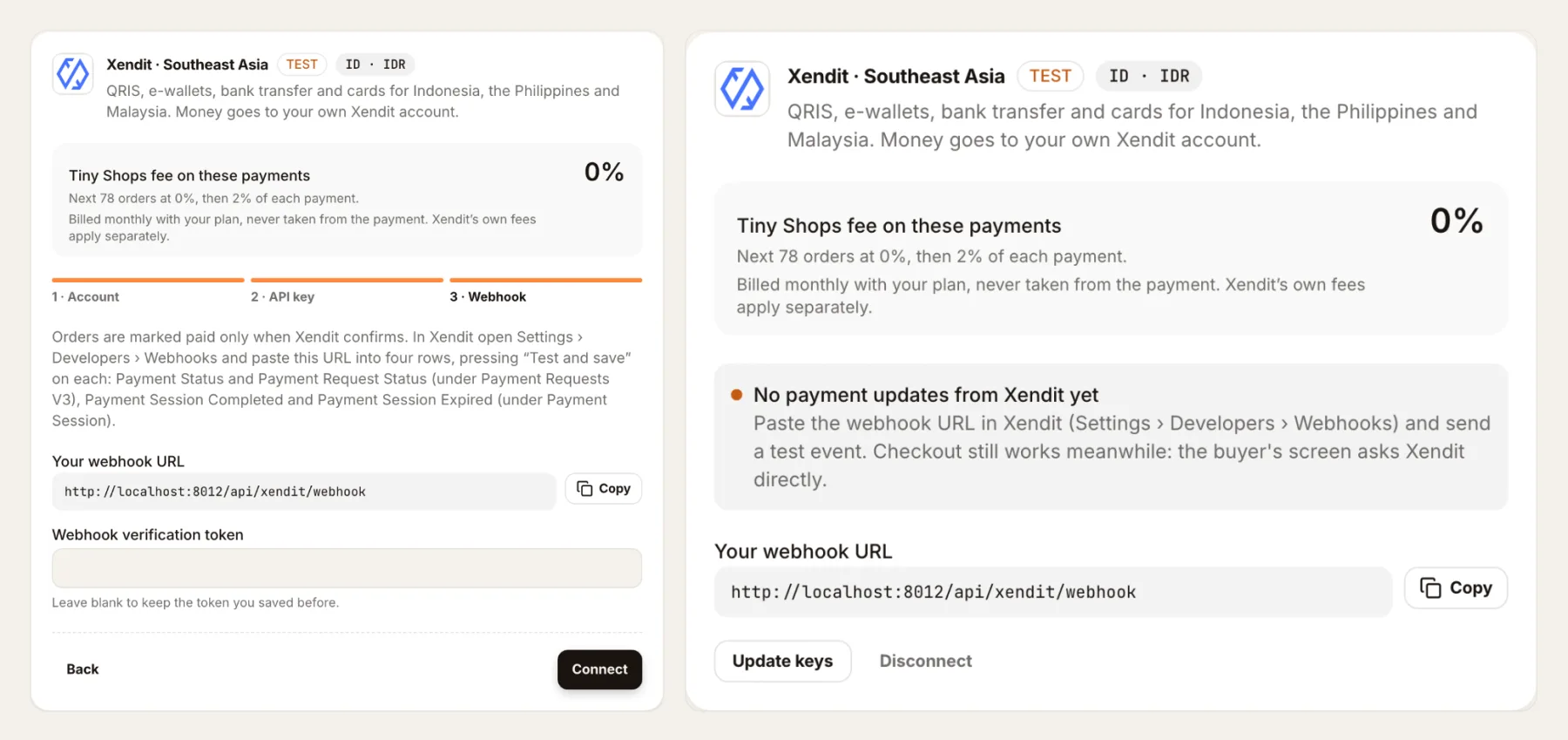
The card shows when the last payment update from Xendit arrived, so you can see that the webhook works. The URL on your card is your store's own address, not the test address in this screenshot.
- Set the store currency to the currency of the Xendit country (IDR, PHP or MYR). Until it matches, the card warns you and buyers don't see Xendit.
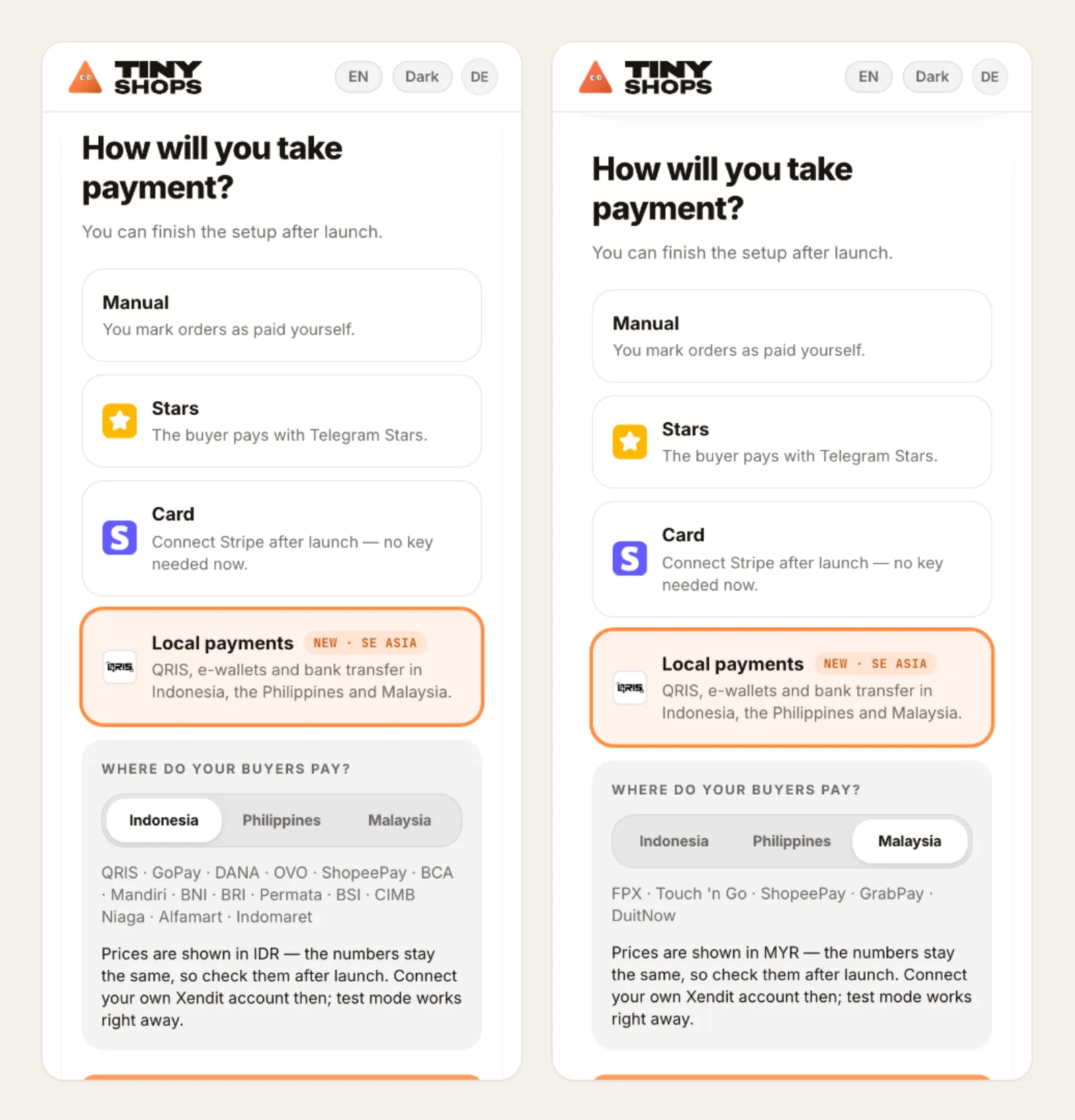
New stores can pick Local payments right in the setup wizard and choose the country. Prices are shown in that currency from the start, and the Xendit keys are added after launch:
What the buyer sees#
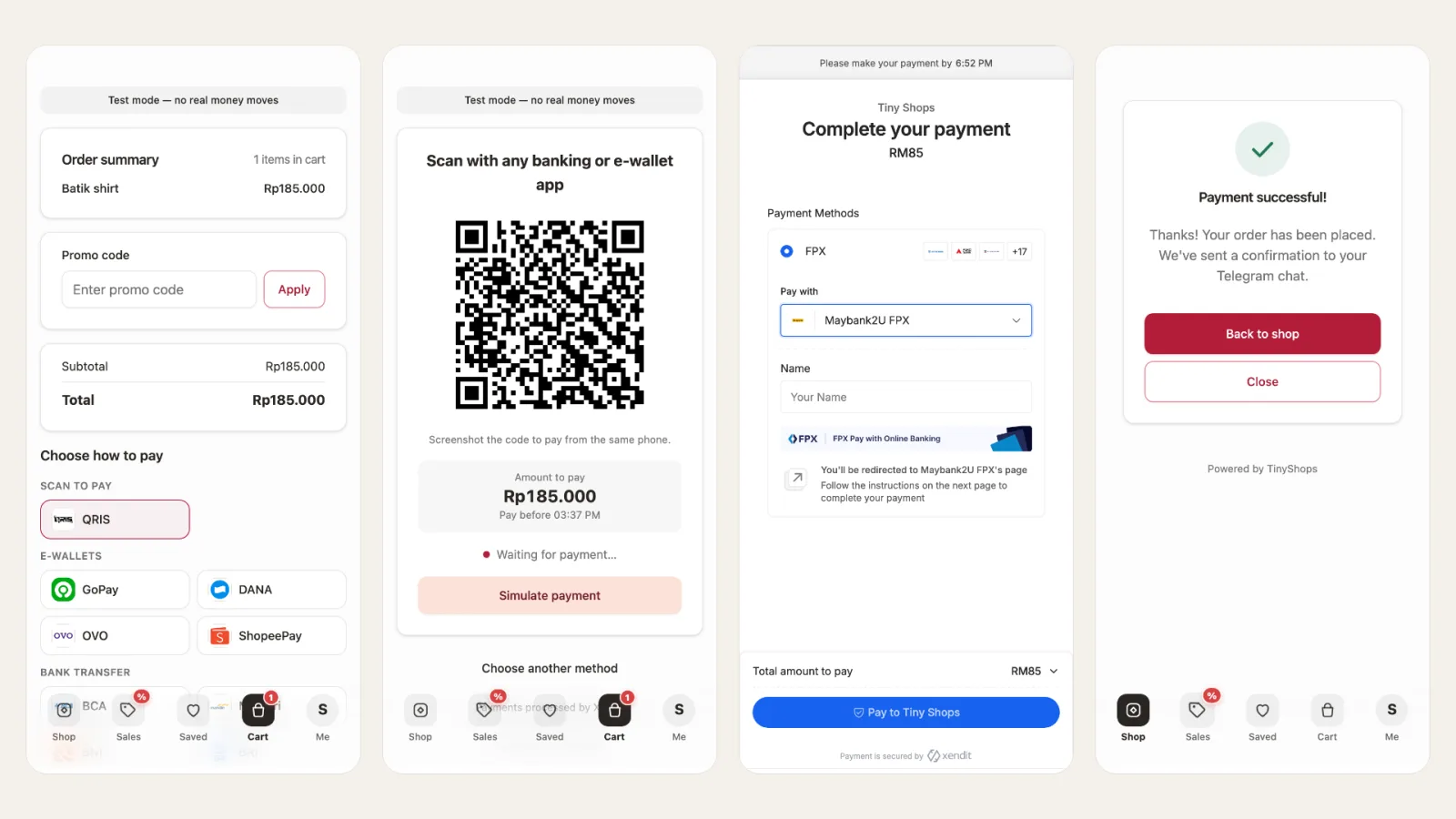
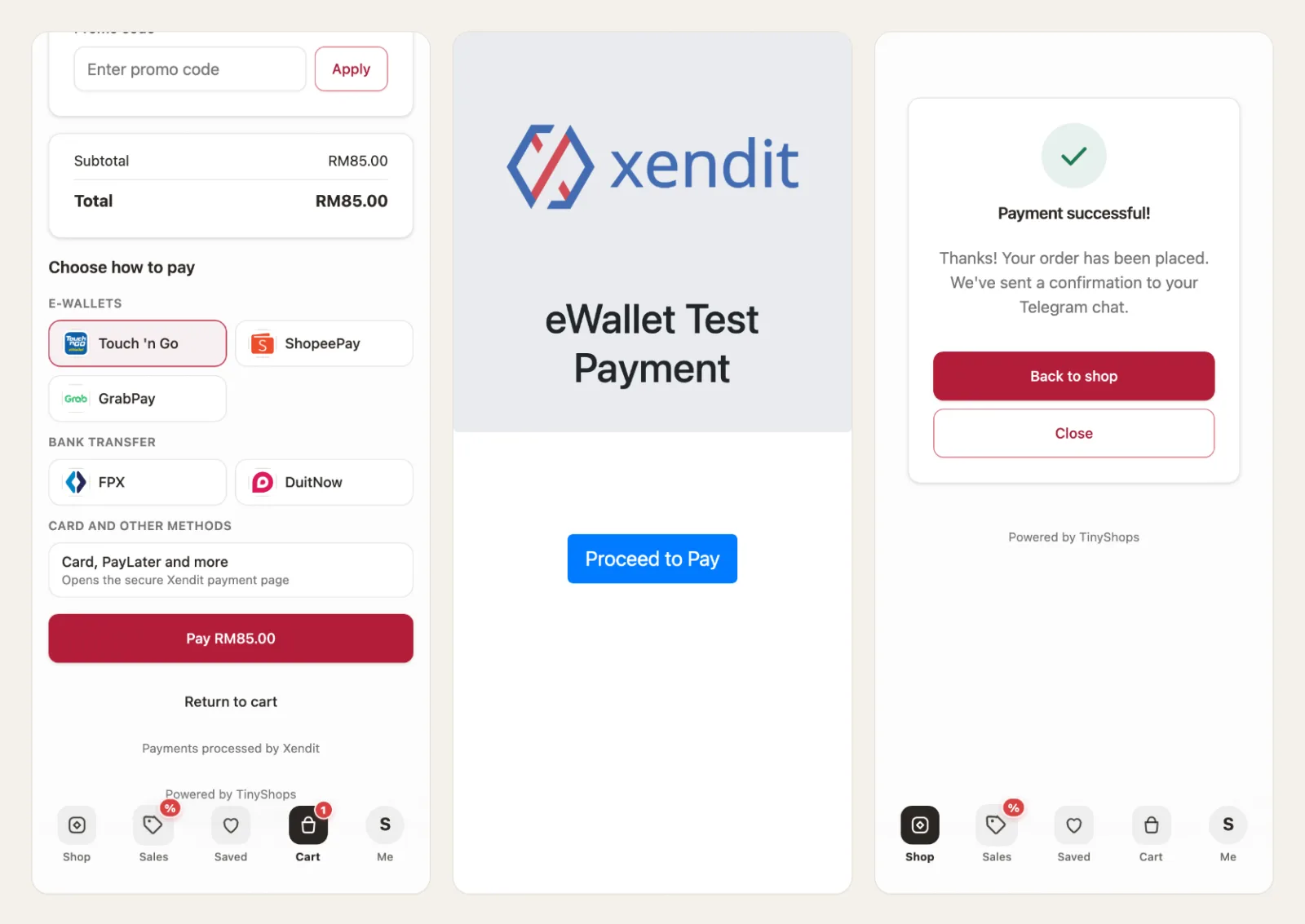
At checkout the methods are grouped the way buyers think about them: scan to pay, e-wallets, bank transfer, pay at a store. Methods whose limits don't fit the order total are hidden. For QRIS, bank transfer and store codes the buyer stays in your Mini App: they see the QR code, the account number or the code for the cashier, with a copy button and the time left to pay. When the money arrives, the screen moves on by itself.
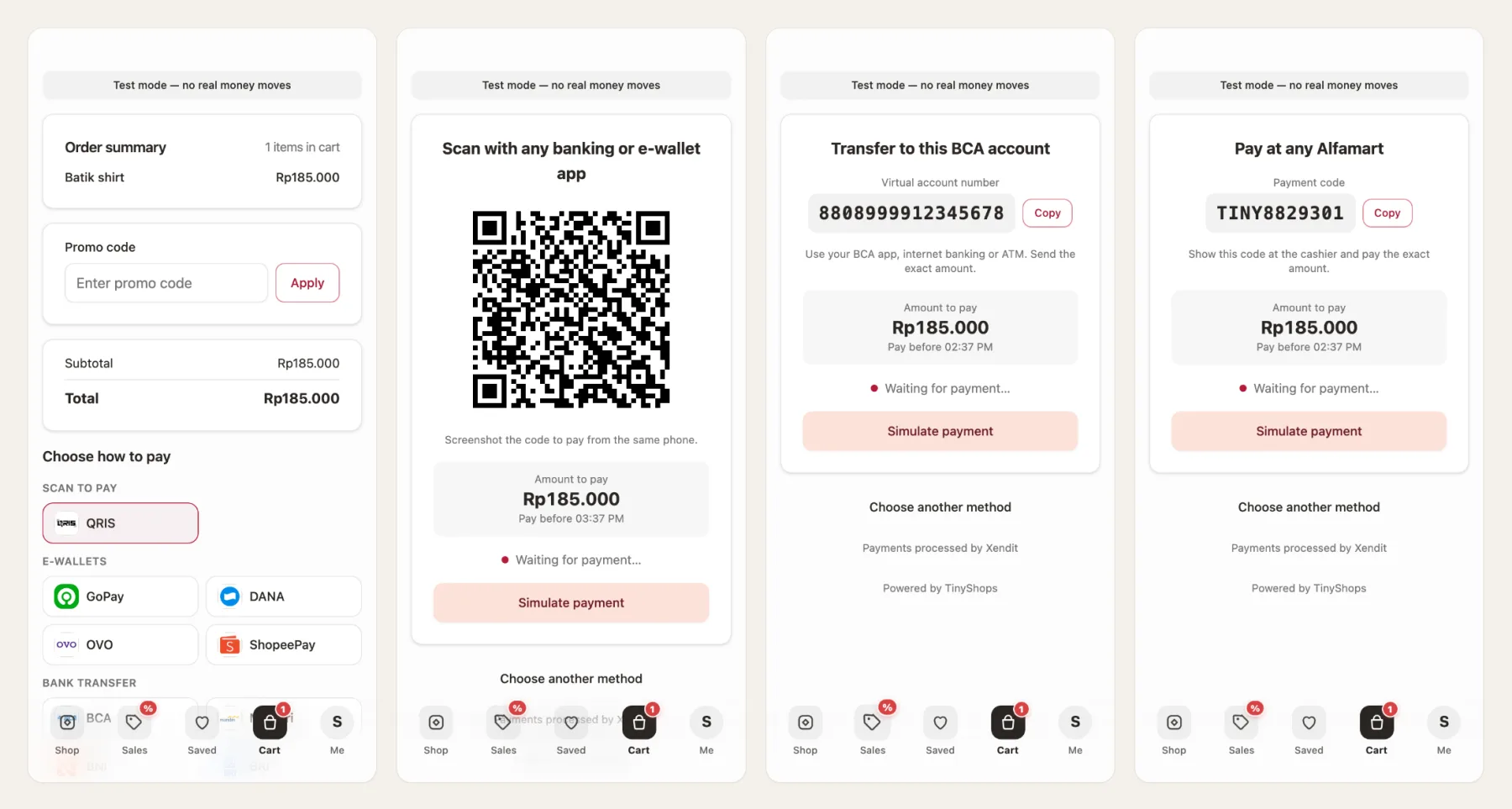
E-wallets open the wallet's app or page and return the buyer to your store:
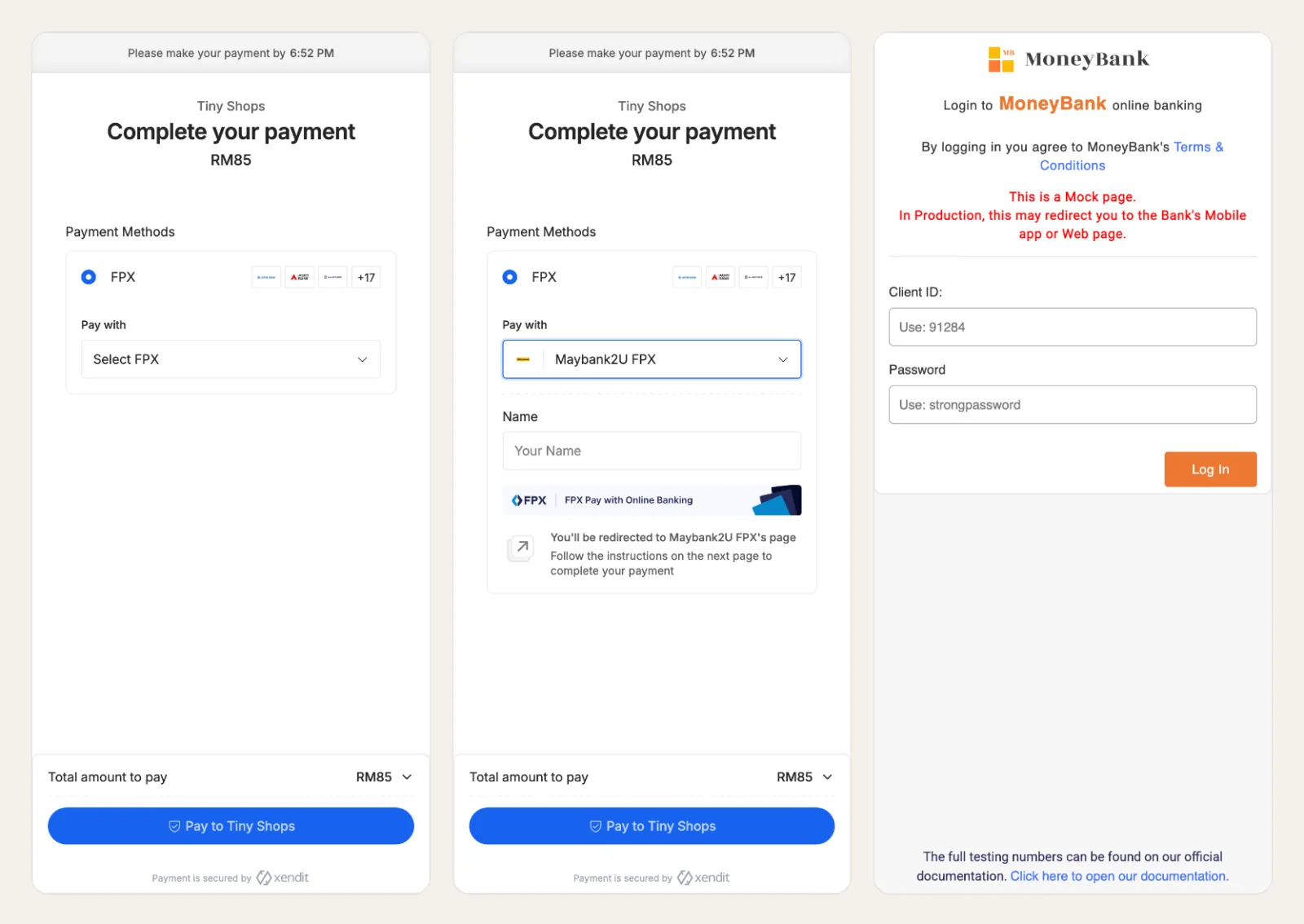
FPX and DuitNow go through Xendit's payment page, where the buyer picks their bank:
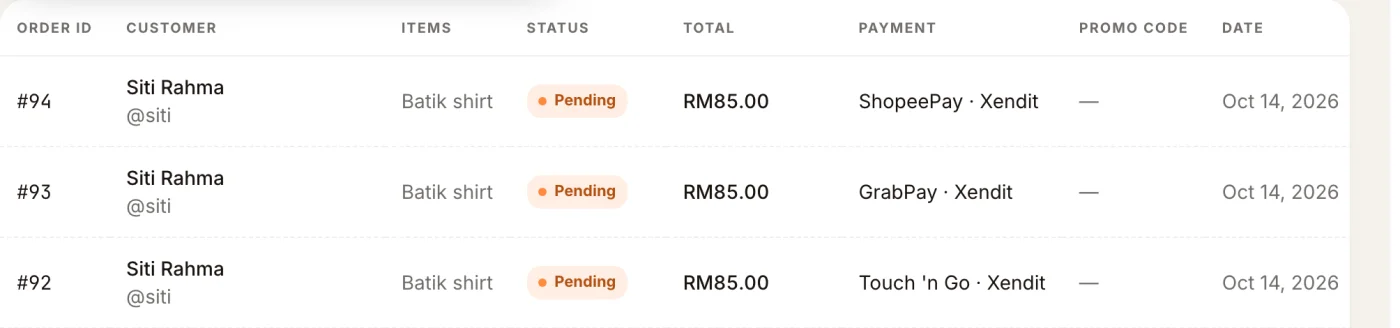
In test mode the payment screen has a Simulate payment button, so you can place a full test order without real money. Every Xendit order shows up in Orders with its method, like any other paid order:
TON#
Buyers pay in TON from any TON wallet by scanning a QR code or opening the wallet link. The money goes straight to your wallet with no intermediary.
- In Storefront Settings → Orders & Payments, choose Crypto Payments.
- Add a TON provider and paste your wallet address (it starts with
EQorUQ; testnet addresses start withkQor0Q). The store currency switches to TON automatically. - In Checkout → Payment methods, add TON.
Prices in a TON store are set in TON.
Manual order#
The buyer places the order without paying online, and you agree on payment yourself: cash on delivery, a bank transfer, an invoice. In Checkout → Payment methods, add Manual order, then update the order's status in Orders once you are paid.
Razorpay, Midtrans and NOWPayments#
These three still work in stores that use them, but they don't have a setup screen in the dashboard. You connect them through Nano, the dashboard assistant, or through the Tiny Shops API (create_payment_provider, then update_checkout):
- Razorpay (India: UPI, cards, netbanking): key ID and key secret from Razorpay → Settings → API Keys.
- Midtrans (Indonesia): merchant ID, client key and server key. For new Indonesian stores we recommend Xendit, which covers the same methods and more.
- NOWPayments (crypto): API key and IPN secret.
For example, tell Nano: "Connect Razorpay, here are my key ID and key secret."
Before you go live#
- Test first. Every method has a test mode: Stars and BotFather test tokens, Stripe test mode, Xendit test keys, a TON testnet wallet. Place one full order end to end before switching to live keys.
- Match the currency. Each provider charges in specific currencies. Xendit needs the country currency, and a BotFather provider needs one it supports.
- Check that orders arrive. Each paid order reaches you in Telegram and appears in Orders. For Xendit, the card also shows when the last payment update arrived.
Still deciding between Stars and cards? Read Stars vs Stripe for Telegram checkout, or the overview of payments in Telegram.
