Tiny Shops is a no-code Telegram Mini App shop builder. Stripe is a card (and Apple Pay / Google Pay) rail for physical goods and services — you connect it as a Telegram Payments provider by taking a provider token from @BotFather and pasting it into Tiny Shops. There is no Stripe-specific button in the dashboard; any BotFather token works the same way. You type Stripe yourself as the Provider Name.
This how-to is for merchants in Stripe-available countries (US, UK, EU, and other Stripe geos) who ship physical goods or offline services. It is the click-by-click spoke for Stripe — not a Stripe-vs-Stars comparison. For when to use cards vs Stars, see Telegram checkout: Stripe for parcels, Stars for digital. For the full payments hub (all methods), see how to accept payments in Telegram. Selling in Central Asia on Freedom Pay instead? Use the sibling Freedom Pay how-to.
What you need#
- A Telegram bot linked to your Tiny Shops store
- A Stripe account for your business country (complete onboarding / KYC so live charges can settle)
- Store currency set to a currency your Stripe account supports (not
XTR)
Step 1 — Stripe account#
- Create or open your Stripe account and finish business verification for your country.
- Confirm in the Stripe Dashboard that you can accept card payments in your selling currency.
- Keep the account ready for test first; you will switch to live after a successful test checkout in Telegram.
You do not need a custom Stripe Checkout integration or Stripe API keys for Tiny Shops Telegram Payments. BotFather’s Stripe connection issues the provider_token Tiny Shops uses.
Step 2 — Provider token in BotFather (TEST then LIVE)#
Exact BotFather labels from Telegram’s Bot Payments docs:
| Mode | BotFather label | Notes |
|---|---|---|
| Test | Stripe TEST MODE | No real charges; use Stripe test cards |
| Live | Stripe LIVE MODE | Live token contains :LIVE: in the middle (e.g. 123:LIVE:XXXX) |
- Open @BotFather →
/mybots→ your Tiny Shops bot. - Bot Settings → Payments.
- Choose Stripe TEST MODE first. Complete the redirected Stripe connect flow if prompted.
- Copy the TEST provider token BotFather shows (name, token, connection date).
- After testing in Tiny Shops, return here and enable Stripe LIVE MODE. Copy the LIVE token — do not share it.
Telegram does not process cards and takes no commission on third-party provider payments; Stripe does the acquiring. Apple Pay and Google Pay surface when Stripe and the shopper’s device support them — you do not configure wallets separately in Tiny Shops.
Step 3 — Paste the token in Tiny Shops#
- Open the dashboard → Storefront Settings → Orders & Payments.
- Select Telegram Payments.
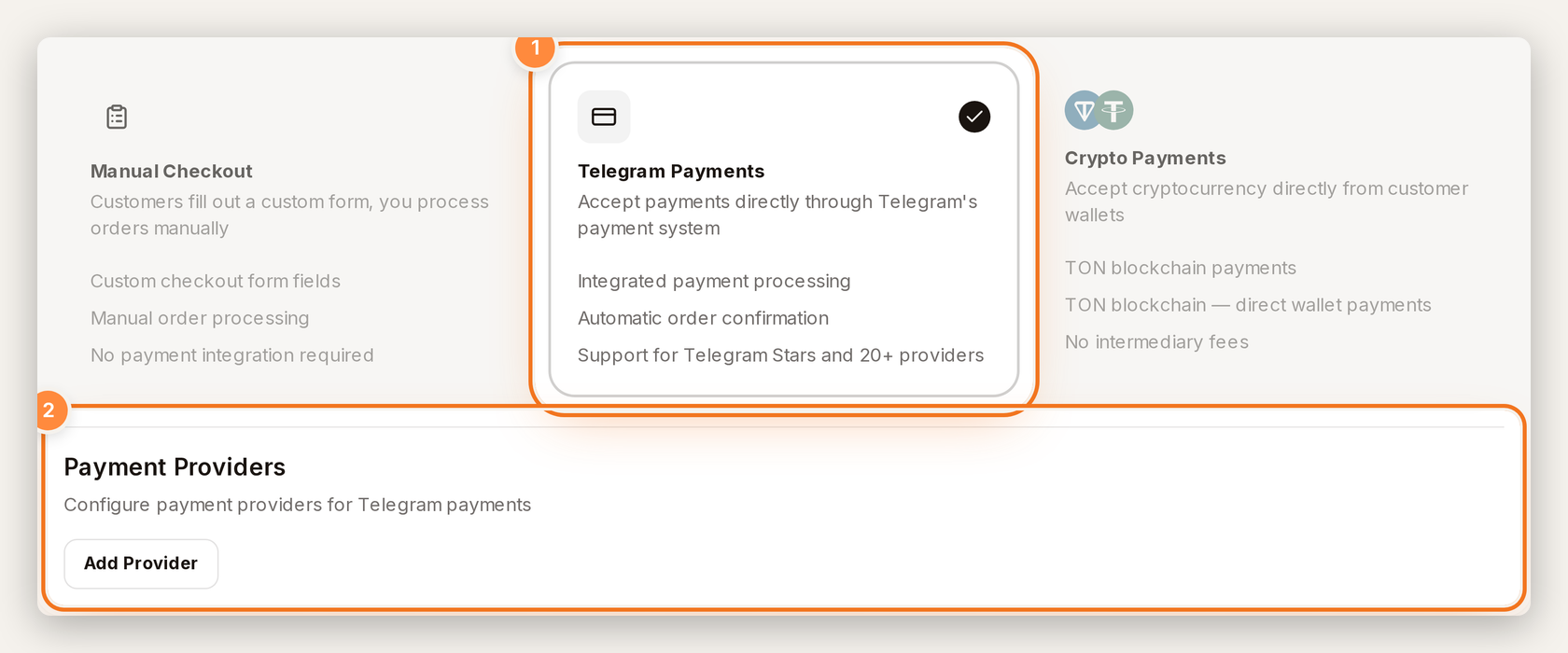
Telegram Payments mode — Add Provider is on this screen.
- Click Add Provider and fill in:
- Provider Name — type
Stripe(Tiny Shops does not pre-fill a Stripe option) - Provider Token — paste the Stripe TEST MODE token from BotFather
- Test Mode — on while testing
- Active — on so checkout can offer it
- Provider Name — type
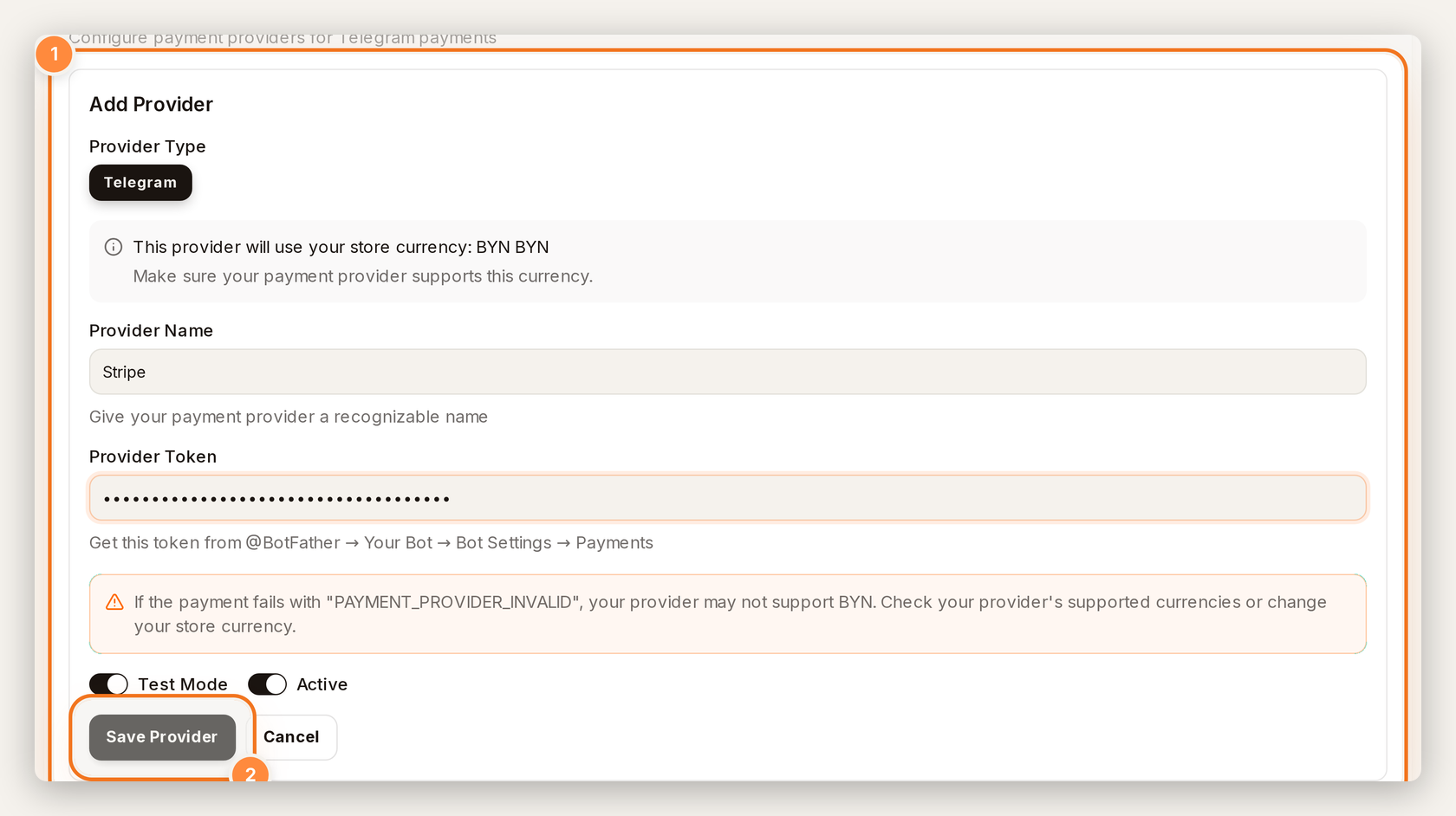
Add Provider — name Stripe, BotFather token, Test Mode, Active, Save Provider.
- Click Save Provider.
- Confirm the saved row shows Active (and Test Mode while testing). The provider row has Edit / Delete — there is no Make default on the Telegram Payments provider list. If your shop also uses Checkout Form payment methods, Default lives on that rail instead.
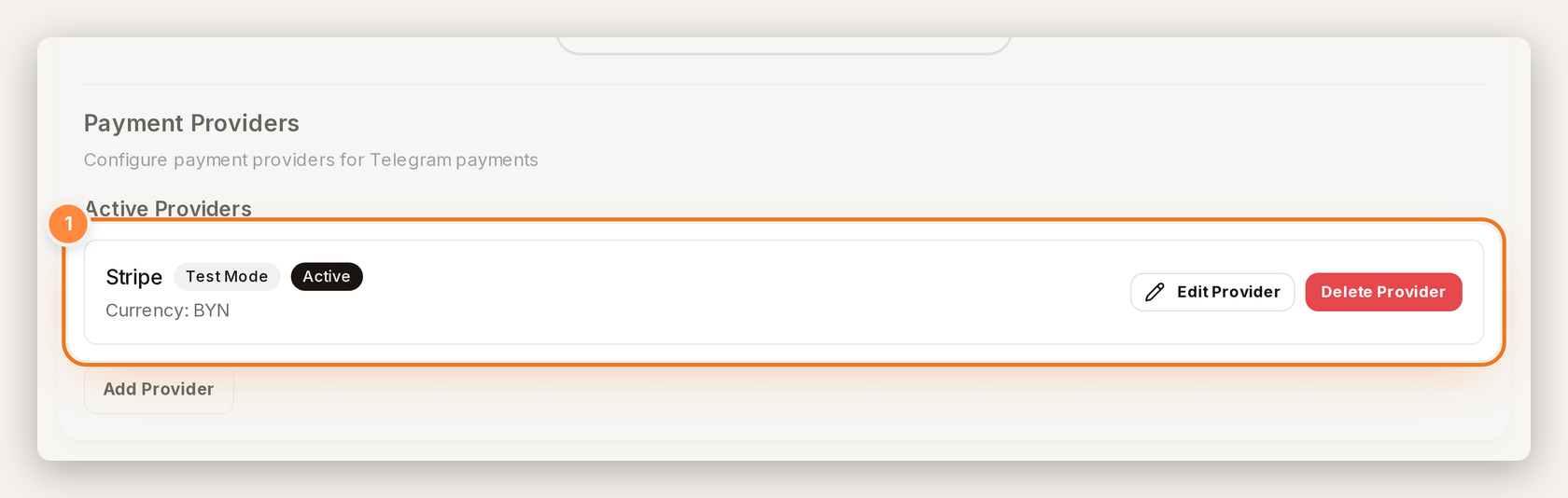
After save — Stripe row with Test Mode and Active; Edit / Delete only (no Make default).
- Set store currency to one your Stripe account supports (USD, EUR, GBP, etc. — not
XTR).
Official path and fields: Telegram Payments docs.
Step 4 — Place a test order#
In the Mini App, check out with Stripe’s published test card (from Telegram’s payments docs / Stripe testing):
| Field | Test value |
|---|---|
| Card | 4242 4242 4242 4242 |
| Expiry | any future date |
| CVC | any 3 digits |
| ZIP / postal (if asked) | any valid-looking value |
Real cards cannot be used in Stripe TEST MODE. Prefer Stripe’s current test card list if Telegram’s example has been superseded.
Confirm the PaymentIntent / charge appears in the Stripe Dashboard (test mode), not only in Tiny Shops orders.
Step 5 — Go live#
- Finish Stripe onboarding so the account can accept live payments.
- In BotFather → Payments, connect Stripe LIVE MODE and copy the live token (
:LIVE:in the middle). - In Tiny Shops, Edit the Stripe provider: paste the live token, turn Test Mode off, keep Active on, click Save Provider.
- Confirm the row shows Active without Test Mode. That is enough for Telegram Payments — you do not need a Make default control on this provider row.
- Place a small real order and confirm settlement in the live Stripe Dashboard.
Before going live, also follow Telegram’s live checklist (2FA on the bot owner account, /terms, /support, chargeback readiness).
Physical goods vs digital (Stars)#
| Catalog | Payment path |
|---|---|
| Physical goods & services | Stripe (or another) BotFather provider token |
| Digital goods/services inside Telegram apps on mobile | Telegram Stars (XTR) — empty provider token; see Stars payments |
Apple/Google rules mean mobile users must not be offered third-party card checkout for digital goods inside Telegram. If your catalog mixes both, use Stars for digital SKUs and Stripe for physical — see the Stripe vs Stars rulebook.
Fees and currency#
- Telegram takes no commission on third-party provider payments (Telegram FAQ).
- Tiny Shops does not take a platform cut on the charge.
- Stripe charges its own fees. Telegram cites the US example 2.9% + 30¢ per successful card charge; Stripe pricing publishes the same standard domestic card rate for many markets, but your Dashboard / country pricing is authoritative — do not assume one number for every geo (international cards, local methods, and custom plans differ).
- Supported invoice currencies depend on your Stripe account country; align Tiny Shops store currency with what Stripe accepts.
FAQ#
Is this the same as the Stripe vs Stars article?
No. That post is the rulebook (parcels → cards, digital → Stars). This post is the how-to: BotFather → token → Tiny Shops paste.
Do I need Stripe API keys or Checkout Session code?
No for Tiny Shops Telegram Payments. You only need the BotFather provider token from Stripe TEST MODE / Stripe LIVE MODE.
Why PAYMENT_PROVIDER_INVALID?
Often a currency mismatch. Align store currency with what Stripe supports for your account country.
Can I use Stripe for digital downloads on mobile?
Use Stars (XTR) for digital goods on mobile. Stripe’s provider token is for the physical/services rail.
Where do buyers pay?
Inside Telegram’s native payment sheet after checkout in your Mini App. Apple Pay / Google Pay appear when supported — no redirect to a random website.
Does Tiny Shops show “Stripe” as a built-in provider?
No. You add a generic provider and type Stripe in Provider Name.
TEST Mode in Tiny Shops vs Stripe TEST MODE in BotFather?
Use both together while testing: BotFather Stripe TEST MODE token + Tiny Shops Test Mode on. For live: BotFather Stripe LIVE MODE token + Tiny Shops Test Mode off.
Sources / further reading#
- Telegram Bot Payments (physical goods) — Stripe TEST MODE / Stripe LIVE MODE
- Telegram Stars / digital goods
- Stripe pricing · Stripe testing cards
- Tiny Shops — Telegram Payments
- How to accept payments in Telegram (hub)
- Telegram checkout: Stripe for parcels, Stars for digital
- How to connect Freedom Pay (Central Asia spoke)
- Tiny Shops pricing
Create or open your store at tiny-shops.com — or start from the Telegram shop builder →
- 🇬🇧 Tiny Shops EN
- 🇷🇺 Tiny Shops RU
