To make a Telegram bot, open @BotFather in Telegram, send /newbot, pick a name and a username that ends in "bot", and copy the token BotFather sends back. That takes about a minute and costs nothing. The bot is empty at that point, though: it answers nobody until a program behind it reads the token. This guide covers both halves for a seller who doesn't code: the exact BotFather steps, how to set up the bot's profile, and how to connect it to Tiny Shops so it opens a real store with a catalog, a cart and checkout.
Two ways to make a Telegram bot#
| Way | What you do | Token | Best for |
|---|---|---|---|
| BotFather | Send /newbot to @BotFather, answer two questions | You copy it and paste it into the service that runs the bot | Any bot, any service |
| Created by a service for you | Confirm a bot-creation screen in Telegram | The service receives it from Telegram; you never copy it | Launching fast on a platform that supports it |
The second way is Telegram's managed bots (Bot API 9.6, April 2026): a service whose bot has management mode turned on can ask Telegram to create a bot for you. The bot is still yours. Tiny Shops supports both ways; the BotFather way works everywhere, so it comes first.
How to make a Telegram bot in BotFather#
- Open @BotFather. Use the link t.me/BotFather or search for it in Telegram. There is only one BotFather; copycats use similar names, so check the username is exactly
@BotFather. Tap Start. - Send
/newbot. BotFather asks for a name. - Pick the name. This is what people see in their chat list and on the bot's profile. Use your shop's name, for example
Fresh Bakery. You can change it later with/setname. - Pick the username. It must be 5–32 characters long, use only Latin letters, numbers and underscores, and end in
bot:fresh_bakery_botorFreshBakeryBot. The username can't be changed later, so choose one you'll keep. If it's taken, BotFather tells you right away; try another variation. - Copy the token. BotFather replies with your bot's link (
t.me/fresh_bakery_bot) and a token: a number, a colon and a long string of letters and digits, like110201543:AAHdqTcvCH1vGWJxfSeofSAs0K5PALDsaw. Copy it in full.
That's your bot. Open its link and you'll see a Start button, but nothing happens when you press it yet: the bot needs a program to run it.
Keep the token secret#
The token is the key to the bot. Anyone who has it can control the bot: read what people send it and send messages in its name.
- Don't post it in chats, screenshots or public documents.
- Paste it only into the service that will run your bot. Tiny Shops stores bot tokens encrypted.
- If it leaks, open BotFather, send
/token(or go to/mybots→ your bot → API Token) and generate a new one. The old token stops working, so paste the new one wherever the bot runs.
Set up the bot's profile#
A shop bot is the first thing a buyer sees, so fill in its profile before you share it. All of this is done in BotFather: send the command, pick your bot, send the value. You can also do it through /mybots → your bot → Edit Bot, or in BotFather's Mini App.
| Command | What it changes | Limit |
|---|---|---|
/setuserpic | Profile photo | A square image works best: your logo |
/setdescription | The text under "What can this bot do?" in an empty chat, before the person presses Start | 512 characters |
/setabouttext | The short bio on the bot's profile page | 120 characters |
/setname | The display name | — |
A good description says what you sell, where you deliver and how to order: "Sourdough and pastries baked every morning. Delivery across the city, order by 6 pm for tomorrow. Tap Open Shop to see the menu."
Skip /setcommands and the menu button if you connect the bot to Tiny Shops: the store sets both for you.
What a bot can't do on its own#
A bot made in BotFather has a name and a token, nothing else. To sell, something has to:
- answer
/startwith a welcome message and a button that opens the shop; - show a catalog with photos, prices and variants, and a cart;
- take payment and record the order;
- tell you about each new order and let you message the buyer.
You can write that program yourself with the Bot API, pay a developer, or connect the bot to a store platform that already does it. If you're weighing those options, see how to choose a Telegram store builder.
How to connect your bot to Tiny Shops#
If you're opening a new store#
- Go to tiny-shops.com and press Start with Telegram. Your Telegram account becomes your login.
- Answer Where will you sell? Pick Mini app storefront for a catalog with a cart, or In a Telegram chat to sell from your personal chats.
- Name the shop (What is the shop called?) and choose how you'll take payment: Manual, Stars, Card or Local payments. You can change it later.
- At the bot step, choose I already have one and paste the token from BotFather. Tiny Shops checks it with Telegram before it goes on.
- Press Create store and open dashboard.
Don't have a bot yet? Choose Create it for me instead. After launch, press Continue in Telegram: Telegram opens a screen that creates the bot on your account with a suggested username, you confirm it, and the store picks the bot up by itself. No BotFather, no token to copy. If that screen doesn't open on your Telegram app, the same page shows the BotFather steps and a Bot token field as a fallback.
If you already have a store#
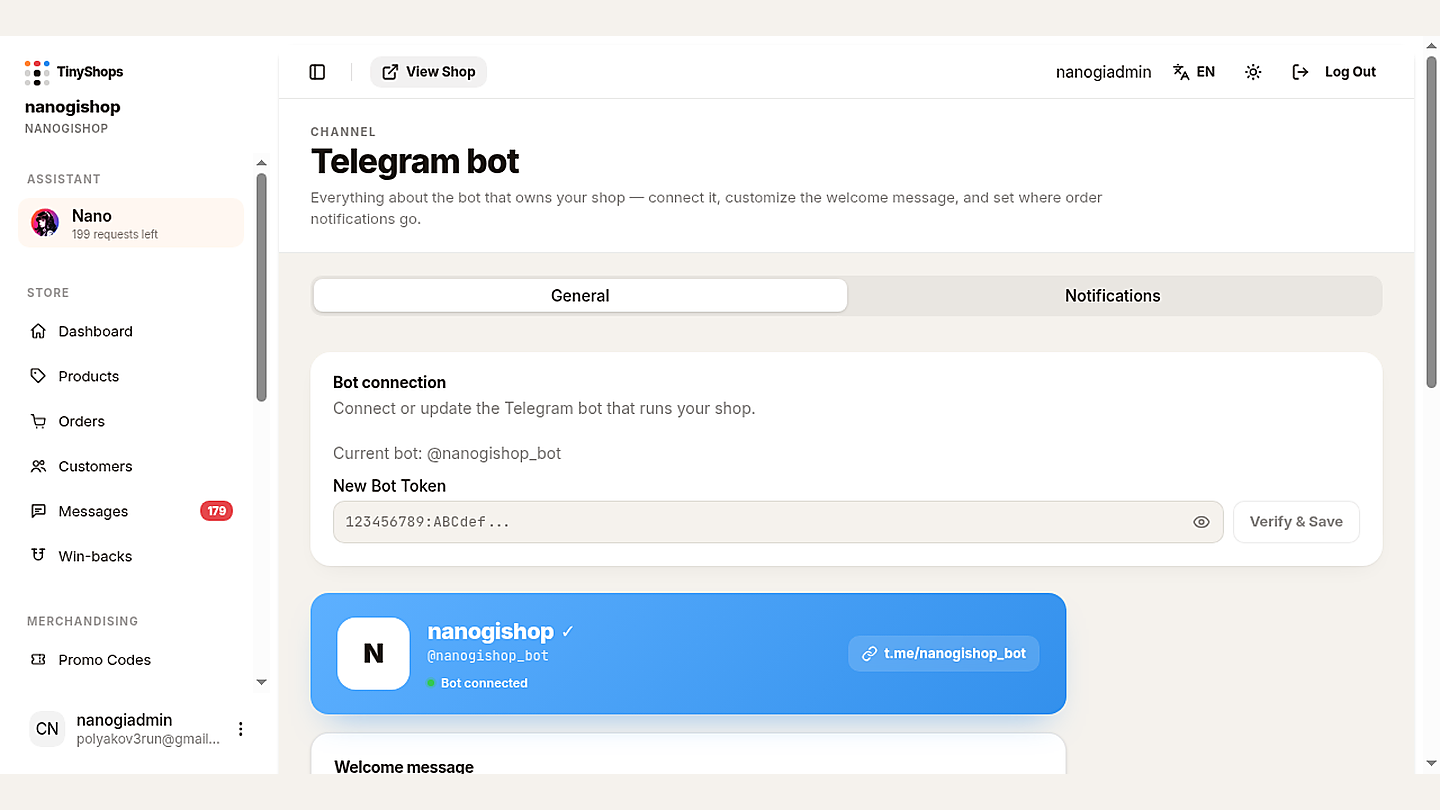
- Open Telegram bot in the dashboard, tab General.
- Under Bot connection, paste the token into New Bot Token.
- Press Verify & Save. The card below shows your bot with Bot connected.
The same section has Create a bot for me if you'd rather let Telegram create the bot.
What the store sets up for you#
When the token connects, Tiny Shops:
- points the bot at your store, so it answers messages;
- for a Mini app storefront, sets the menu button next to the message field to Open Shop, which opens your store as a Mini App;
- registers the command menu:
/startopens the shop,/balanceshows a buyer's bonus balance,/paysupportis for payment questions.
One step stays manual, and only matters for buyers who open the store in a browser instead of Telegram: Telegram ties web sign-in to one domain per bot, and there's no API for it. Send /setdomain to BotFather, pick your bot and paste your store's address. The dashboard shows the exact address under One manual step for browser sign-in. Inside Telegram everything works without it.
Check that the bot works#
- Open your bot in Telegram and press Start. You should get the welcome message with a button that opens the shop.
- Tap Open Shop next to the message field. Your storefront opens inside Telegram.
- In the dashboard, open Telegram bot → General, edit the Welcome message if you like, and press Send test to myself.
If the test doesn't arrive, press Start in your bot first: Telegram only lets a bot write to people who have started it.
What to do next#
A connected bot is a store with no products. The rest of the launch — products, currency, payment methods, order alerts, cashback and your first buyers — is in how to set up a Telegram store bot. For payment options, see how to connect payments to a Telegram shop. If you want to understand the storefront itself, read how to create a Telegram Mini App, and to choose between a store and selling in groups or channels, how to sell on Telegram.
FAQ#
Is it free to make a Telegram bot? Yes. Creating a bot in BotFather costs nothing. Running a store on it with Tiny Shops is $0 a month on the Free plan; your account's first $100 in sales are commission-free once, then each order pays a percent of its total (7% on Free). Details on pricing.
Can I make a Telegram bot without coding? Yes. BotFather is a chat, and a store platform runs the bot for you. You need code only if you want to write the bot's logic yourself.
Can I change my bot's username? No. The username can't be changed after creation. The display name, photo, description and about text can be changed any time in BotFather.
What if I lost my bot token?
Open BotFather, send /token, pick the bot and generate a new token, then paste it into New Bot Token in the dashboard. The old token stops working.
Can one bot run two stores? No. In Tiny Shops each store has its own bot, and a bot connected to one store can't be connected to another. For a second brand, make a second bot: see how to run multiple Telegram shops.
Make your bot, then open your store on it at tiny-shops.com →
